

Follow the steps
Check the link
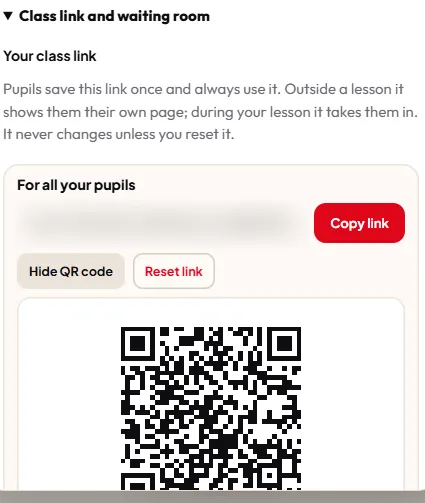
Ask the pupil to open your class link, not an old message or a copy of a copy. Open the More menu, choose Class link and waiting room, press Copy link and share it again, or show the QR code on the board. Outside a lesson the pupil sees No lesson right now, so check your board is open. Once it is, their page moves on by itself. See how the class link works.
Check the name and PIN
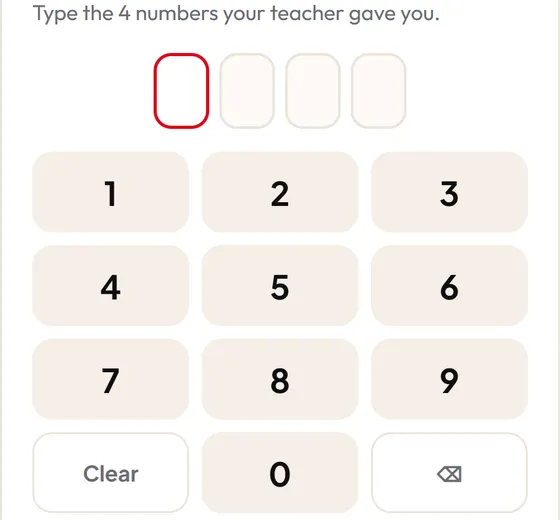
The pupil types their name, then taps their four-number PIN on the keypad. Check the spelling of the name first, and ask them to try again slowly. Only wrong PINs count towards “Too many tries”, and the limit is generous, so a class with a few typos is never locked out. If a pupil is still told to ask you, tap Let them try again, and then the PIN works. If your class uses picture login, the pupil types their name and taps their own picture from six. If they keep tapping the wrong picture, Jotoro asks them to fetch you. See pupil name and PIN login.
Check the waiting room
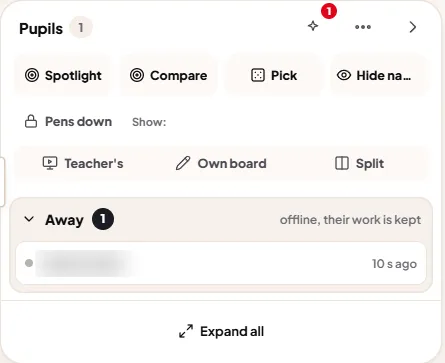
A pupil who has typed their name may be knocking. Look for Waiting in the top bar, tap it and press Let in. Anyone waiting there receives nothing of the lesson until you do. See the waiting room.
Reset the link if it has leaked
If someone who should not have the link has it, open the More menu, choose Class link and waiting room, press Reset link and share the new one with your class. Pupils then use the new link.
Try another device
If a tablet is playing up, try a laptop or another tablet. A pupil who comes back on a new device gets their own board back, and the old device stops. If you see two tiles for one pupil, Tidy up can merge them.
More short videos
When a pupil types a wrong or old code
Good to know
- The class link is permanent, so pupils can bookmark it once. It only changes if you reset it.
- Show the QR code on the board for pupils who find typing the link hard.
- Pupils can join from home or anywhere else, so check their own internet is working before anything else.
Common questions
A pupil typed their name and nothing happened. Why?
They may be knocking. Look for Waiting in the top bar, tap it and press Let in.
Can a pupil join from home?
Yes. Pupils join from anywhere with the class link, in a browser. They do not need to be on your network.
What if a pupil forgets their PIN?
Open Records, go to the Classes tab and tell them their PIN again, privately. See how to add a class and give pupils PINs.
Will resetting the link lock out my pupils?
Pupils need the new link, so share it straight after you reset.
Related guides
 What happens when the Wi-Fi drops?Troubleshooting
 Why can my pupils not see a page?TroubleshootingWhy did a pupil’s tile disappear?TroubleshootingHow to get started with JotoroGetting started
Cannot find an answer?
Tell us what was missing and we will improve this guide.
Suggest an improvement