

Follow the steps
Tap the record button
Tap the record button at the top of the board. A box asks how to record the sound. Choose your sound option in the next step, then tap Record. A bar then shows the word Recording and the time, so you know Jotoro is capturing your board.
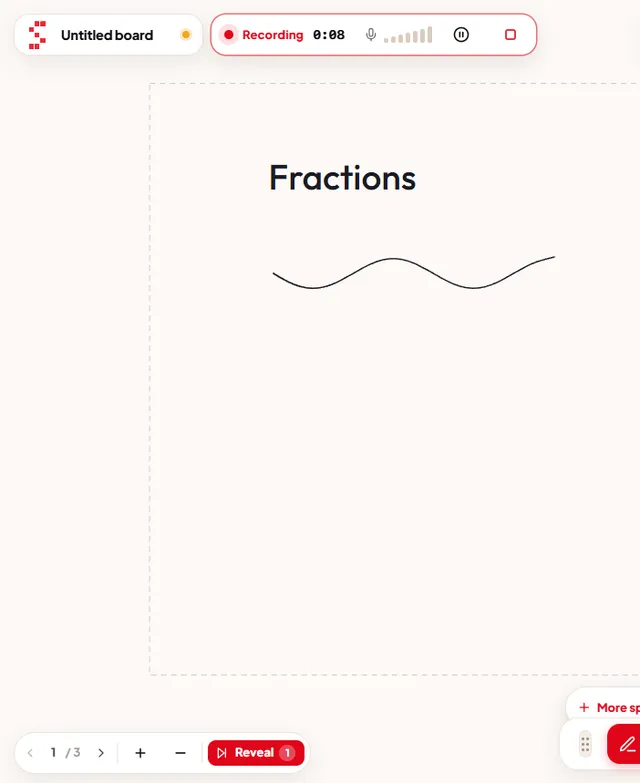
Choose the sound, then Record
Pick No microphone (board only) to record the board without a voice. Pick Natural if you have a good microphone, or Clean-up for a laptop or a noisy room. Quiet voice? Set Volume to Louder or Loudest, and watch the level meter in the Recording bar. Then tap Record.
Explain it on the board
Write, draw and talk it through, just as you would in the lesson. Turn the page whenever you need to. The recording follows whichever board is on your screen, yours or a pupil’s.
Stop
Press the stop icon in the Recording bar. The recording is saved to your account, so you can find it again on any device, and it shows inside the lesson it belongs to.
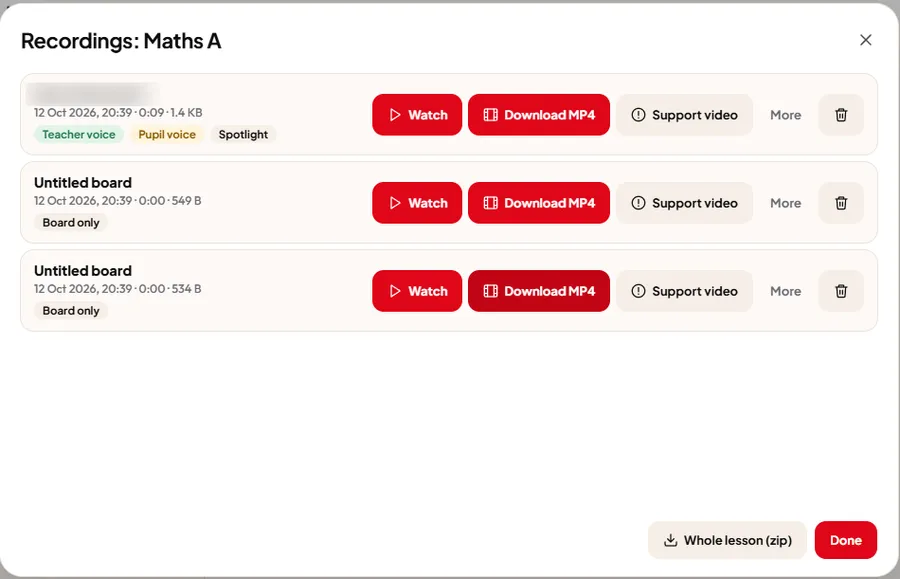
Play it back
Later, open Replays… from the record button or the board menu. The Recordings list opens. Press Watch next to the recording. You can also rename it, or press Add to board… to put it on any other board. The replay is redrawn from your pen strokes, so it stays sharp on any screen. Replay and download has the full tour.
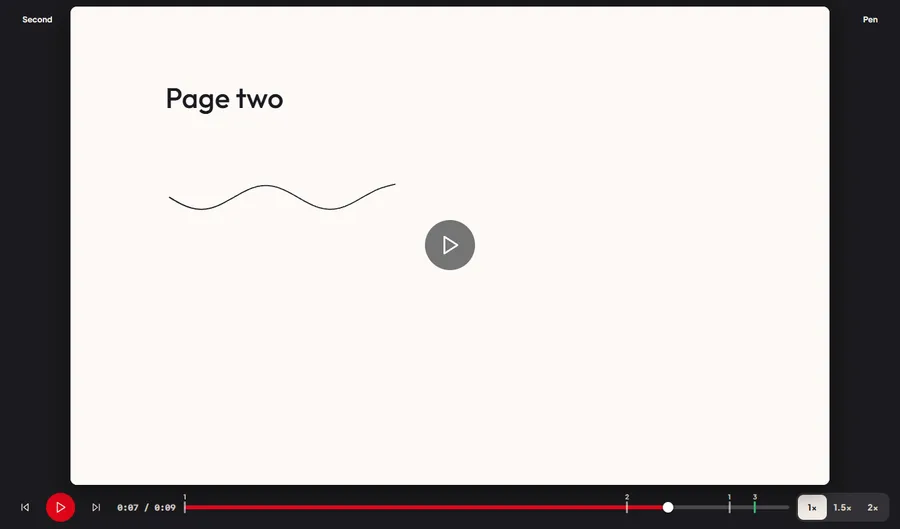
Share it
Press Support video to give pupils a Watch how button, or Download MP4 to share it with parents or on your own channels. If it shows pupils’ work, check you have consent before you share it.
Snap or clip a moment
SnapJot captures any page as a sharp image. JotClips are short video clips. Both land in your JotMoments library, where you can find them by lesson and class.
Good to know
- Say the method out loud as you write it. The best Watch how videos sound like you explaining to one child.
- A pupil’s voice is only recorded with consent on file and the pupil’s own OK.
- Names are hidden by default in SnapJot, and pupil work is only shared outside your organisation with consent.
- Pupils can rewatch a Watch how video at home.
Common questions
Does Jotoro film my screen?
No. It captures your board and your voice, and the replay is redrawn from your strokes. That is why it stays sharp on any screen.
Where is my recording saved?
In your account, so it follows you to any device, and it shows inside the lesson it belongs to. Open Replays… to find it again.
Can I download a recording?
Yes. Press Download MP4 beside it.
Related guides
How to give pupils a “Watch how” videoRecording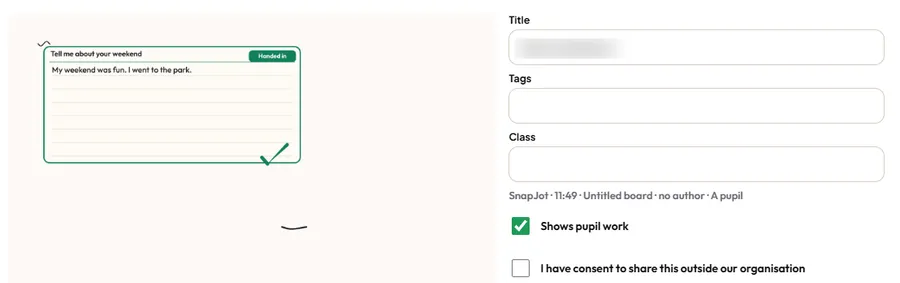 How to save a moment with SnapJot and JotClipsRecordingHow to replay a lesson and download it as an MP4Recording
 How to get started with JotoroGetting started
Cannot find an answer?
Tell us what was missing and we will improve this guide.
Suggest an improvement