

Follow the steps
Teach your lesson as usual
There is nothing to tick. Jotoro notes when each pupil joins and leaves, for every lesson.
Open Class records
After the lesson, open the Tuition hub, tap Classes and open your class. The Register sits on the class page, with the class’s boards and assessments beside it. You can also reach it from the Live lesson menu: tap Class records and stay on the Class register tab.
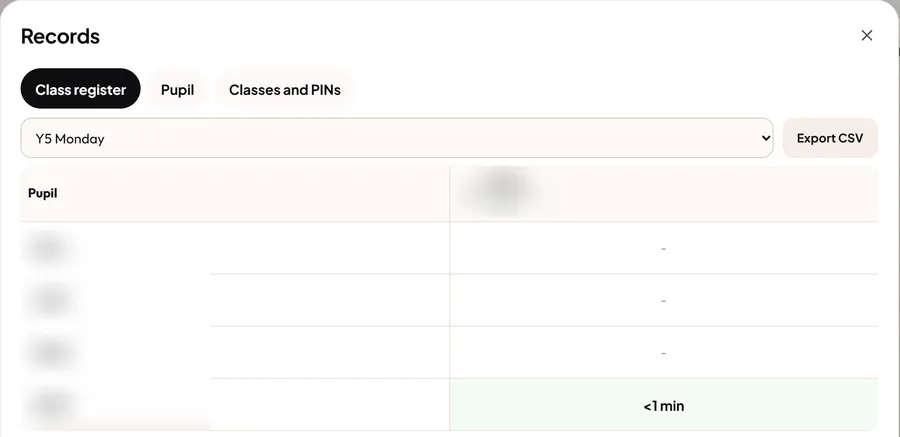
Pick a class
Each class has its own page, such as “Year 5 Bar Models”, with its register on it. In Class records, use the drop-down at the top to choose your class instead.
Read the grid
Pupils are listed down the side, and each lesson has its own column. A cell shows how long that pupil stayed, such as “6/10 · 58 min” for a test, or “late 13m” if they came in late. A pupil who did not come shows “Absent” or “Not attended” with the reason. Scroll sideways to see every lesson.
Spot who was late or missing
Joined, left, minutes and late are kept for every lesson, so you can tell who came in late and who missed a lesson.
Export it
Press Export CSV to open the register in a spreadsheet, for a report or a parents’ evening. Download all pupil work (ZIP) sits beside it.
Good to know
- Look at the register on a Friday for anyone who has missed two lessons in a row.
- Results and stars land in Records too, so one place shows attendance and progress. See a pupil’s timeline.
- A class list is optional. Pupils who join without one still appear.
- Keep an exported file somewhere safe, because it holds your pupils’ names.
- Your register works online, so you can open it from home, school or a tuition centre.
Common questions
Do I have to take the register myself?
No. Jotoro records when each pupil joins and leaves, lesson by lesson.
Can I see how long a pupil stayed?
Yes. Each cell shows the minutes. The register also keeps who was late.
Can I take the register away?
Yes. Press Export CSV and open it in any spreadsheet.
Where does it run?
Online, in your Jotoro account, so you can open it from anywhere.
Related guides
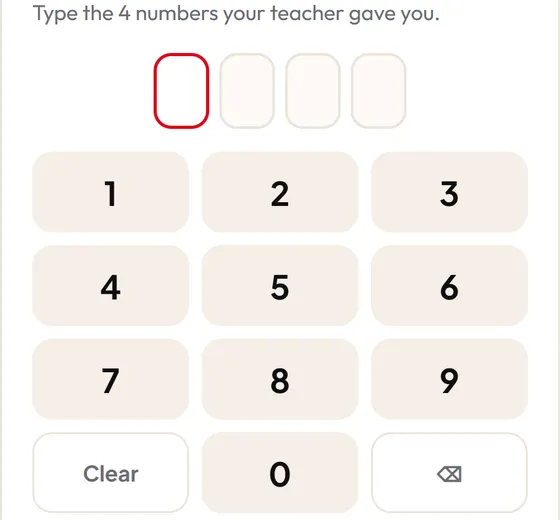 How to add a class and give pupils PINsRecords & register
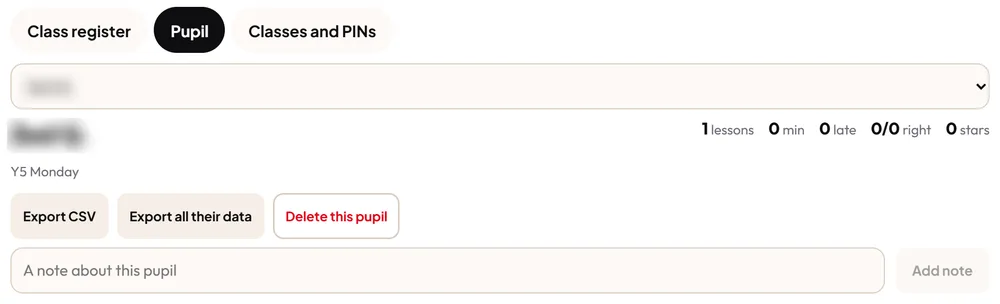 How to see a pupil’s timelineRecords & register
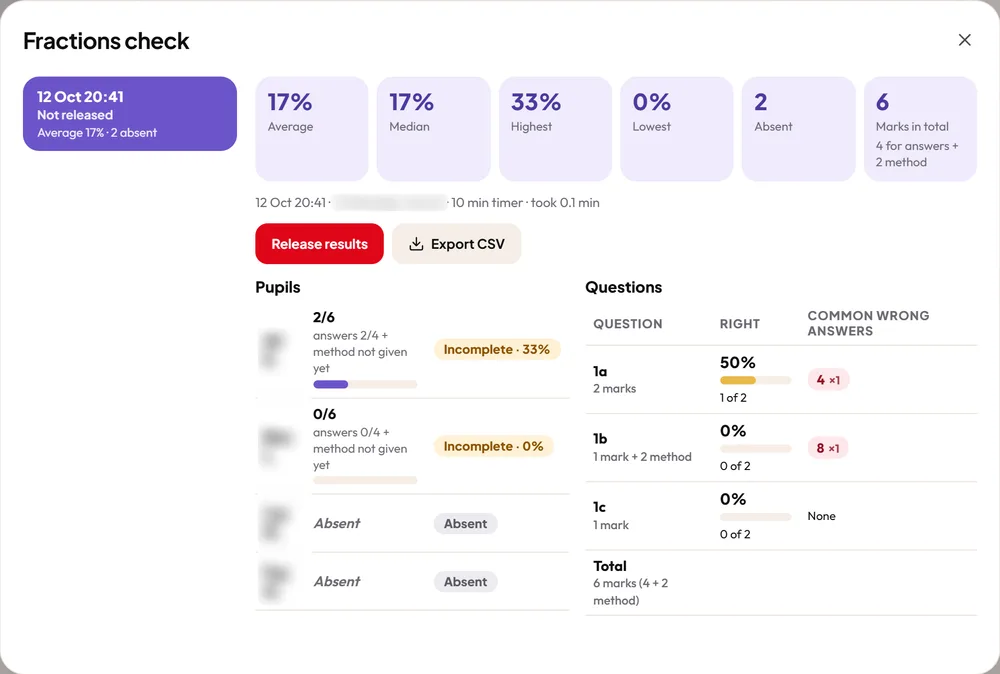 How to read assessment results and compare sittingsRecords & register
 How to get started with JotoroGetting started
Cannot find an answer?
Tell us what was missing and we will improve this guide.
Suggest an improvement