

Follow the steps
Open the RobAIn cardPro and above
Open the account menu (your initial, top right) and choose Data, backups and AI. You will find RobAIn: connect once there. The same card sits in the Live lesson menu under RobAIn, your AI assistant. It works on the online version, so you can use it from home, school or a tuition centre.
Choose what RobAIn may do, then set it up
Press Set up RobAIn. Under What RobAIn may do, Read is always on. Tick Suggest if you want it to propose ticks, crosses and comments for you to accept. Tick Edit if you want it to set homework, add worksheets and pages and place answer boxes. You can Undo, and boxes wait for your OK. You can change this later with Change what RobAIn may do.
Copy the setup and paste it once
Press Copy setup. It holds your private token and the address, and the token is never shown on screen. Paste it once into the AI app you already use. In your AI app, add a custom connector in its settings, with the address and the token as a Bearer token. Any app that takes an MCP server has a place to paste it. Jotoro does not choose an AI for you, and we add no AI charge.
Tell your AI you are starting
Start your lesson, then tell your AI, for example, “I’m starting my Year 9 lesson now.” It finds the lesson and joins by itself. It can suggest. It cannot decide. Ask it to read your worksheet and see how it places answer boxes.
Switch it off with Disconnect
In the Live lesson menu, press Disconnect and press it again to confirm. RobAIn will not join that lesson again by itself until you press Allow again. You can do this whenever you like, even in the middle of a lesson. If the setup ever runs out, press Renew.
Good to know
- Connecting does not change what pupils see. Everything your AI adds is labelled AI and stays hidden until you accept it.
- The AI never marks without you. Marking stays in Jotoro, and you decide what counts.
- Keep the setup to yourself. Do not paste it into a message or put it on a board a pupil can see.
- Not sure what your AI can and cannot do? Read what the AI can and cannot do in Jotoro.
Common questions
Which AI can I connect?
The one you already use, through open standards. Any app that takes an MCP connection works. Jotoro adds no AI charge, so you bring your own.
Do I need a particular plan?
RobAIn is on every paid plan (in lessons). RobAIn Pro, which also works before and after lessons, is on the Pro plan and above, and on agency and school plans. See plans and prices.
Do I paste something every lesson?
No. You paste the setup once. After that you just tell your AI you are starting a lesson and it joins by itself.
Can I use it from home, or anywhere online?
Yes. Connecting your own AI works with the online version of Jotoro, so you can use it from anywhere. The steps are the same.
What if I change my mind?
Press Disconnect twice in the Live lesson menu, and your AI can no longer reach the lesson. To stop it for good, revoke the setup under Data, backups and AI.
Related guides
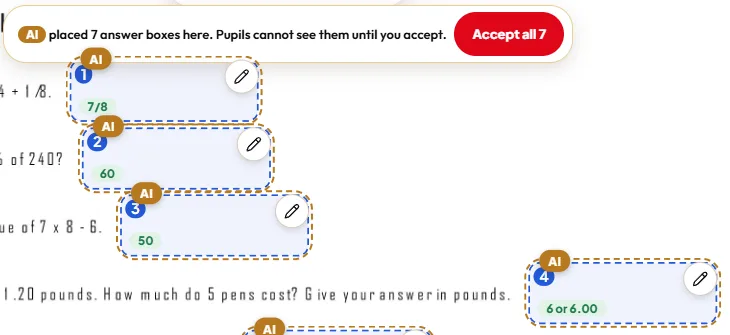 How to accept or reject what the AI suggestsAI assistant
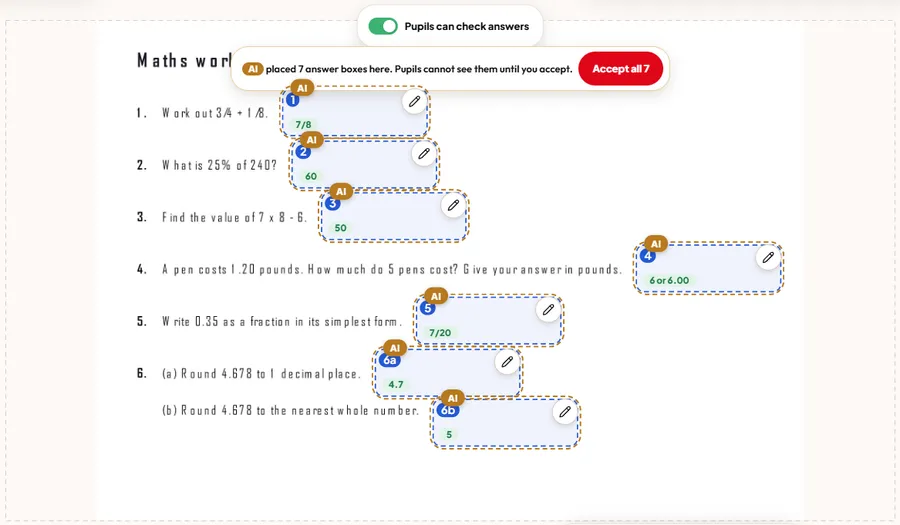 How to let your AI place answer boxes on a worksheetAI assistantWhat the AI can and cannot do in JotoroAI assistant
 How to get started with JotoroGetting started
Cannot find an answer?
Tell us what was missing and we will improve this guide.
Suggest an improvement