

Follow the steps
Open Records
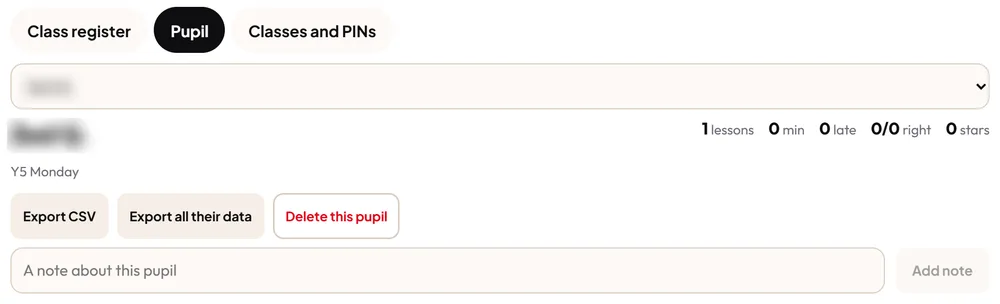
Open Records and choose the Pupil tab, the second one.
Pick a pupil
Use the drop-down at the top. The pupil’s class shows underneath their name.
Read the summary
Along the top you see lessons, min (minutes), late, answers right and stars.
Scroll down the timeline
Each lesson or assessment has its own entry with the date and the title, and when the pupil came in. An assessment carries a Test tag.
Add a note
Type in the box called “A note about this pupil” and press Add note. Notes stay with the pupil.
Use it
Read down the timeline before a parents’ evening, or press Export CSV to take the pupil’s record away.
Good to know
- Write one short note after a lesson while it is fresh: “Cracked fractions today.”
- Stars add up here, so you can show a child how far they have come.
- Keep notes kind and factual.
- A pupil who typed their name two ways can end up with two records. Press ⋯ on the pupil and choose Merge with another pupil… to join them, and undo it within 30 days if you need to.
- Need a pupil’s full record? See exporting pupil data and deleting a record.
Common questions
What is on a pupil’s timeline?
Their lessons, how long they stayed, whether they were late, their answers, stars, your notes and any assessments.
Can I add my own notes?
Yes. Type a note and press Add note.
Can I take a pupil’s record away?
Yes. Export CSV gives you their record, and Export all their data gives you everything held for that pupil.
Is the timeline the same as the class register?
No. The class register shows a whole class, lesson by lesson. The timeline follows one pupil.
Related guides
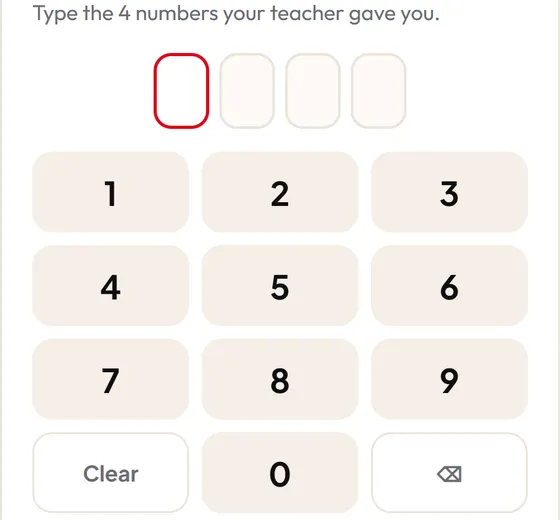 How to add a class and give pupils PINsRecords & register
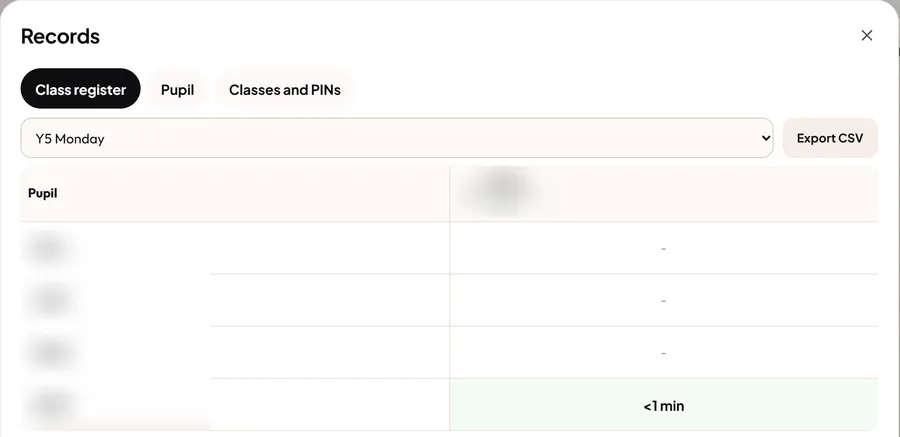 How to use the class registerRecords & register
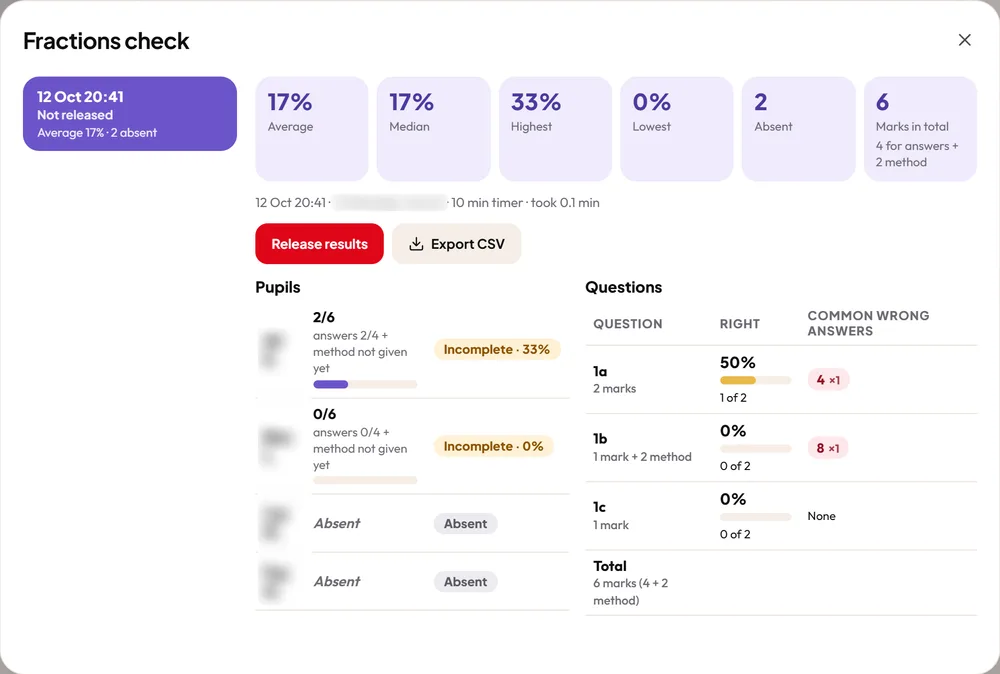 How to read assessment results and compare sittingsRecords & register
 How to get started with JotoroGetting started
Cannot find an answer?
Tell us what was missing and we will improve this guide.
Suggest an improvement