

Follow the steps
Open your worksheet
Open a board that has your worksheet on it, or import a PDF into a new board.
Drop an answer box on the first question
Tap Maths, then Tape, then Answer box. Drag a box over the answer space and type the right answer. The box is worth 1 mark; if it needs more, tap 2 or 3 under Marks for this box (more on marks). Tap Done. Pupils never see the answer. One question can have several boxes, and equal answers count as right.
Repeat for each questionPro and above
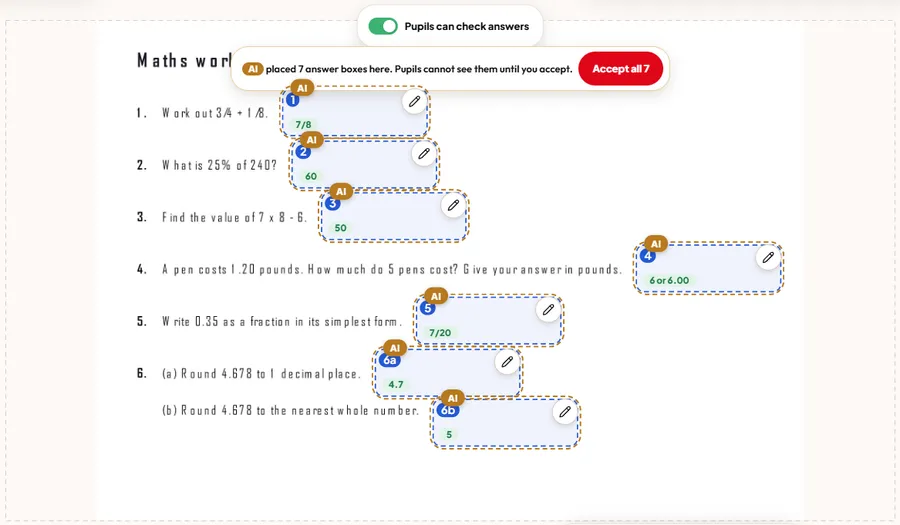
Do the same for every question. Or let RobAIn, your own AI, place the boxes and the answers for you before the lesson. Each suggested box is labelled AI and stays hidden from pupils until you press Accept all.
Send the page and teach
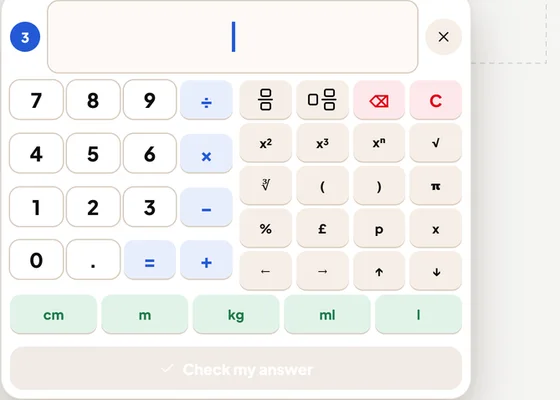
Tap Send current page, then Send. Pupils type their answers on a large, child-friendly keypad. When they press Check my answer, Jotoro marks it straight away: a tick or a cross. An answer with the right value in the wrong form shows in amber, not red.
Watch the question tracker
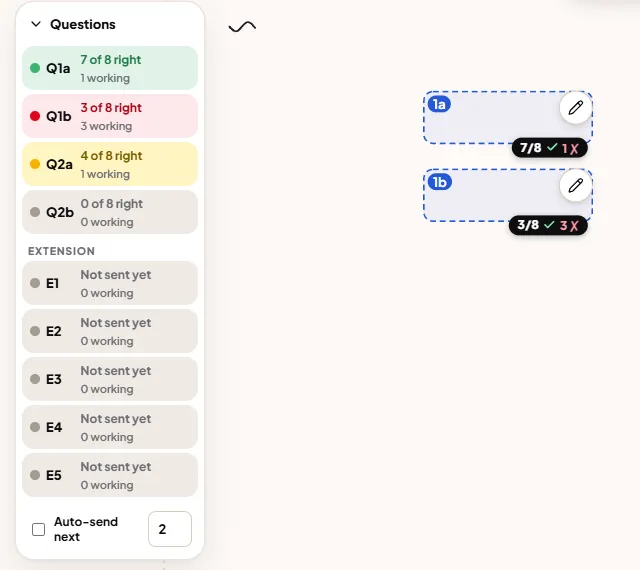
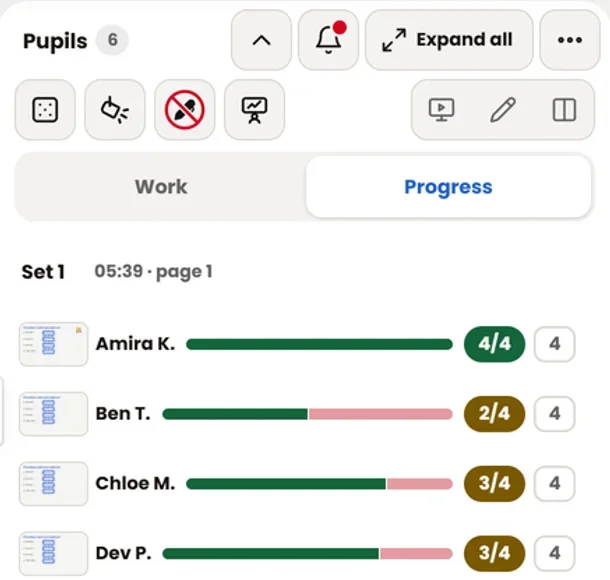
The live tracker is a strip only you can see. Each question shows how many pupils got it right, such as “6 of 8”. Tap a question to see who got it right, who got it wrong and what they wrote, and who has not tried it yet.
Step onto a pupil’s board and mark in red
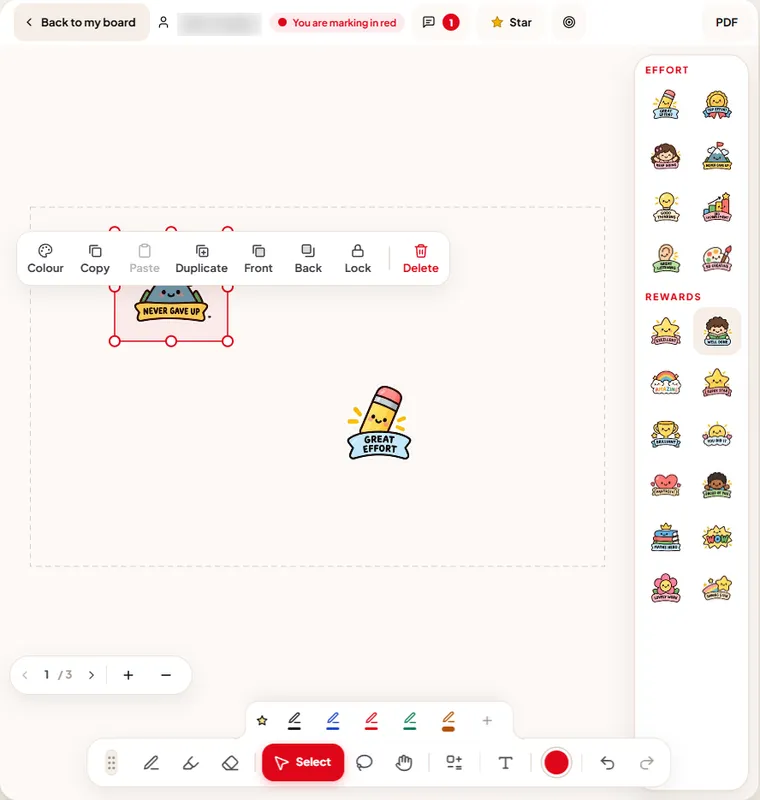
Open any pupil’s board and write on it. Your marks show in red, so pupils can tell yours from theirs.
Send extension questions to early finishers
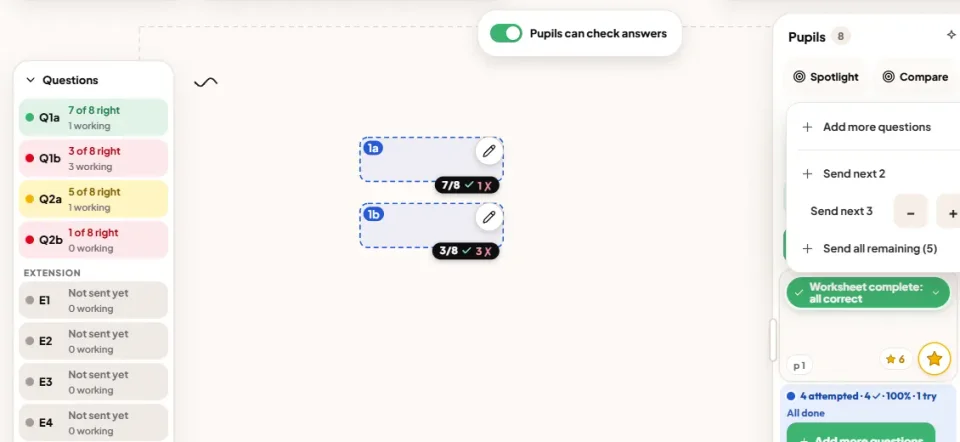
Mark some pages as extension questions. They stay hidden from the class until you send them to a pupil who has finished. Here is how.
Check the results
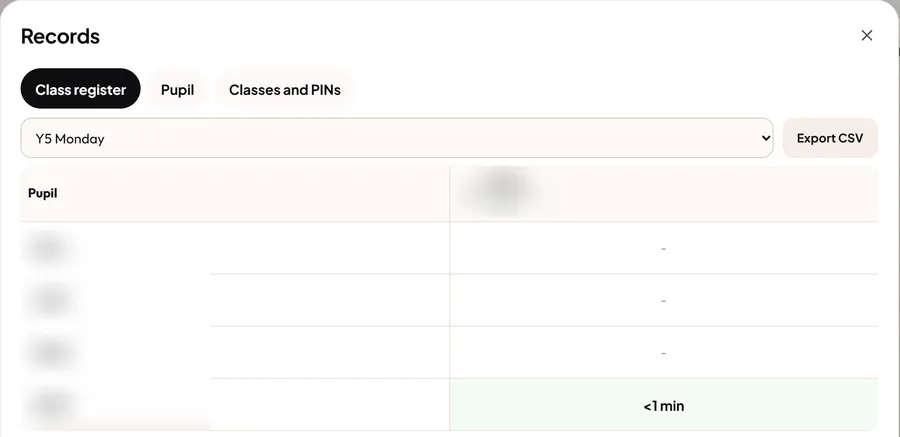
Every answer is saved in the class register, so you can look back after the lesson.
Good to know
- Got an answer you did not expect that is still right? Use Mark it correct, and every other pupil who gave the same answer is marked right too.
- Questions that need working, not just an answer? Tap Add marks, then tap a pill to award marks as you read. Jotoro even offers a pill when the question says “(2 marks)”.
- The keypad handles fractions, mixed numbers, powers, money and units, so pupils can type answers the way they write them.
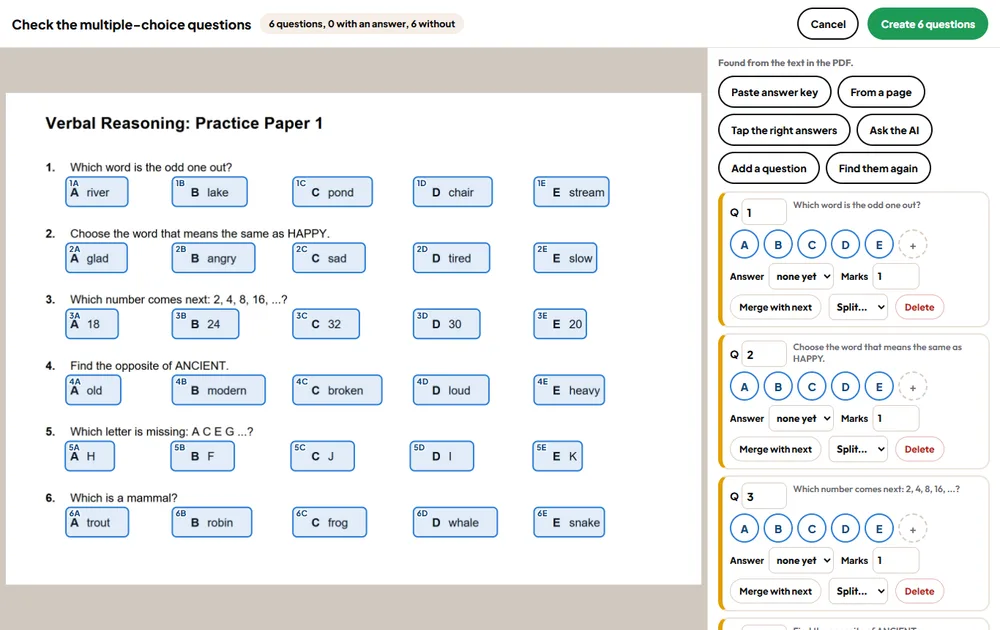
- Have a multiple-choice PDF? Tick Detect multiple-choice questions when you import it, then check the review screen. Nothing is sent to pupils until you have. See the steps.
Common questions
Do pupils see the correct answers?
No. You type the answer into the box, and pupils never see it.
What can pupils type on the keypad?
Numbers, fractions, mixed numbers, powers, money and units, so they can answer the way they write.
Can I still mark by hand?
Yes. Step onto any pupil’s board and write on it. Your marks show in red.
Where do the results go?
Every answer is saved in the class register, so you can look back after the lesson.
Related guides
 How to use the live question trackerMarking & answer boxes
 How to send extension questions to early finishersMarking & answer boxes
 How to turn a multiple-choice PDF into tappable questionsMarking & answer boxes
 How to get started with JotoroGetting started
Cannot find an answer?
Tell us what was missing and we will improve this guide.
Suggest an improvement