

You will need pupils who have answered at least one set of answer boxes.
Follow the steps
Open the Progress tab
In the Pupils panel, go to the Progress tab.
Press See all answers
Tap See all answers.
Read the newest set first
The All answers grid opens with the newest set at the top.
Switch to the whole lesson
Choose Whole lesson so far to see one row per pupil, for example “5 of 6 right 83%”.
Show by page
Tap Show by page for more detail.
Good to know
- The newest set comes first.
- Whole lesson so far has one row per pupil.
- Show by page gives the detail.
- For a quick glance during a lesson, use the live question tracker.
Common questions
Can I see older sets?
Yes. The grid shows the newest set first, and you can look back over older sets and the whole lesson so far.
Related guides
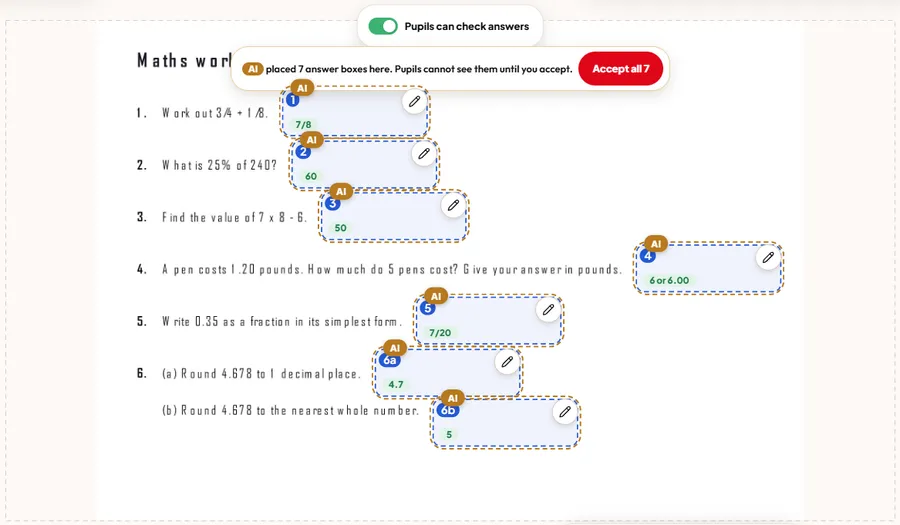 How to add answer boxes and mark a worksheetMarking & answer boxes
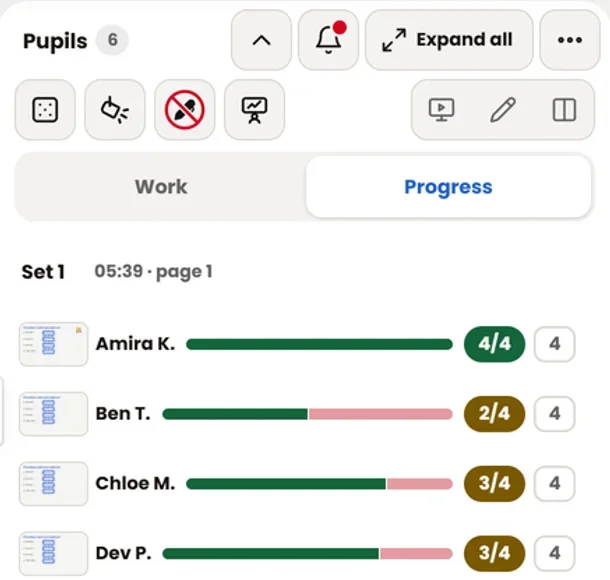 How to use the live question trackerMarking & answer boxes
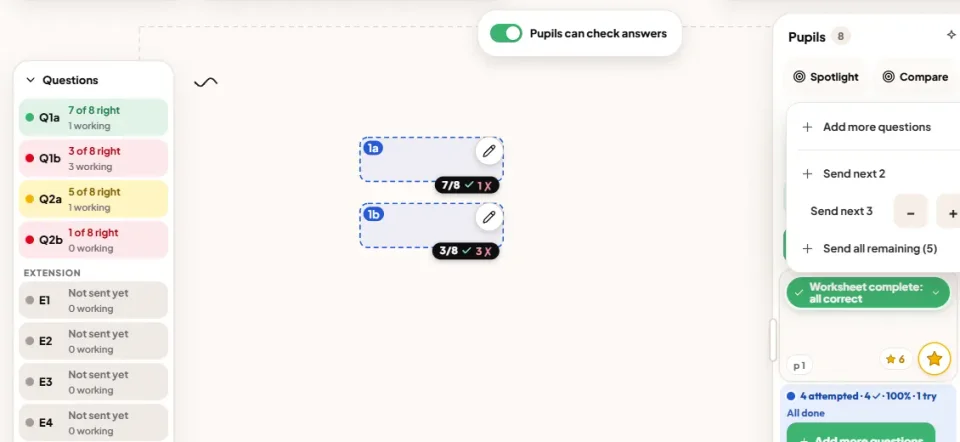 How to send extension questions to early finishersMarking & answer boxes
 How to get started with JotoroGetting started
Cannot find an answer?
Tell us what was missing and we will improve this guide.
Suggest an improvement