What is an online whiteboard, and which kind do you need?
An online whiteboard is a board you write on in your browser. The choice that matters is one page for everyone, or a board for every pupil.

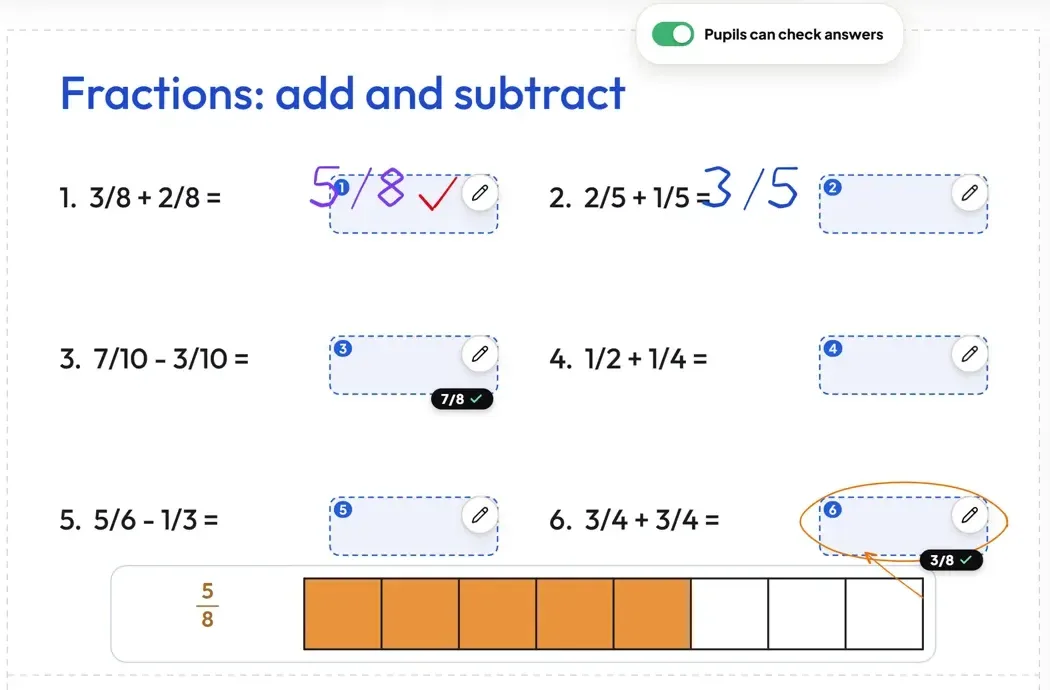
A Jotoro board set up for a fractions lesson.
In short
An online whiteboard is a shared digital board you write on in a browser, with a pen, a finger or a mouse. There are two kinds: a shared canvas that everyone draws on together, and a board for every pupil that the teacher can see. This guide is for tutors and teachers who want to pick one for their lessons.
- Teams brainstorm on canvases; classrooms and tutors need a board per pupil
- Check pens, marking, safety, price and your video call
- Seven plain questions to ask before you choose
A board you share, in a browser. Nothing to carry.
Ask three tutors which whiteboard they teach on and you will hear three different answers. They are not all the same kind of tool, which is why it helps to know the two kinds first.
- A shared canvas
- One big page. Everyone writes on it together. Made for teams, workshops and brainstorming.
- A board for every pupil
- Each pupil gets their own page and the teacher sees them all. Made for lessons.
- Your video call
- Whichever call you already use. Most whiteboards do not replace it; they run beside it.
A canvas for a team, or a board for every pupil. Both are good at different jobs.
| A shared canvas | A board for every pupil | |
|---|---|---|
| Who writes where | Everyone on the same page. | Each pupil on their own page, with the teacher able to step onto any of them. |
| Good for | Workshops, brainstorms and planning together. | Lessons: you set a question, every pupil answers, and you see who needs help. |
| What the teacher sees | One busy page. | Every pupil’s working at once. |
| Examples | Tools made for teams. | Jotoro and Whiteboard.fi. See how they compare. |
Whiteboard.fi lets a teacher open a pupil’s board and draw on it (on their paid plans). Checked on 14 October 2026.
What to check on any whiteboard, before you choose one.
Each one is something that tends to matter around week three, when the lesson is running and you cannot stop to fix it.
How does the pen feel?
If it does not feel like writing, pupils stop trusting it. Try it with the device you will really use.
Where Jotoro stands: it works with an Apple Pencil, a finger or a mouse, with two pen styles, Ink and Smooth.
Does every pupil get their own board, and is the link easy?
If the answer is a new link for every pupil, you will spend your first five minutes pasting.
Where Jotoro stands: one class link that stays the same, then a name and PIN for each pupil. No app to install.
What happens to marking and records?
A board that only shows you the work still leaves the marking to you.
Where Jotoro stands: answer boxes mark themselves and a live tracker shows who is right. Replays come with the Groups and Pro plans.
Is it safe for children?
Look for a waiting room, no public link anyone could find, and the option to keep names off the screen.
Where Jotoro stands: a class link, a waiting room where you let each pupil in, and a name and PIN for each pupil. Names can be hidden on screen.
Does it work beside your video call?
You probably already have a call you like. A good board does not ask you to swap it.
Where Jotoro stands: Jotoro does not include video calling. Open it in one window and your usual video call in another.
What does it cost, and what are the limits?
Free plans are welcome, but read the limits before you build a term of lessons on one.
Where Jotoro stands: a Free plan for one-to-one lessons, then from £6.99 a month, billed once for 12 months. Pupils never pay. See plans and prices.
Can you keep the lesson?
Thursday’s pupil will want to see Monday’s method again.
Where Jotoro stands: export a board as a PDF, download a ZIP of your pupils’ work, and keep recordings of lessons on the Groups and Pro plans.
Keep your video call. Add the board next to it.
A whiteboard and a video call do different jobs. You talk on the call, you write on the board, and each lives in its own window.
Is it better than the built-in whiteboard?
It depends. A built-in whiteboard is good enough while you are explaining one idea to everyone. It gets harder when you want every pupil to answer on their own page and you want the marking done.
How Jotoro fits
It runs in the browser, so you open it in one window and your call in another. Pupils can join from home too, with just the class link.
For one tutor, a centre or a school. The same board works for all three.
One pupil or a small group
A board for each pupil, both of you writing.
Every room, the same strong lesson
Shared lessons for every tutor in the building.
A whole class on their own boards
See every pupil think, then mark in red.
A board for every pupil. You see them all.
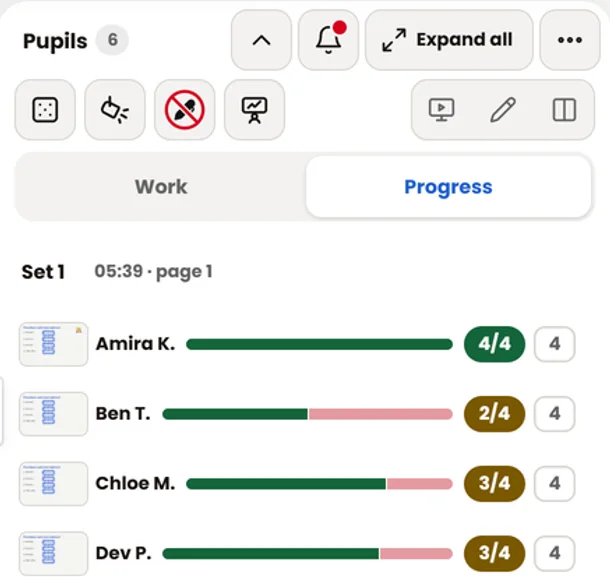
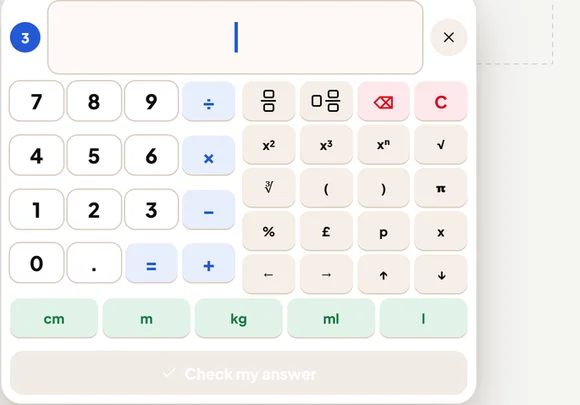
Every pupil writes on their own board and you see them all. When a pupil taps an answer on the keypad, the tick appears on their board and on yours.
- Every pupil writes on their own live board.
- Answer boxes mark themselves, and a tracker shows who is right, wrong or not tried yet.
- Works for any subject, with maths tools, bar models and geometry for when you need them.
Many teachers started looking for a new whiteboard because Google Jamboard closed. From 1 October 2024 no new or edited Jams could be made, and the app reached the end of its life on 31 December 2024.
Source: Google’s own Jamboard help pages, https://support.google.com/jamboard/answer/9426431 and https://support.google.com/jamboard/answer/14084927. Checked on 14 October 2026.
Questions teachers ask.
Is there a free online whiteboard for teachers?
Yes, several, and they all have limits. Whiteboard.fi, for example, has a free account that allows up to 20 pupils in a session (checked on 14 October 2026). Jotoro has a Free plan for one-to-one lessons with one pupil, so you can try it on your own worksheet. Paid plans start at £6.99 a month, billed once for 12 months.
Do pupils need an account for an online whiteboard?
It depends on the tool. With Jotoro there is no app and no sign-up for pupils: they open your class link, type their first name and PIN, and wait for you to let them in.
Can I use an online whiteboard with my video call?
Yes. Run the whiteboard in one window and your video call in another. Jotoro has no video call of its own, so you keep the one you already use.
What works with an iPad and an Apple Pencil?
Jotoro does. It runs in the browser on an iPad or a MacBook, and you can write with an Apple Pencil, a finger or a mouse.
Is an online whiteboard safe for children?
Ask three things: can you choose who comes in, is there a public link anyone could find, and are children’s names on show? Jotoro uses a class link, a waiting room where you let each pupil in, and a name and PIN for each pupil. You can also hide names on screen.
What does Jotoro cost?
There is a Free plan for one-to-one lessons. Paid plans are Solo £6.99, Groups £9.99 and Pro £14.99 a month when billed once for 12 months, or £11.99, £13.99 and £19.99 paid monthly. Pupils never pay, and every paid plan has a 14-day money-back guarantee. See every plan.
Bring a lesson you already teach, and see it on your own board.
Register interest and we will tell you the day payments open. Pupils are always free, and there is a 14-day money-back guarantee on every paid plan.
Pupils join by link: no app to install, no sign-up for them. See plans and prices.