

Follow the steps
Open the Library
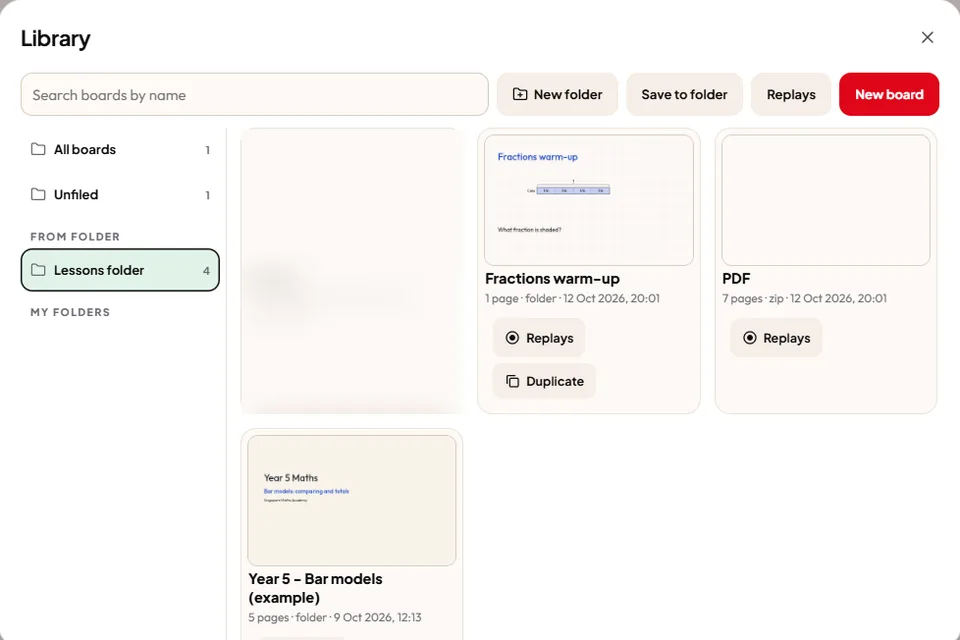
Open the Library tab on your home screen, or press Library on your board. On the left you will see All boards, Unfiled and your own folders.
Make a folder
Press Add, then New folder (on your board’s Library panel, New folder…), and give it a name you will recognise, such as “Year 5 fractions”.
File a lesson
To put the board you have open into a folder, press Save to folder and choose the folder. To move or rename a lesson that is already in the Library, use the options on its card.
Share it with your team
In a tuition centre, open the menu on a Library item and choose Share to Centre Library…. A manager checks a tutor’s share first, under Waiting for approval in the Centre tab, and presses Approve…. Then everyone in your centre can find it, copy it to their own Library or add its pages to a board. A manager can also use Send to a tutor… to give a tutor their own copy. More on sharing with your team.
Find it again
Type part of a name, tag or group into the search box. Or open a folder on the left. Unfiled shows lessons that are not in a folder yet.
Good to know
- One folder per class or per topic is plenty. Too many folders are harder to search than a few.
- Lessons you bring across from another whiteboard arrive in groups that match your old folders.
- Check Unfiled once a week and tidy as you go.
Common questions
Will pupils see my folders?
No. Folders are for you. Pupils only see the pages you reveal.
Can I search for a lesson?
Yes. Type part of a name, tag or group into the search box at the top of the Library.
Can my team share lessons?
Yes, in a tuition centre. Share a lesson to the Centre Library, and once a manager approves it, everyone in the centre can use it.
Related guides
How to import a PDFLibraryHow to import your Whiteboard.fi lessonsLibraryHow to export a lesson as a PDFLibrary How to get started with JotoroGetting started
Cannot find an answer?
Tell us what was missing and we will improve this guide.
Suggest an improvement