

Follow the steps
Tick Detect multiple-choice questions
Open Pages, then Import PDF, and tick Detect multiple-choice questions. Already imported it? Open the page and use the ABC button in the Pages panel, or the Multiple choice tile in Activities.
Let Jotoro find the questions
Jotoro reads each question number and its options, A to E, however they are laid out: in a row, stacked, in a grid, or as A. (A) or a). A scanned or printed paper works too: where a page has no text, press Read the picture (OCR) and Jotoro reads it from the image. Questions that need a written answer get an answer box, and a question it is unsure about is flagged for you to check.
Check the review screen
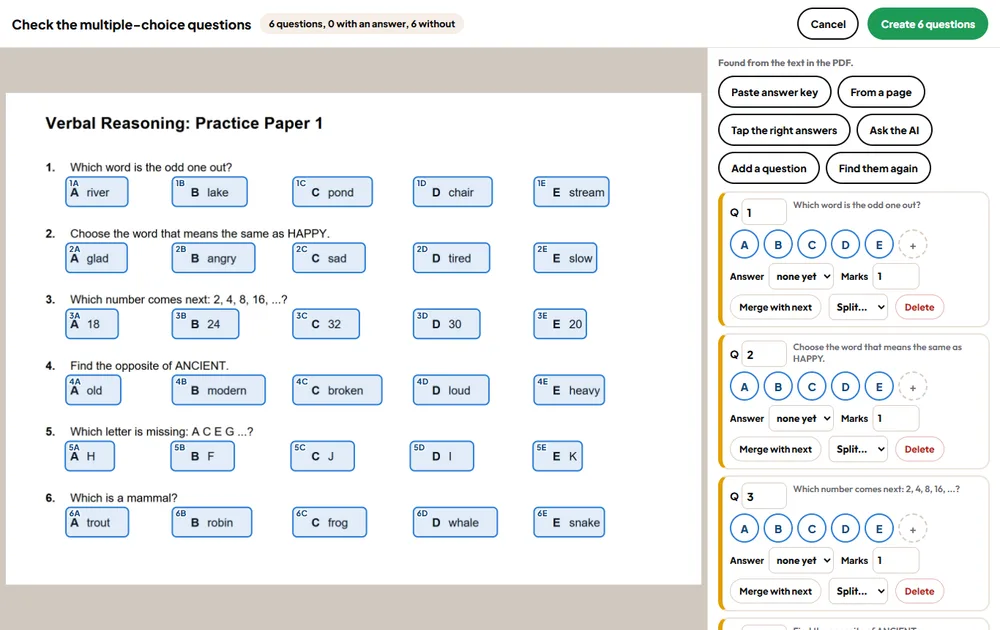
Before anything reaches a pupil you see Check the multiple-choice questions. A line at the top says how many questions Jotoro found, for example “Found 38 of 40 questions. Not read: Q12, Q27”, with a button for each page to look at. Every option area is drawn on the page, and a count tells you how many questions still have no answer.
Fix anything that is off
Move or resize an area, merge two questions, split one, delete one, or add a missing question. Press Add A-E to all missing to fill in the options on every question that lacks them. You can also set the marks for each question.
Give Jotoro the answers
There are four ways. Paste answer key (such as “1 C, 2 A, 3 E”) sets every answer in one go (more on answer keys), From a page when the answers are on a page of your board, Tap the right answers on the page yourself, or Ask the AI. It works with the AI you already use, such as RobAIn. It only proposes, and nothing it says is used for marking until you accept it.
Create the questions
Press the green button at the top, which reads Create 6 questions for a six-question paper. The page is now tappable. Send the page to the class.
Pupils tap their answers
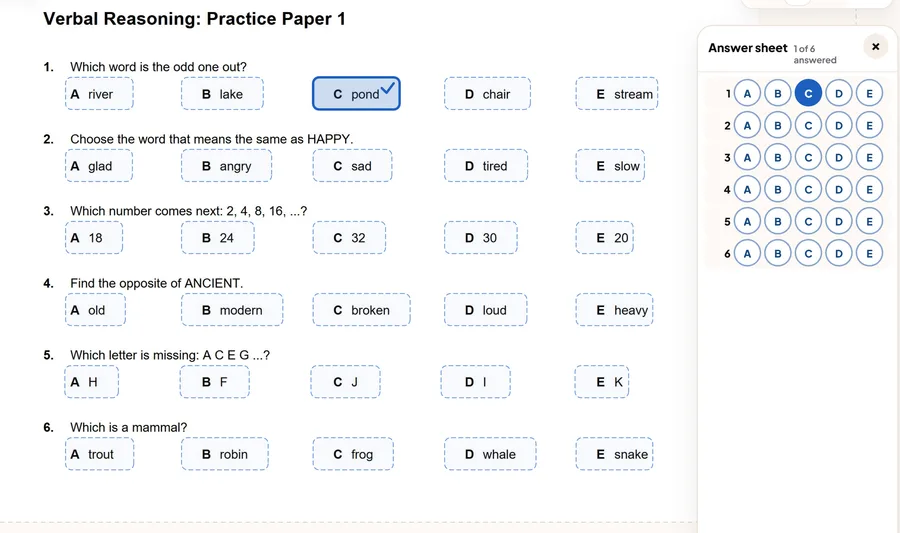
Pupils tap an option on the page, or a circle on their Answer sheet beside it. It is the same choice either way, one answer per question, and they can change it until they press Check my answers.
Watch the results arrive
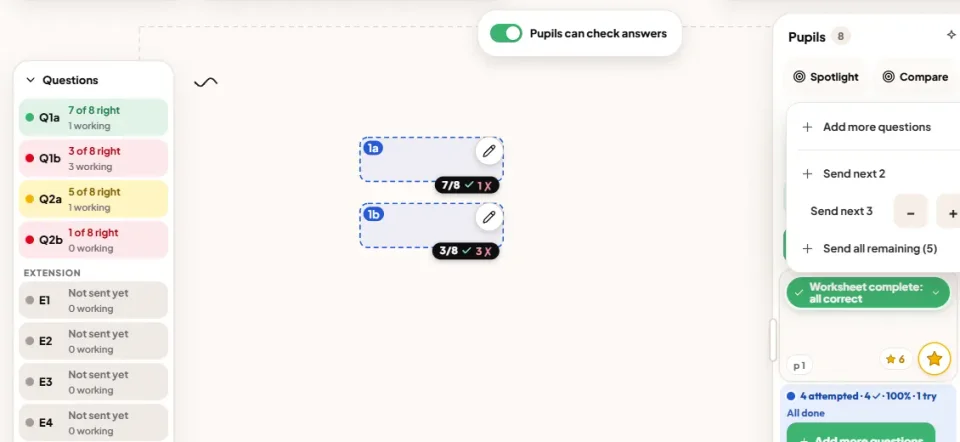
Jotoro marks the answers, and the answer key never reaches a pupil’s screen. Each question gets a row in the live tracker, so you can see who needs you.
Good to know
- Jotoro counts from the paper’s own question numbers, so it never skips a question without telling you. It also says when only some options were found, for example “options not found”.
- Check the review screen even when the count looks right. A quick look there saves a confused pupil later.
- Questions with no answer yet are flagged on the review screen, so none slip through.
- It works on any PDF already in your Library, not only new imports.
- Multiple-choice questions also work in timed assessments and homework, with marks per question.
- Pupils can answer from home too.
Common questions
Do pupils see the answer key?
No. Jotoro marks the answers and the key never reaches a pupil’s screen.
Can pupils change their answer?
Yes, until they press Check my answers. In a timed assessment each answer is saved as it is chosen, one go each.
What if Jotoro misses a question?
It tells you. The review screen says “Found n of N questions” and lists the ones it did not read, with the pages to check. Use Add a question on the review screen, or Find them again. You can also move and resize any option area.
Does it work on a scanned PDF?
Yes. If a page has no text, Jotoro reads the picture of it instead. Always check the review screen afterwards.
Which AI does Ask the AI use?
It works with the AI you already use. Nothing is marked from its answer until you accept it.
Related guides
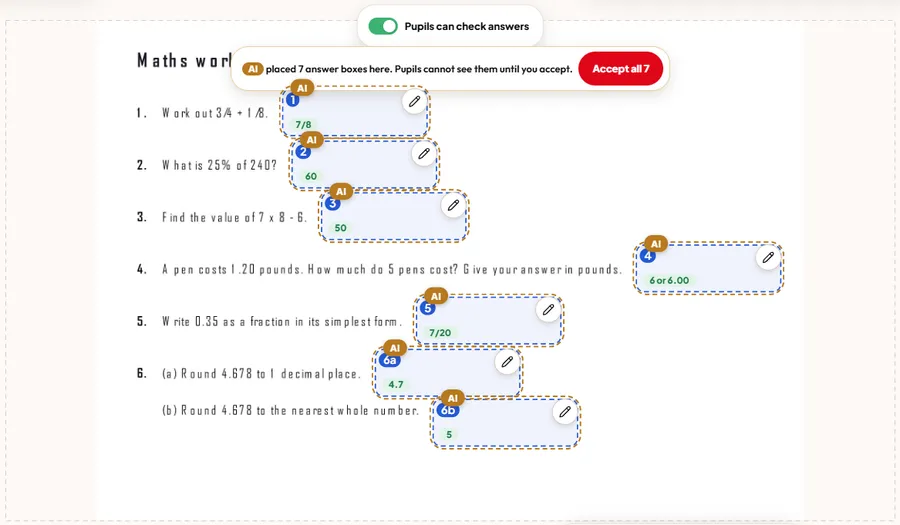 How to add answer boxes and mark a worksheetMarking & answer boxes
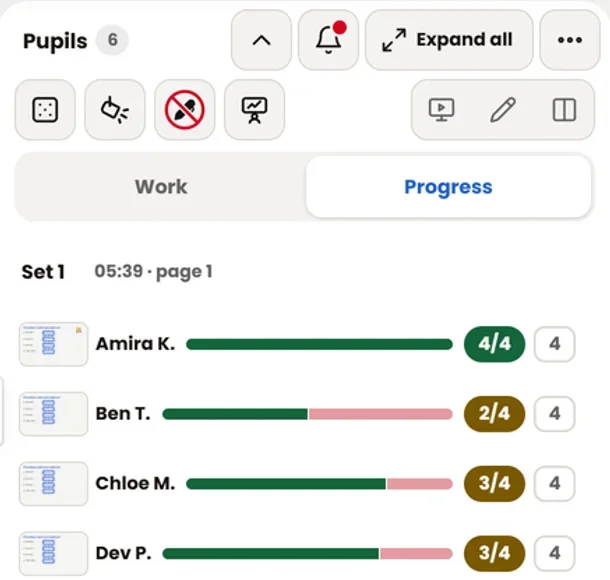 How to use the live question trackerMarking & answer boxes
 How to send extension questions to early finishersMarking & answer boxes
 How to get started with JotoroGetting started
Cannot find an answer?
Tell us what was missing and we will improve this guide.
Suggest an improvement