

Follow the steps
Find the lesson
On your home screen, look for the lesson on the Next lesson card or in today’s sessions. You can also open the class page and look at its upcoming lessons.
Press Change
Press the small Change button beside the lesson. A menu offers Reschedule and Cancel lesson.
To cancel, say why (optional)
Choose Cancel lesson. Pick Pupil away, Teacher away or Other, and add a short note if you like. Please do not use a child’s full name in the note. Then press Cancel lesson to confirm, or Keep the lesson to go back.
To move it, pick a new time
Choose Reschedule. Set the New date and New time, then press Reschedule. This makes a one-off lesson at the new time, and the weekly lesson itself does not change.
No new date yet?
Press No date yet (TBC) and then Save as TBC. The lesson is listed under To reschedule on your dashboard until you give it a date.
Undo it
Press Change again on a cancelled or moved lesson and choose Restore lesson. A cancelled lesson goes back on the timetable, and a moved one returns to its weekly time.
Good to know
- A cancelled or moved lesson is kept as a record, so your register and the pupil’s history show what happened and why.
- Changing one lesson never changes the weekly timetable.
- The class register is explained in how to use the class register.
Related guides
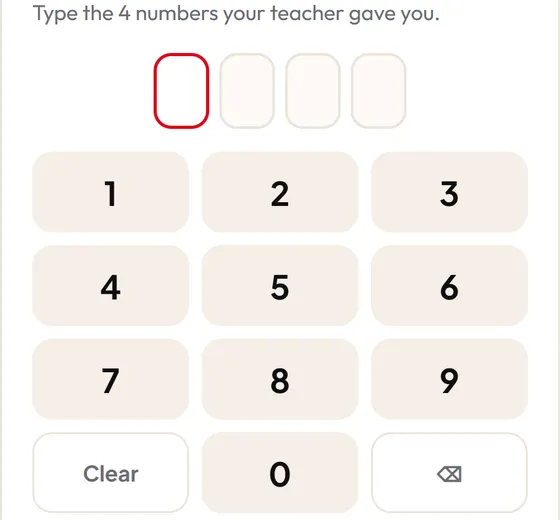 How to add a class and give pupils PINsRecords & register
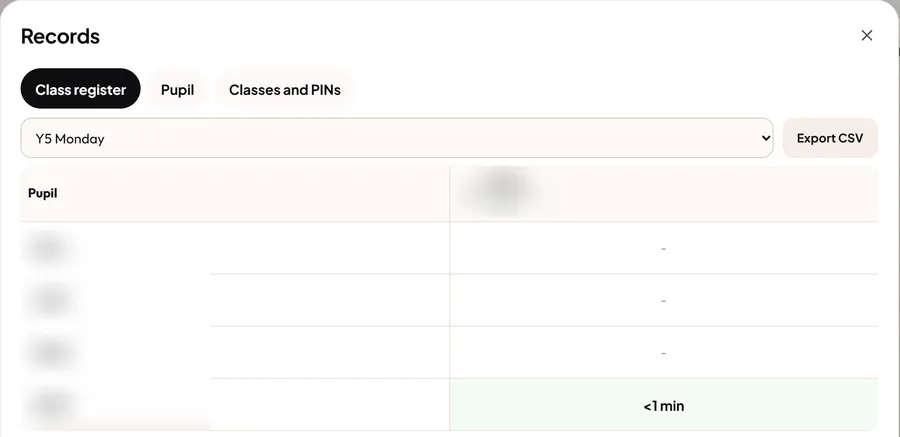 How to use the class registerRecords & register
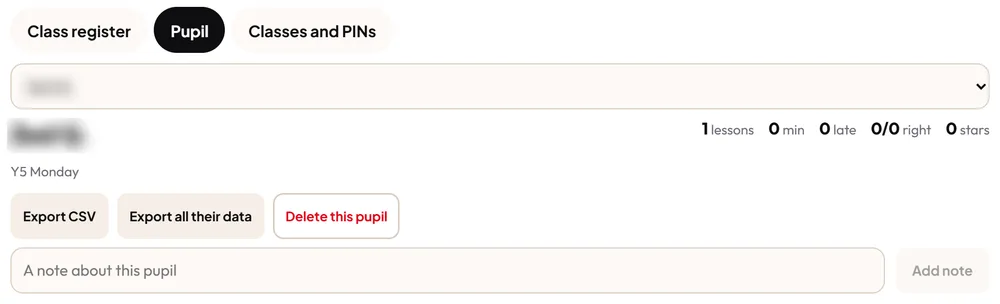 How to see a pupil’s timelineRecords & register
 How to get started with JotoroGetting started
Cannot find an answer?
Tell us what was missing and we will improve this guide.
Suggest an improvement