

Follow the steps
Open the lesson’s recordings
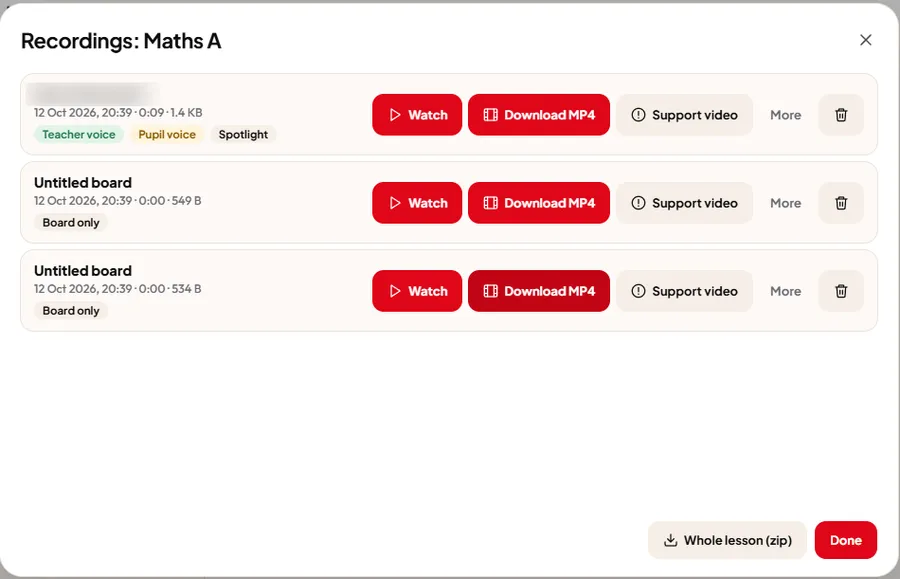
Tap the record button, then Replays… to open the recordings saved inside the lesson. Each one has Watch, Download MP4 and Support video beside it.
Check the replay
Press Watch to play it back. Check it shows the method the way you want pupils to see it.
Open the replay and tap Support video
Open the replay you want and tap Support video.
Trim it, then set it
A short video is easier to rewatch, so trim it to the part that helps. Then press Set support video. That sets it as the support video for the lesson.
Pupils get a Watch how button
Pupils get a Watch how button, so they can rewatch the method on their own device when they are stuck.
Add it to homework
When you set homework, tick a replay under Video attached. Pupils see it as Watch how, with your voice only and no names.
Good to know
- Record the method once, then reuse it every time that topic comes round.
- One method per video works best. If you explained two things, trim two clips.
- Your recording has your voice. A pupil’s voice is only in it with consent on file and the pupil’s own OK.
- Pupils can watch from home as well as in the room.
Common questions
Can pupils watch at home?
Yes. Pupils can open Watch how from home, as well as at school or in your centre.
Do I need to film a new video?
No. Any recording you have already made can be the support video.
Can I use only part of a recording?
Yes. You can set a trimmed part of a replay as the support video.
Related guides
 How to record a momentRecording
 How to save a moment with SnapJot and JotClipsRecordingHow to replay a lesson and download it as an MP4Recording
 How to get started with JotoroGetting started
Cannot find an answer?
Tell us what was missing and we will improve this guide.
Suggest an improvement