

Follow the steps
Open Breakout groups
In a live lesson, open the More menu (the three dots) at the top of the Pupils panel and choose Breakout groups….
Choose the group size
Under Group size pick Pairs, Threes, Fours or Fives. Jotoro shares the pupils who are in the room into groups for you.
Choose what each group gets
Under Each group gets pick This page or All pages pupils can see. Every group writes on its own copy.
Adjust the groups
Drag a name to another group, or tap a name and then tap the group it should join. Press Add a group if you need one more.
Start the groups
Press Start groups. Each group now writes together on its own board. A small Show chip stays on your screen while the groups are running.
Watch and join in
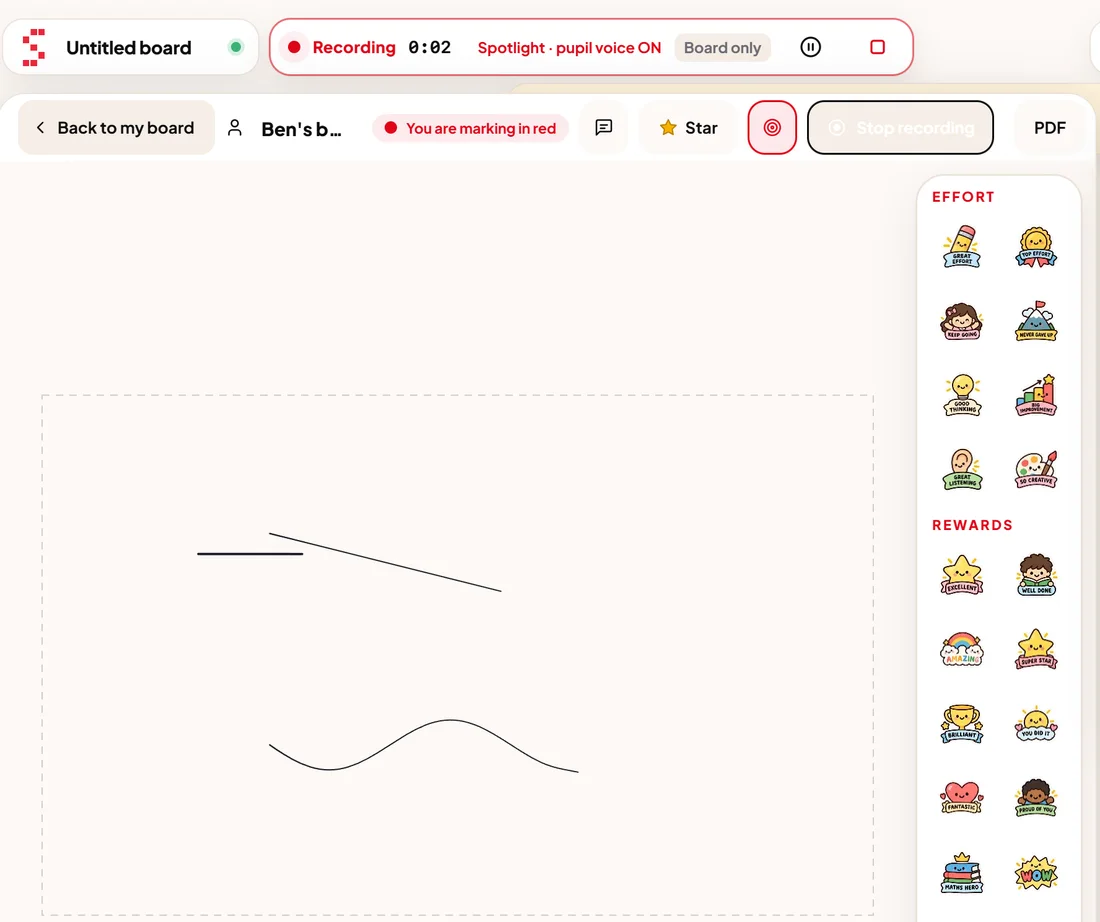
Open Breakout groups again to see a tile for each group. Tap a tile to open that group’s board and write on it. What you write appears on the group’s screens at once. Press Back to groups to return. You can drag a name onto another group to move a pupil while the groups are running.
End the groups
Press End groups to bring everyone back to their own board. The group boards are kept, and each pupil gets a copy of their group’s page on their own board.
Good to know
- Use All pages pupils can see for a longer task, and This page for one problem to solve together.
- After the groups end, press New groups in the same window to start again with different pairings.
- Breakout groups are not shown in a one-to-one lesson, where you already share one board.
- For a few pupils to write on your own page instead, use Come to the board.
Related guides
 How to start a live lessonLive lessonsHow to reveal pages, set a timer and use Eyes on me and Pens downLive lessons
 How to spotlight a pupil’s boardLive lessons
 How to get started with JotoroGetting started
Cannot find an answer?
Tell us what was missing and we will improve this guide.
Suggest an improvement