

Follow the steps
Open the sentence blocks
Tap Maths, then Words, then Sentence blocks (the Punctuation tile beside it is the punctuation repair). Or type sentence into Quick find. Choose one of four tasks: build a sentence, expand a sentence, combine two sentences with a conjunction, or change a sentence.
Read the colours
Every block is coloured by word class: noun, verb, adjective, adverb, pronoun, determiner, preposition, conjunction and clause. A colour key sits under the blocks, so pupils can see the pattern of a sentence.
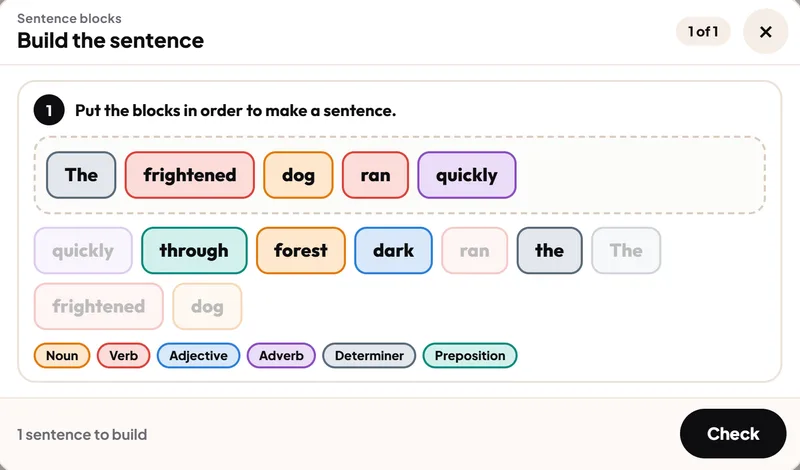
Pupils build and change it
Pupils drag blocks from the tray into the sentence, drag to reorder and drag one out to remove it. Tapping works too. They can also make a block of their own and choose its class.
Set the punctuation repair
Type the correct sentences once. Pupils get the words with the punctuation taken off, and sometimes the capital letters too. They drag or tap tiles into the gaps and switch capital letters on. Add other acceptable answers after ||.
Turn on direct speech
Direct speech mode offers the speech marks first. It helps a class who forget where the marks go around what someone says.
Look at the answers
Each pupil has their own copy and it is marked for you. Select it and tap Results. The Results panel lists the different correct answers and how many pupils gave each, and Compare two pupils puts two sentences side by side.
Good to know
- There is often more than one right sentence. Show the class three different ones and ask who used the most adjectives.
- For expanding a sentence, ask for a number of blocks of a chosen class. “Add two adjectives and an adverb” is checked for you.
- Put Amira’s sentence beside Ella’s and talk about why both work.
- Punctuation tiles cover full stops, commas, exclamation and question marks, apostrophes, speech marks, colons, semi-colons and brackets. There is no dash or ellipsis tile yet.
Common questions
Does it check grammar?
It checks the answers you accept. For changing a sentence, such as active to passive or past to present, you give the list of accepted answers. It does not work out grammar on its own.
Can pupils make their own blocks?
Yes. They can make a block and choose which word class it is.
Is there a dash or an ellipsis tile?
Not yet. The tiles cover the common marks, from full stops to brackets.
Do pupils see each other’s answers?
No. Each pupil has their own copy. You see them all together.
Related guides
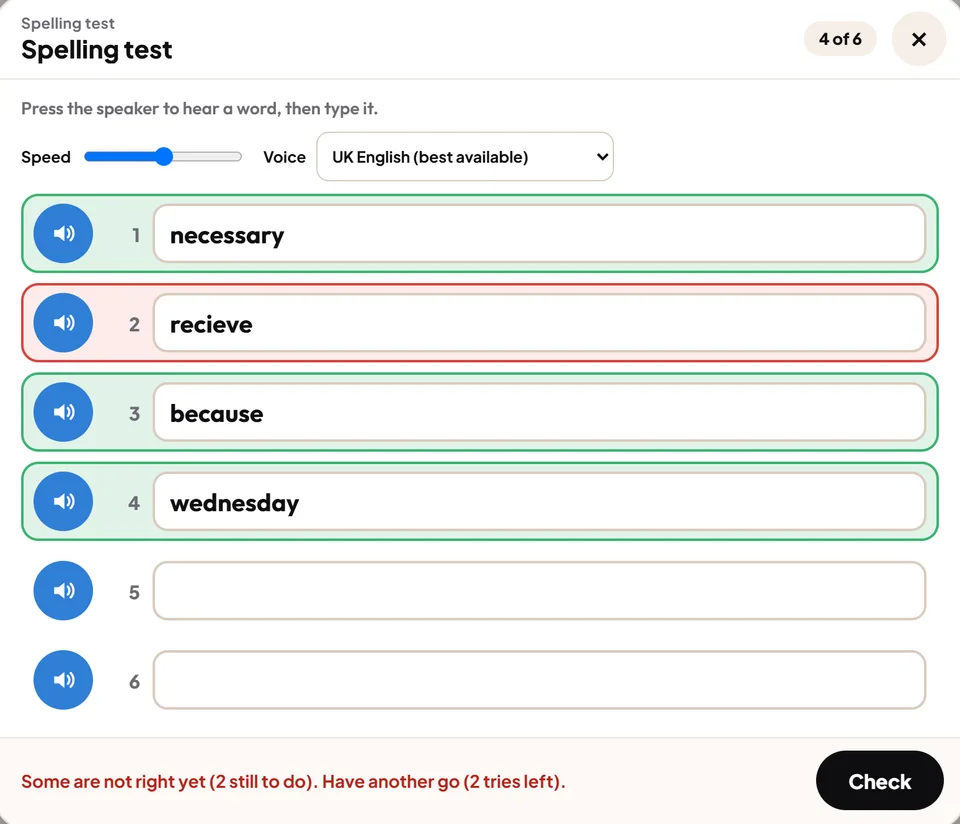 How to make a spelling testTeaching tools: English
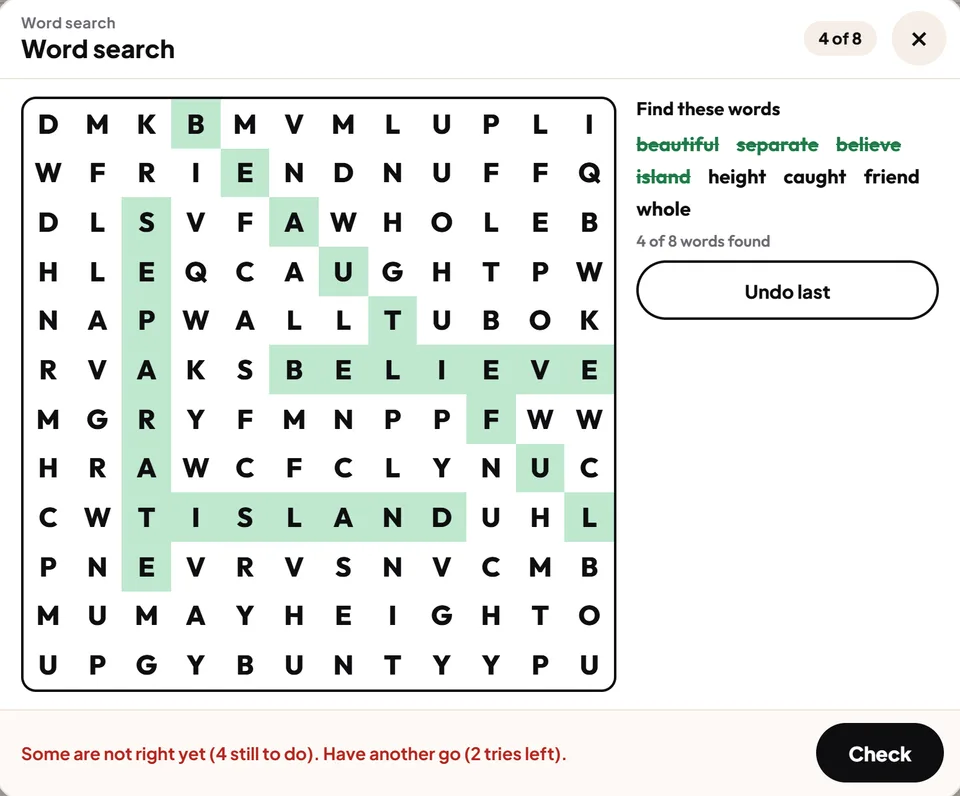 How to make a word search, crossword or clozeTeaching tools: English
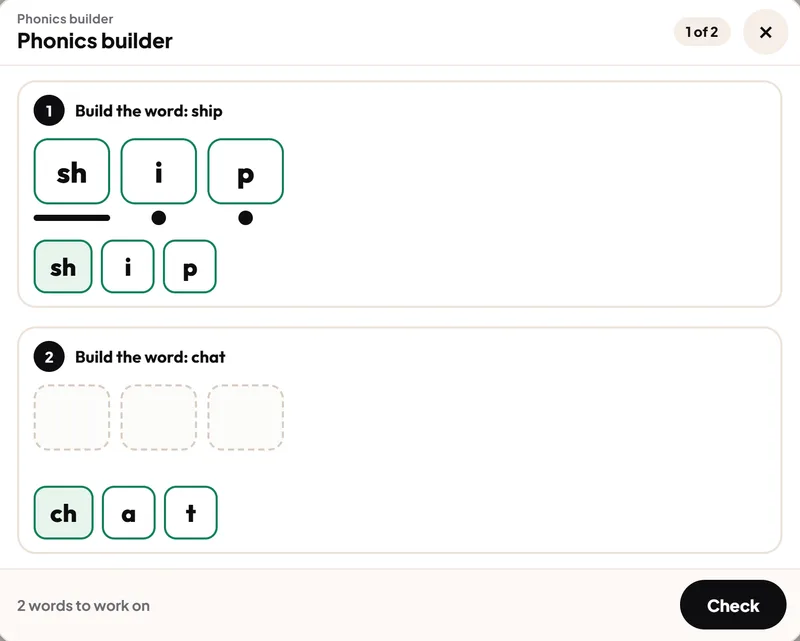 How to use the phonics builderTeaching tools: English
 How to get started with JotoroGetting started
Cannot find an answer?
Tell us what was missing and we will improve this guide.
Suggest an improvement