

Follow the steps
Open Class records
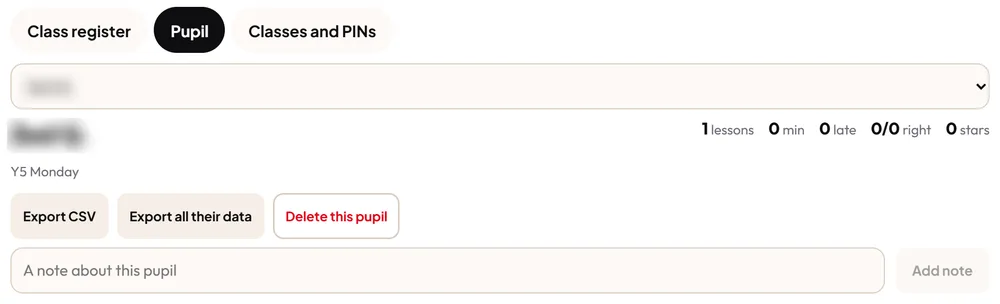
Open the Live lesson menu and tap Class records. Choose the Pupil tab and pick the pupil from the drop-down. You see every lesson, result and star.
Export their record
Press Export CSV to take that pupil’s record away as a spreadsheet.
Export everything held about them
Press Export all their data if a parent or the school asks to see all of it.
Delete a pupil
Press Delete this pupil if their data should go. Erasing is for good, so check you have the right child first.
Set voice consent
Under Recording their voice, tick the box only when consent is on file, and note whose OK it was, for example “parent, signed form”. With no consent on file, the pupil is never asked, and only the board and your voice are recorded. Mid-lesson, if a recording shows No voice consent, tap it and type whose OK it is: the pupil in the spotlight is asked on their device straight away.

Download the pupil work
To keep pupil work, open the class page and tap Download all pupil work (ZIP). You get a PDF for each pupil, named with their name, the lesson and the date, plus a results CSV. Export CSV on the same page gives you the class results as a spreadsheet.
Check your retention settings
Open Quick find and type data, then open Data, backups and AI. Under Export and erase you can choose a pupil and export their data. Under Records and syncing you choose how many months to keep records, and Check what would go shows what would be removed before you confirm. Old lessons go only if you switch that on too.
Good to know
- Export before you delete, in case you want the record later.
- Look through an exported file for any name that should not be there before you share it.
- Keep downloaded files somewhere safe, such as your school’s drive.
- Your records work online, so you can open them from home, school or a tuition centre.
- Before anything is removed for good, Check what would go in Data, backups and AI shows you what would be deleted.
- Same child twice in Records? Open the pupil, press ⋯ and choose Merge with another pupil…. Their work and records are combined, and you can undo it for 30 days.
Common questions
Can I delete one pupil’s data?
Yes. Open the pupil in Records and press Delete this pupil.
Can I get everything held about a pupil?
Yes. Press Export all their data on the pupil’s page.
Can I download everything for my whole centre or school?
Yes. The owner or a manager can use Download everything to get one ZIP of the whole organisation: boards, library, pupils, classes, results, homework and recordings. It never includes PINs. The link lasts 7 days and works only for the person who asked.
Does Jotoro record a pupil’s voice?
Only when consent is on file and the pupil says OK themselves. Without consent, only the board and your voice are recorded.
What does the ZIP of work contain?
A PDF for each pupil, plus a results CSV.
What details does Jotoro keep about a pupil?
A first name and the first letter of their surname. The school owns the data.
Related guides
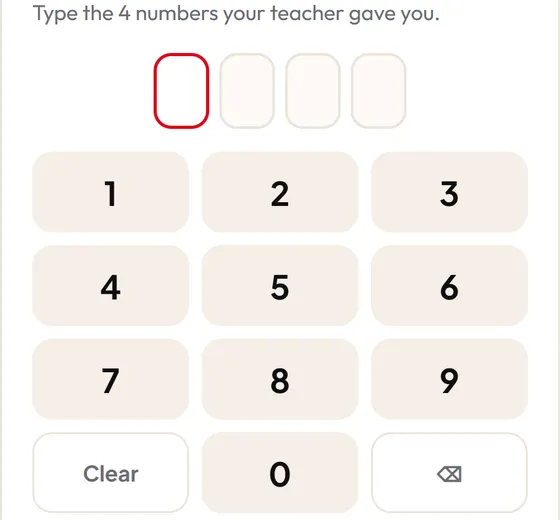 How to add a class and give pupils PINsRecords & register
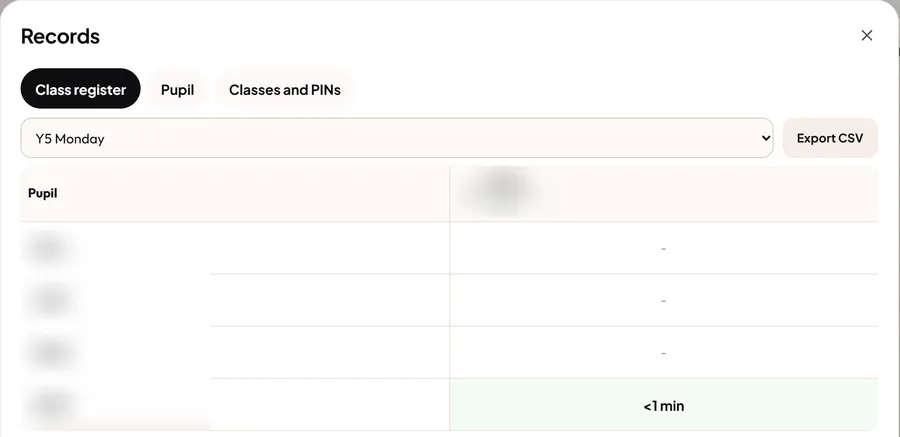 How to use the class registerRecords & registerHow to see a pupil’s timelineRecords & register
 How to get started with JotoroGetting started
Cannot find an answer?
Tell us what was missing and we will improve this guide.
Suggest an improvement