

Follow the steps
Find your class link
Open the More menu (the three dots) and choose Class link and waiting room. The arrow beside your PIN opens the same section. Look for Your class link. It is permanent, so pupils can save it once and always use it. Copy link puts it on your clipboard, and there is a QR code too, which you can show or hide with Hide QR code.
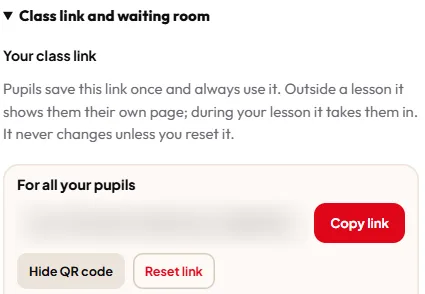
Send it once and ask pupils to bookmark it
Post it in your class chat, put it on the board, or stick it in their planners. Pupils can also go to the pupil join page and type your PIN. Outside a lesson, the link shows each pupil their own page. During your lesson, it takes them in. Pupils never have to hunt for a new link each week.
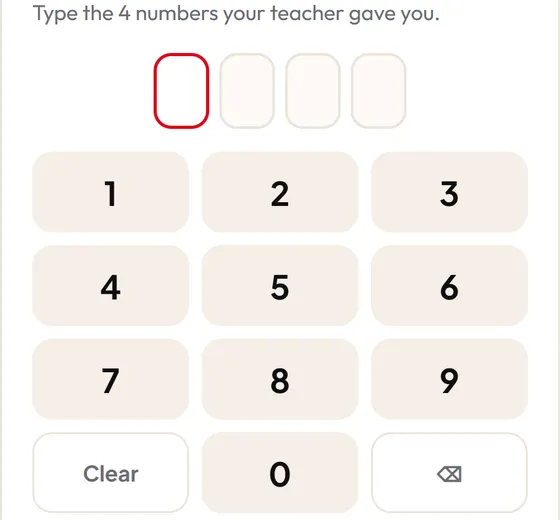
Pupils type their name and PIN
Each pupil types their own name and their four-number PIN on a big keypad. Nobody has to make an account or install an app, and any device with a browser will do.
Let the right people in
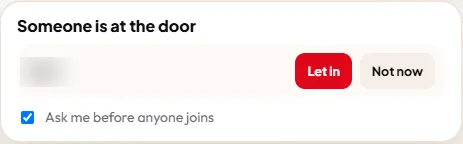
Anyone unexpected waits in the waiting room and sees nothing of the lesson. You can ask them a question privately, such as “Which class are you in?”, then let them in or not. You choose who waits: everyone, only names you have not seen before, or nobody.
If a pupil’s device fails, they can rejoin
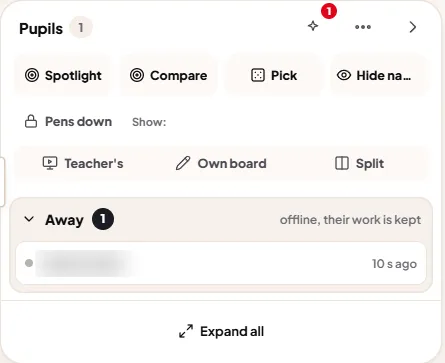
They log in again on another device with the same name and PIN, and they get their own board back with nothing lost. The first device is told and stops. While a pupil is away, their tile moves to an Away group and their work is kept. More on rejoining.
Tidy up
Choose Tidy up in the Pupils panel menu to clear the empty tiles of pupils who have left, and to merge two tiles that belong to the same child. It appears when there is something to tidy. Nothing is deleted, and you can undo it.
Reset the link if it leaks
If your class link ends up somewhere it should not, press Reset link to get a new one, then share the new link with your pupils. How the class link works explains what stays the same.
Good to know
- Use Hide names in the Pupils panel to keep pupils’ names off the screen you share with the room.
- A stranger who finds your class link still sees no pupil names, because pupils have to type their own name and PIN.
- Want to see every pupil once they are in? Read how to see every pupil’s board.
- Pupils can join from home, another room or another country. They only need the class link and a browser.
Common questions
Do pupils need an app or an account?
No. Pupils open your class link in a browser, type their name and PIN, and wait to be let in. There is no app to install and no account to make.
Do I send a new link for every lesson?
No. Your class link is permanent. Send it once and pupils can bookmark it, because it never changes unless you reset it.
What if a pupil forgets their PIN?
Ask the pupil to wait, then tell them their PIN privately. Each pupil has their own PIN, so keep them off the shared screen.
What if the link gets shared with the wrong people?
Anyone unexpected waits in the waiting room and sees nothing of your lesson, and a stranger sees no pupil names. If you want a fresh start, press Reset link and share the new one.
Can pupils join from home?
Yes. Pupils join from anywhere with the class link, in a browser. There is no app to install, and they do not need to be on the same network as you. They type their name and PIN as usual.
Related guides
What can pupils see on their board?Pupil boardsHow does the class link work?Pupil boards How to see every pupil’s board and mark on itPupil boards
 How to get started with JotoroGetting started
Cannot find an answer?
Tell us what was missing and we will improve this guide.
Suggest an improvement