

Follow the steps
Find the Questions strip
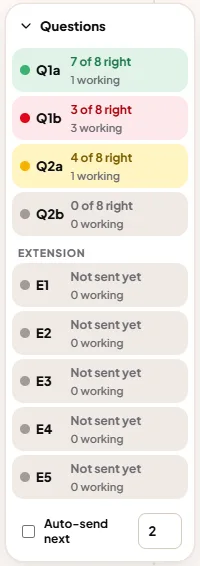
Once a page has answer boxes on it, a slim strip called Questions sits on the left of your board. Only you see it. Pupils never do, so you can glance at it while you talk.
Read the colours
Each question shows how many pupils have it right, such as 7 of 8 right, and how many are still working on it. The colour tells you at a glance: green is going well, amber is worth a look, red needs you.
Tap a question that looks red
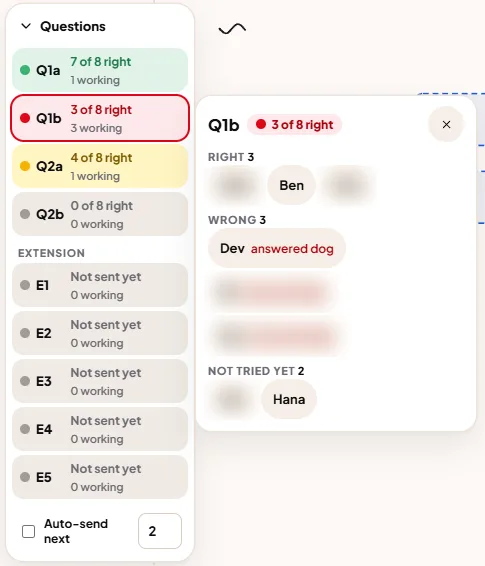
Say Q1b shows 3 of 8 right. Tap it. A small card opens beside the strip.
See who is right, wrong or not tried
The card lists pupils in three groups: Right, Wrong and Not tried yet. Under Wrong you also see what each pupil wrote, such as “Dev answered dog”. That tells you whether it is a slip or a real misunderstanding.
Teach to what you see
Walk to the board, fix the mistake with the whole class, or step onto the boards of the pupils who have not tried yet. The numbers move as pupils answer, so you can check again a minute later.
Good to know
- Wait until about half the class has answered before you act on a red question. Early numbers can look worse than they are.
- Look at the “answered” words under Wrong. Three pupils writing the same wrong answer usually means one idea to reteach, not three separate slips.
- The strip also lists your extension questions, so you can see which ones have been sent.
- Want pupils to check their own answers? There is a switch at the top of your board called Pupils can check answers.
Common questions
Can pupils see the question tracker?
No. The Questions strip is for the teacher only. Pupils see their own board and their own answers.
Does the tracker update by itself?
Yes. Each question changes as pupils answer, so you do not need to refresh anything.
What if a question has no answer box?
The tracker follows answer boxes. Add an answer box to the question and it gets its own row.
Do the results stay after the lesson?
Yes. Answers are saved in the class register, so you can look back later.
Related guides
 How to add answer boxes and mark a worksheetMarking & answer boxes
 How to send extension questions to early finishersMarking & answer boxes
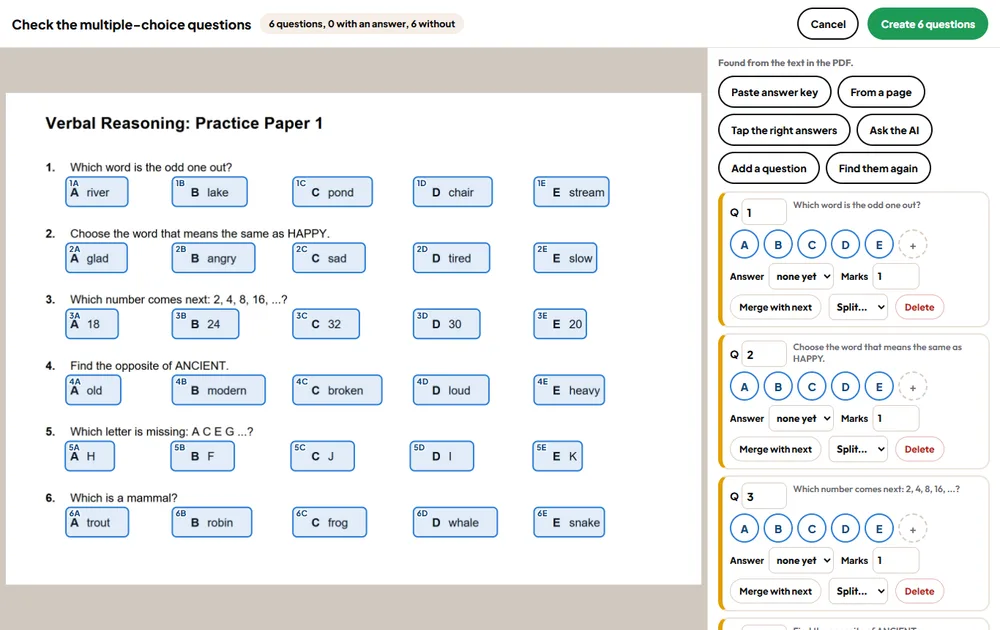 How to turn a multiple-choice PDF into tappable questionsMarking & answer boxes
 How to get started with JotoroGetting started
Cannot find an answer?
Tell us what was missing and we will improve this guide.
Suggest an improvement