

Follow the steps
Press SnapJot
Find SnapJot in the top bar, next to the class controls. One tap captures a page, yours or a pupil’s.
Take the whole page or an area
Capture the whole page, or drag over just the part you want. You get a sharp image.
Make a JotClip
JotClips are short video clips of a moment. To cut one from a replay, open Replays…, tap Watch, then JotClip. Press Start here, play the replay, press End here, then Save clip.
Open JotMoments
Everything lands in your organisation’s JotMoments library. Images and clips sit together, tagged by lesson, class and date.
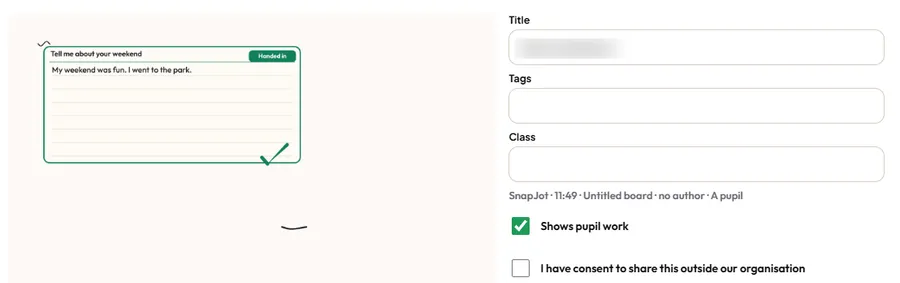
Add a title, tags and a class
Fill in Title, Tags and Class so you can search for it later.
Check the consent box
If the capture shows a pupil’s work, JotMoments says Shows pupil work. Tick I have consent to share this outside our organisation only when you have it.
Good to know
- Names are hidden by default in SnapJot.
- Pupil work is only shared outside your organisation with consent.
- Snap the moment a pupil has a lightbulb idea. It is a lovely thing to show a parent, once you have consent.
- A clip is best short: one idea, one moment.
Common questions
What is the difference between SnapJot and a JotClip?
SnapJot makes a sharp image of a page. A JotClip is a short video of a moment.
Where do I find what I captured?
In JotMoments. Images and clips are together, tagged by lesson, class and date, and you can search them.
Can I share a pupil’s work?
Only outside your organisation with consent. JotMoments asks you to confirm it.
Related guides
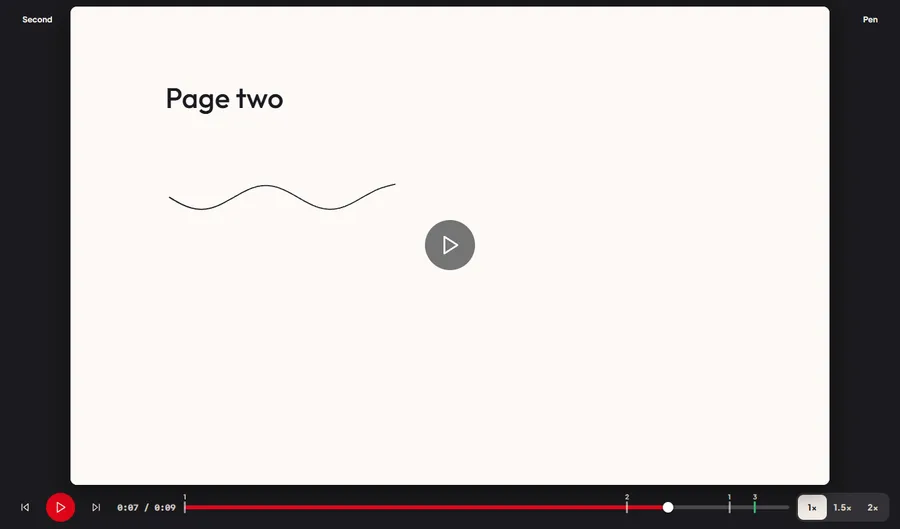 How to record a momentRecording
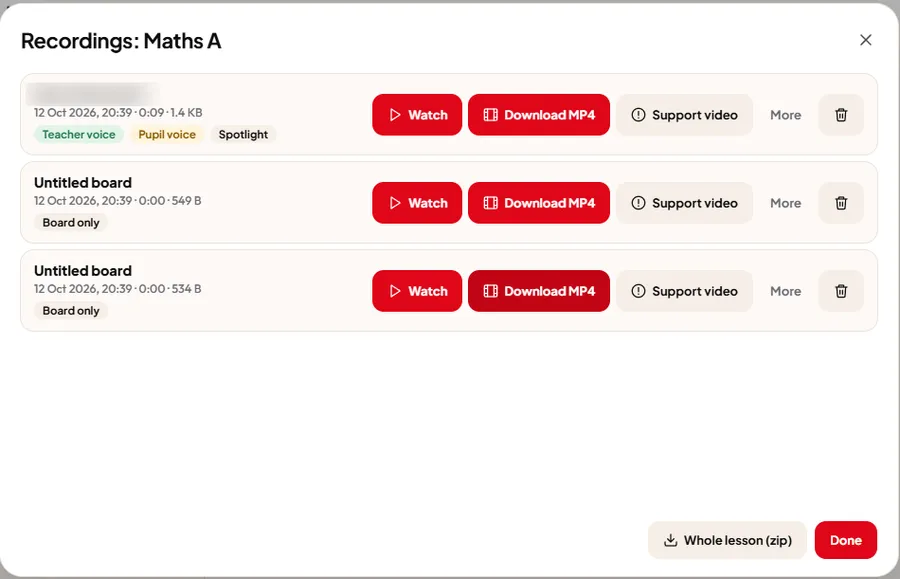 How to give pupils a “Watch how” videoRecordingHow to replay a lesson and download it as an MP4Recording
 How to get started with JotoroGetting started
Cannot find an answer?
Tell us what was missing and we will improve this guide.
Suggest an improvement