

Follow the steps
Open the Library
Open the Library tab on your home screen, or press Library on your board. Your lessons open with a search box at the top.
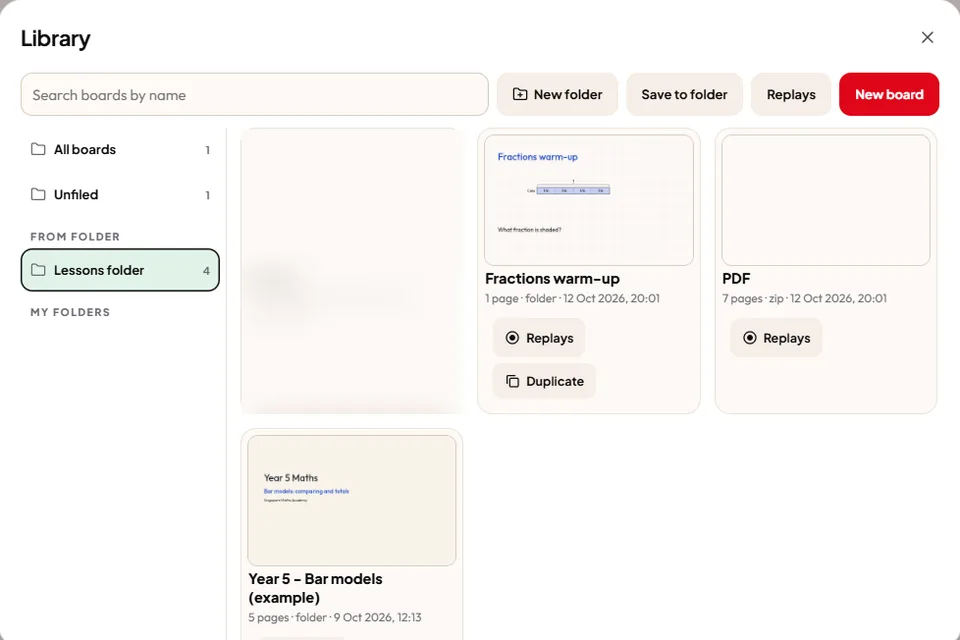
Choose Import
Tap Add, then Import a PDF. To add a PDF to a board you already have open, use Import PDF in the Pages panel.
Pick your PDF
Choose the file from your computer. A long PDF arrives in moments, even one of 60 pages or more.
Ask Jotoro to find multiple-choice questions
If the paper has A, B, C, D questions, tick Detect multiple-choice questions. Jotoro finds them and lets you check them. You can skip this and do it later from the ABC button in the Pages panel. The multiple-choice guide shows how.
Check the pages
Every page of the PDF becomes a page on your board, in the same order. Look at the Pages panel to see them all.
Open it and teach
Open the first page. When you teach live, pages start hidden, so you decide when each one appears.
Good to know
- Use a PDF you have made or are allowed to share. Pupils will see the pages you reveal.
- Name the lesson clearly, so you can find it again with the Library search box.
- Drop answer boxes onto the pages and the worksheet marks itself.
Common questions
Will my PDF change?
No. Your original file stays as it is. Jotoro makes a board from it, and you write on top.
Can pupils write on it?
Yes. Each pupil gets their own copy of the pages you reveal, so one pupil’s writing never appears on another’s board.
Does it work on a scanned worksheet?
Yes. Jotoro can read the questions on scanned and printed papers, and an answer key from a scanned booklet. Always check the review screen afterwards.
Can my own AI import a PDF for me?
Yes. Ask RobAIn to import a PDF into your Library and it does the job through a Jotoro board you have open, so open any board on your computer. It reads the questions and tells you, for example, “Found 38 of 40 questions. Not read: Q12, Q27”, with the pages to look at. It can take up to a minute to start. Always check the review afterwards.
Can I bring in lessons from somewhere else?
Yes. If you use Whiteboard.fi, see how to import your Whiteboard.fi lessons.
Related guides
How to import your Whiteboard.fi lessonsLibraryHow to organise your Library into foldersLibraryHow to export a lesson as a PDFLibrary How to get started with JotoroGetting started
Cannot find an answer?
Tell us what was missing and we will improve this guide.
Suggest an improvement