

Follow the steps
Open Records
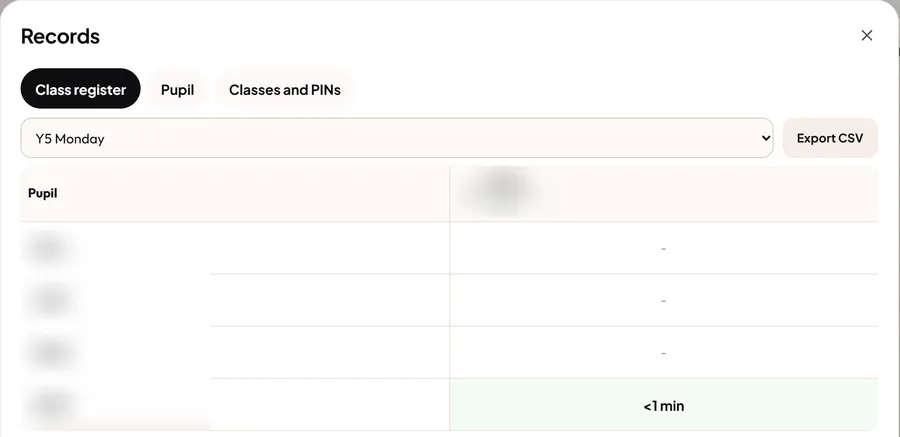
Records is where Jotoro keeps your classes, registers and pupil details. Open it from the Live lesson menu with Class records (or from Settings) and choose the Classes tab, the third one along.
Add your class
Type a name you will recognise, such as “Y5 Monday”, and press Add class.
Add your pupils
Under Pupils in this class, type or paste your list, one pupil per line, with the first name and the first letter of the surname, for example “Amira K”. Press Add pupils. That is all Jotoro ever needs.
Choose how pupils sign in
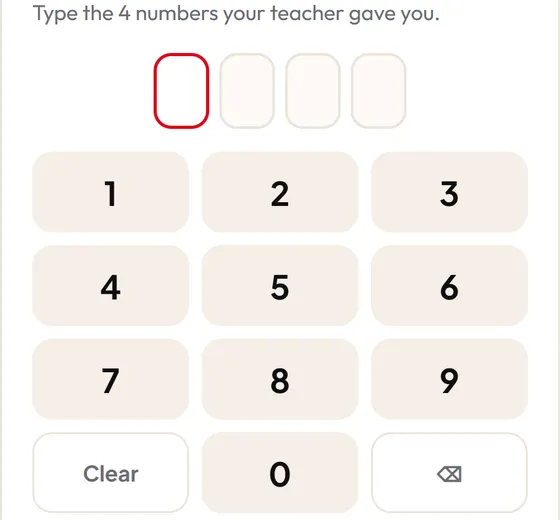
Under Pupil sign-in, choose How pupils on the list sign in. Pick your name is the easiest and needs no PIN. Sign in with a picture suits younger pupils. Name + personal PIN adds extra security, and each pupil then types their own PIN. To ask for a PIN for just one class, tick PIN needed for everyone in this class.
Give pupils their PINs
Each PIN is shown once, when it is made. Tell each pupil theirs quietly, one to one, or press Download PINs to keep a list. Ask pupils to keep their PIN to themselves.
Send parents the homework link
Every child also has a separate homework PIN, which opens only their homework and never a live lesson. Open the pupil in Records and press Show homework PIN, then Copy parent link. To copy every child’s link for a class in one go, press Copy all parent links on the Classes tab. Reset PIN makes a new one and the old link stops working.
Check it works
At your next lesson, a pupil opens your class link, finds their name and, if you asked for one, taps their PIN on a big keypad. They then wait to be let in. See how pupils join with the class link.
Good to know
- In a hurry? Skip the class list. Pupils can join your first lesson without one, and you can add the list later.
- First name and initial is all the register needs. It keeps pupil details small.
- Use Hide names in the Pupils panel before you share your screen with the room.
- Pupils can sign in from home with the class link. They do not need to be on your network.
- What happens when a pupil comes back on another device? See name and PIN login.
Common questions
Do I have to add a class list?
No. A class list is optional. Lessons work from the first day with no setup, and you can add pupils later.
What do I type for each pupil?
Their first name and the first letter of their surname. You can paste a whole list, one pupil per line.
What if a pupil forgets their PIN?
Open Records, go to the Classes tab and find the pupil. You can make them a new PIN and tell them it privately.
Can pupils sign in from home?
Yes. Pupils can sign in from home, or anywhere else, with the class link. Parents can use their own homework link and PIN.
Related guides
How to use the class registerRecords & register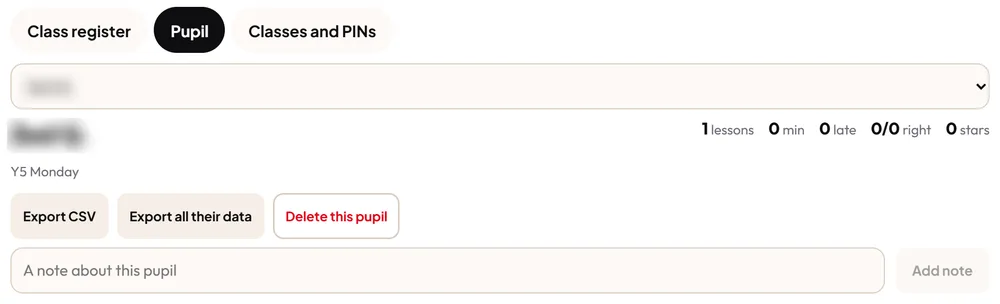 How to see a pupil’s timelineRecords & register
 How to read assessment results and compare sittingsRecords & register
 How to get started with JotoroGetting started
Cannot find an answer?
Tell us what was missing and we will improve this guide.
Suggest an improvement