

You will need a class you have already added. Here is how to add one.
Follow the steps
Add the lesson time
On the class page, under Weekly lessons, add the day, time and length, for example Mon 16:00, 60 min.
Save
Press Save lessons.
See your week
Open Tuition hub and choose Week to see every lesson laid out.
Good to know
- Weekly times are set once per class.
- Homework due dates come from your timetable.
- The Week view shows everything at a glance.
- Need to change a single lesson? Cancel or move it.
Common questions
Can I move one lesson without changing the week?
Yes. Cancel or move a lesson changes just that one.
Related guides
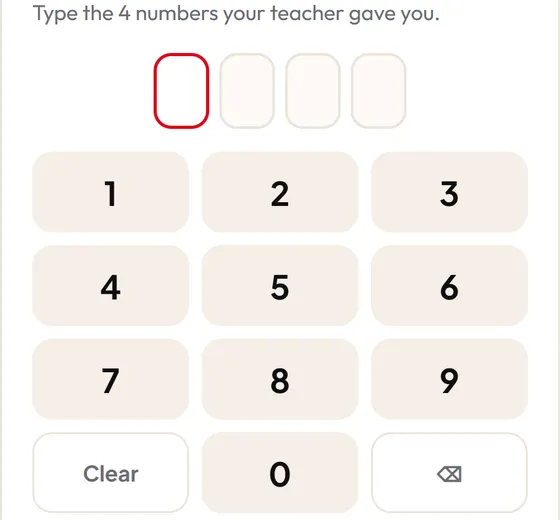 How to add a class and give pupils PINsRecords & register
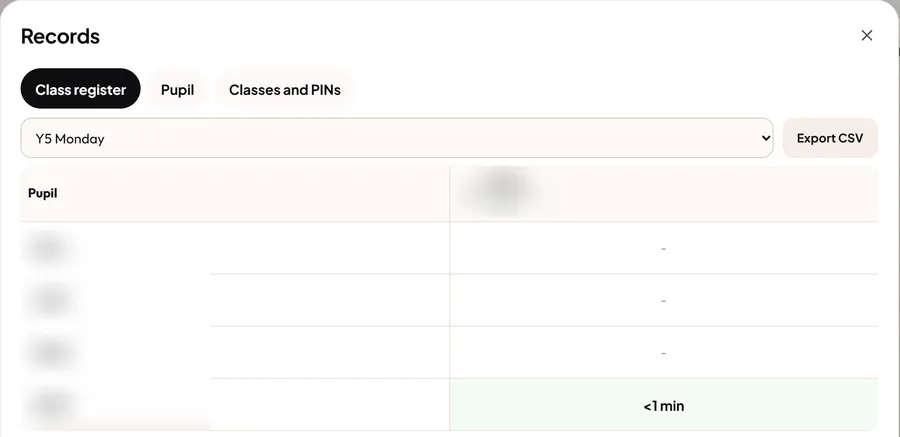 How to use the class registerRecords & register
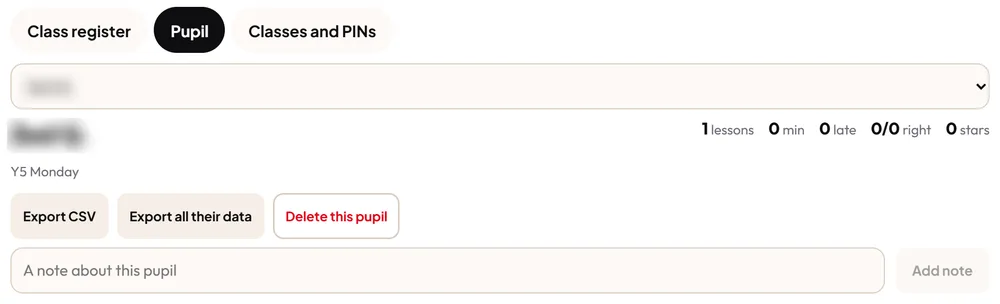 How to see a pupil’s timelineRecords & register
 How to get started with JotoroGetting started
Cannot find an answer?
Tell us what was missing and we will improve this guide.
Suggest an improvement