

Follow the steps
Open your board
Choose a board from Boards. The board on your screen is the lesson, so there is no go-live button. A board pupils can join shows a green Live label. Library boards are never live: choose Use in a lesson to open a copy ready to teach.

See your PIN
The PIN at the top of your board is your lesson code, and it never changes. Pupils can join as soon as the board is open. Tap the PIN to copy an invite with the link and the code, ready to paste into a chat.
Share your class link or QR code
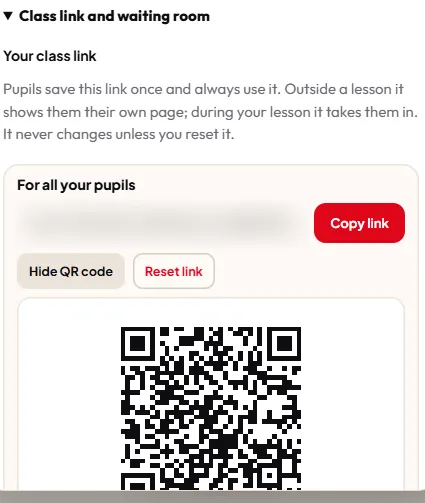
Tap the arrow beside your PIN, or open the More menu, then choose Class link and waiting room. Tap Copy link and send it to your pupils, or show the QR code on your screen. Pupils who have used it before already have it saved.
Let pupils in
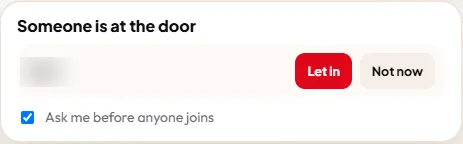
If the waiting room is on, each pupil who arrives waits at the door. Press Let in to bring them into the lesson, or Not now to keep them waiting.
Show your pages when you are ready
A page you have hidden stays hidden from pupils until you show it. Tap the Space bar to reveal the next hidden page and go to it, then reveal more as you go. More on revealing pages and the timer.
Watch the boards
Every pupil has their own board and you see them all in the Pupils panel. The Work tab shows each board, and the Progress tab shows who has answered each question and who got it right. Open any pupil’s board to see their thinking, or use Spotlight to show one to the whole class. You can also compare two pupils, run a live poll or pick a random pupil.

Bring pupils with you
To move everyone to the page you are on, choose Take pupils to this page in the Pages strip. They keep working. To invite up to three pupils to write on your page, each in their own colour, press Come to the board in the Pupils panel. For pair work, open the Pupils panel menu and choose Breakout groups….
Win back attention when you need it
Use Eyes on me to bring everyone’s focus to your board. Use Pens down to stop the writing, and the timer to keep time.
Finish the lesson
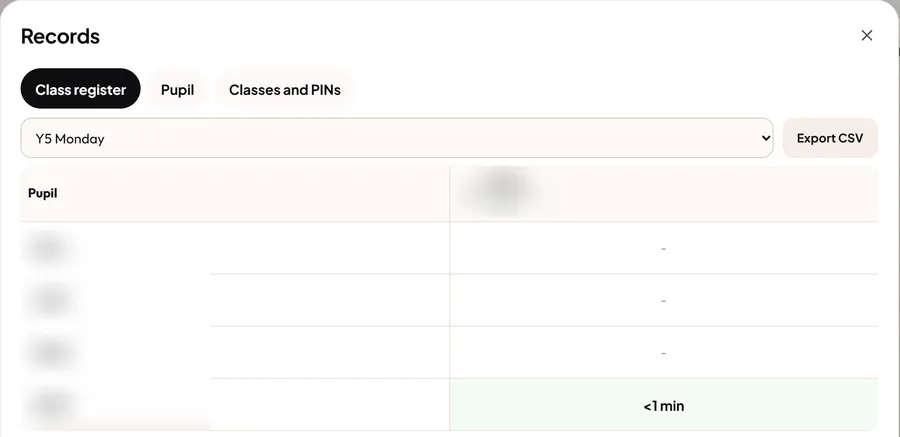
Tap the arrow beside your PIN and press End lesson. Pupils can keep working on their own boards. Forget to end it, and the lesson ends and saves itself. Results and attendance are saved for you in the class register.
More short videos
Teach a lesson from your Library
End a lesson and what is saved
Lock the room once everyone is in
Good to know
- Use Present mode for a clean screen when you share your board with the room.
- You can run one live lesson at a time, and use up to three of your devices in the same lesson.
- If your Wi-Fi drops for a moment, your board keeps working and catches up when it returns. Pupils carry on too.
- Owners and managers can switch on a test pupil in Settings and join their own lesson to see what pupils see.
- Pupils can join from home or another room. They do not need to be on the same network as you.
Related guides
How to reveal pages, set a timer and use Eyes on me and Pens downLive lessons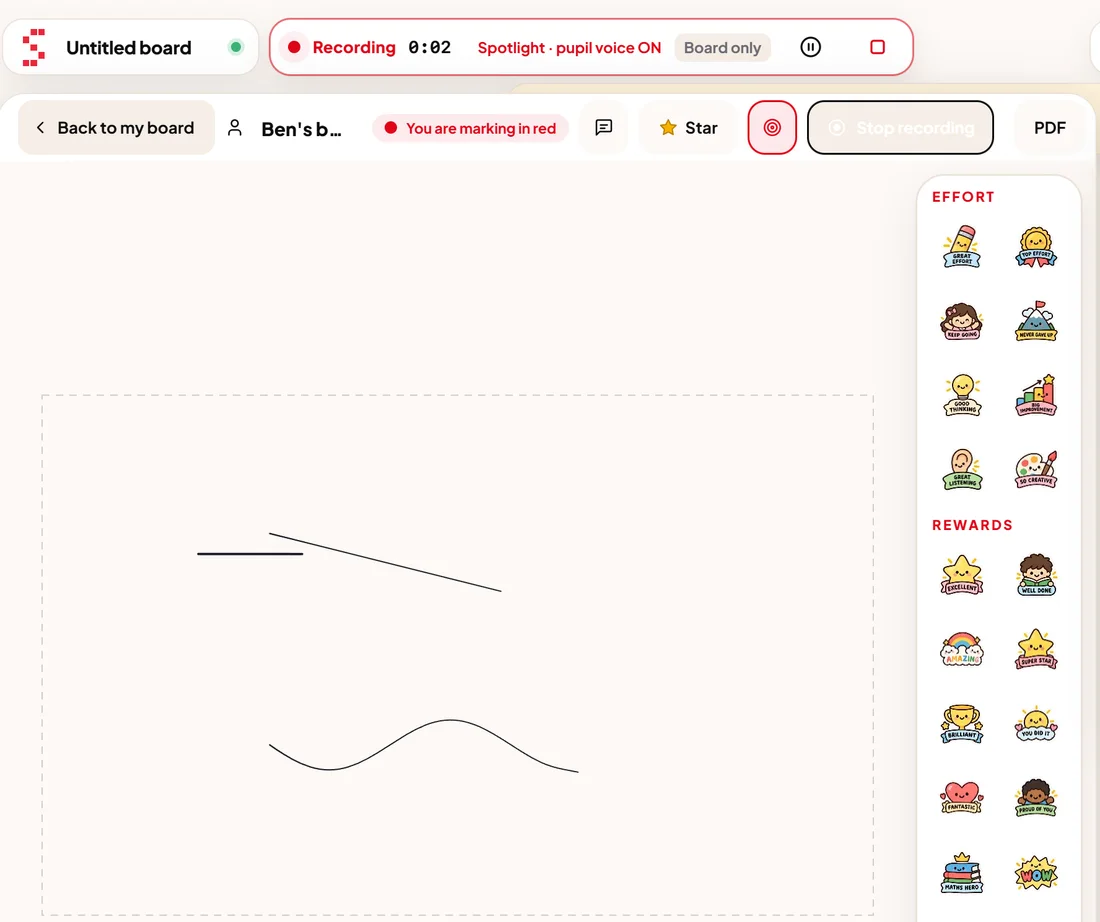 How to spotlight a pupil’s boardLive lessonsHow to compare two pupils side by sideLive lessonsHow to get started with JotoroGetting started
Cannot find an answer?
Tell us what was missing and we will improve this guide.
Suggest an improvement