

Follow the steps
Open the pupil’s board
Find the pupil’s small board in the Pupils panel and open it. You see exactly what they have written, and you can mark on it in red.

Press Spotlight
Press Spotlight on the pupil’s board, or use the Spotlight button at the top of the Pupils panel and choose their name. Every pupil now sees that board live on their own screen. The board says “The class sees this board”, and the panel shows who is in the spotlight, with an End button beside the name.
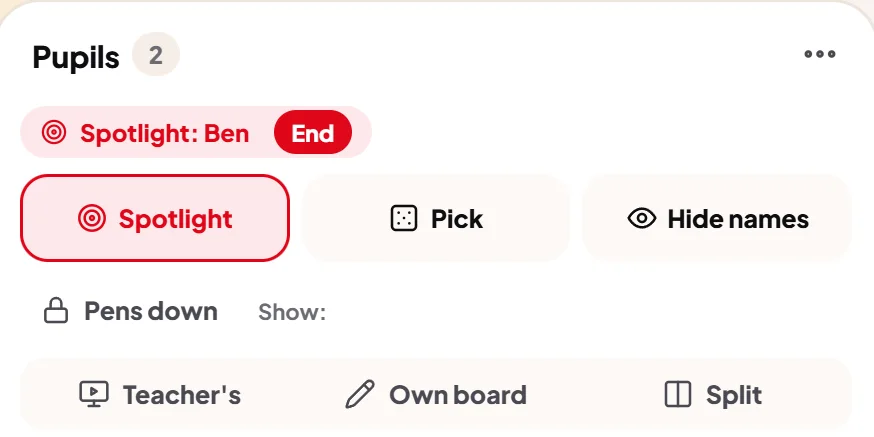
Write on it together
The pupil and you can both keep writing. Everyone sees both pens, and your marks stay on the pupil’s page. Ask, “What did you do first?” and let them show you.
Record it, if you want to
While the spotlight is on, press Record to record it with your voice. A pupil’s voice is recorded only when you have consent on file and the pupil says OK. While it records, the bar at the top says so.
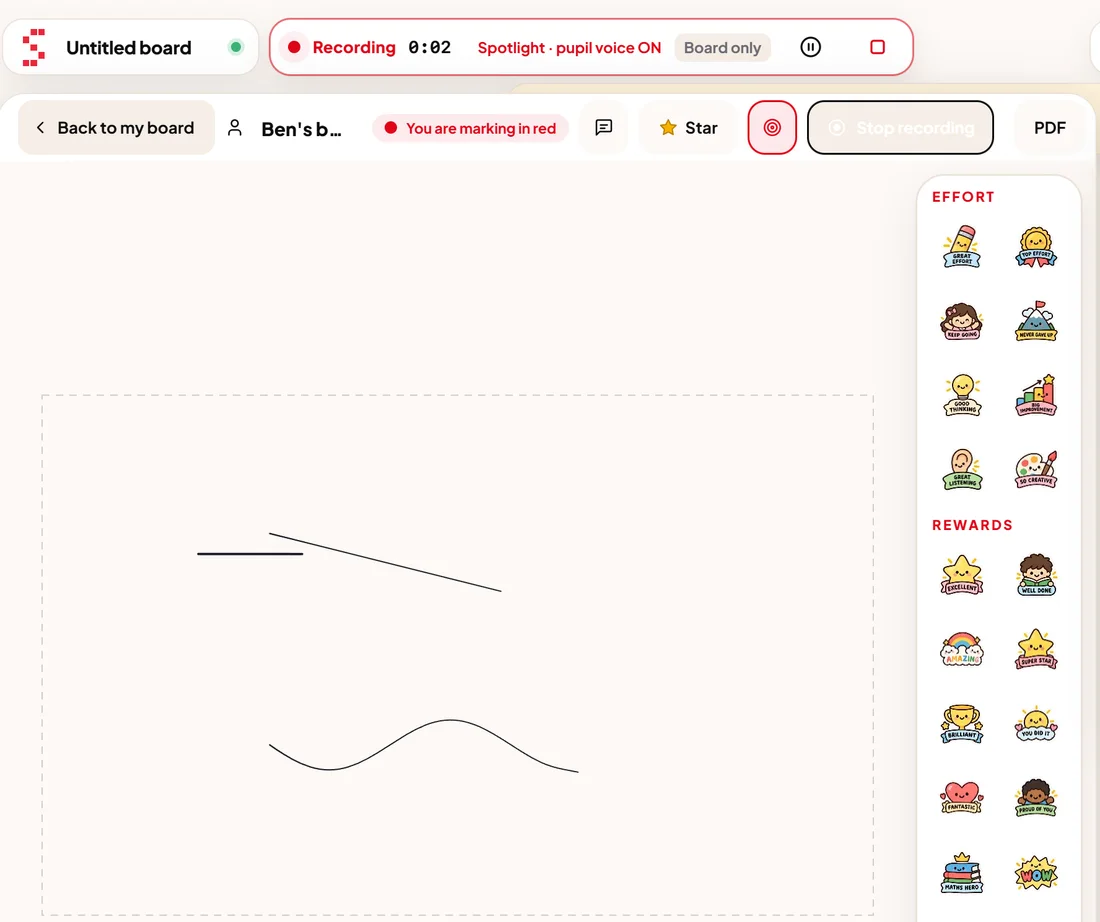
End the spotlight
Press End beside the pupil’s name. The class goes back to their own boards. Press Back to my board to return to yours.
Good to know
- Ask the pupil first. Most pupils love being asked, and a quick “Can I show this?” makes it feel safe.
- Use Hide names (in the Pupils panel menu) before a spotlight if you are sharing your screen with the room.
- Spotlight a good mistake as well as a good answer. It is often the best teaching moment of the lesson.
- Want to see two pupils together? Use Compare two pupils, in the Pupils panel menu.
Related guides
How to start a live lessonLive lessonsHow to reveal pages, set a timer and use Eyes on me and Pens downLive lessonsHow to compare two pupils side by sideLive lessons How to get started with JotoroGetting started
Cannot find an answer?
Tell us what was missing and we will improve this guide.
Suggest an improvement