

Follow the steps
Set the answer boxes first
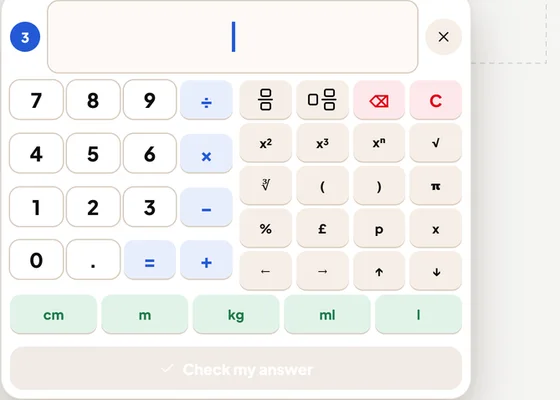
The number pad belongs to the answer boxes on a worksheet. If you have not added any yet, see how to add answer boxes and mark a worksheet. Pupils then tap a box and the pad opens.
Let it choose, or choose for the board
Open the three dots (More) at the top right and find Settings for this board. Under Pupil keypad there are three buttons: Auto, Needed keys and Full. Auto gives a primary board (Reception to Year 6, and 11+) the needed keys, and a secondary board (Year 7 to 13, GCSE, A level) the full keypad.
Pick Needed keys for young pupils
Press Needed keys. Each box now shows the digits, delete and clear, plus only the extra keys that box could use, with a few look-alike keys mixed in so the pad never gives the answer away. A box with a fraction answer shows the fraction key, and a money box shows the pound key.
Pick Full when pupils need every key
Press Full to show every key on every box, as secondary pupils see it. Your choice is saved with the board and on your account, so the next board you open starts the same way.
Pupils can always reach more keys
On the needed pad, pupils see a More keys button. It opens the full keypad for that box, so a pupil who has a different right form of the answer is never stuck. The next box starts on the simple pad again.
More short videos
Money answers on a simple pad
Good to know
- Pupils never see the answers. The extra keys are chosen on our side from the answers you set, so nothing is given away.
- Fractions are typed in place. Pupils tap the fraction key, then type the top and bottom on the answer line.
- Setting the board to a year group means you rarely need to touch this, because Auto follows the year group you gave the board.
- Want fresh sums for the pad? Make times tables and column-method questions in one go.
Common questions
Which pupils get the simple pad?
With Auto, boards for Reception to Year 6 and 11+ get the needed keys. Boards for Year 7 to 13, GCSE and A level get the full keypad. If the board has no year group, Jotoro uses your last choice, and the full keypad if you have not made one.
Can a pupil still type a fraction or a decimal?
Yes. Digits are always on the pad, and More keys opens every other key.
Does it change what is marked?
No. The answers and the marking stay exactly the same. Only the keys on the pad change.
Related guides
 How to use maths manipulativesTeaching tools: Maths
 How to draw a bar modelTeaching tools: Maths
 How to use the ruler, protractor, compass and set squaresTeaching tools: Maths
 How to get started with JotoroGetting started
Cannot find an answer?
Tell us what was missing and we will improve this guide.
Suggest an improvement