

Follow the steps
Start setting homework
From a board, open the ⋯ menu and choose Set homework from these pages…. Or tap ⋯ on a Library card and choose Set homework…. The Set homework sheet opens.
Choose who it is for
Under Set for, pick the classes or tick single pupils. Use the tabs One-to-one, Groups or All pupils. The sheet tells you how many pupils it reaches.
Give different pupils different pages
In Different work for different pupils, tick Give different pupils different pages. A first group appears. If your board already has page groups, press Use this board’s page groups to bring them in.
Fill in each group
Name the group, then choose its pages: type them in the Pages box, for example “1-3, 5”, or tap the page numbers. Tap the names of the pupils who belong to the group. Press Add a group for another one.
Decide about everyone else
Under Pupils in no group, choose Get every page or Are not set this homework. A short summary below lists what each group will get.
Let other children in with the class link (optional)
Under Set for, Class list only is the default, so only the pupils it is set for can open it. Choose Anyone with the class link if children who are not on your list should be able to do it. They type a first name and show up under Guests in the results. If some have joined already, a button such as Add 2 guests who joined includes them.
Set it
Choose a due date, then press Set homework, or Save as draft to come back to it. The Homework set summary lists each group with its pages and pupils, and what everyone else gets. Each pupil sees only their own group’s pages.
Read the results by group
Open the homework to see the pupils listed group by group, with how many pages each group has and how far they have got. Guests are listed last.
Good to know
- If a pupil has already started, their pages stay as they are when you change the groups. Only pupils who have not started get the change.
- Not every group needs different work. Leave the box unticked and everyone gets every page.
- The basics of setting and marking homework are in how to set and mark homework.
Related guides
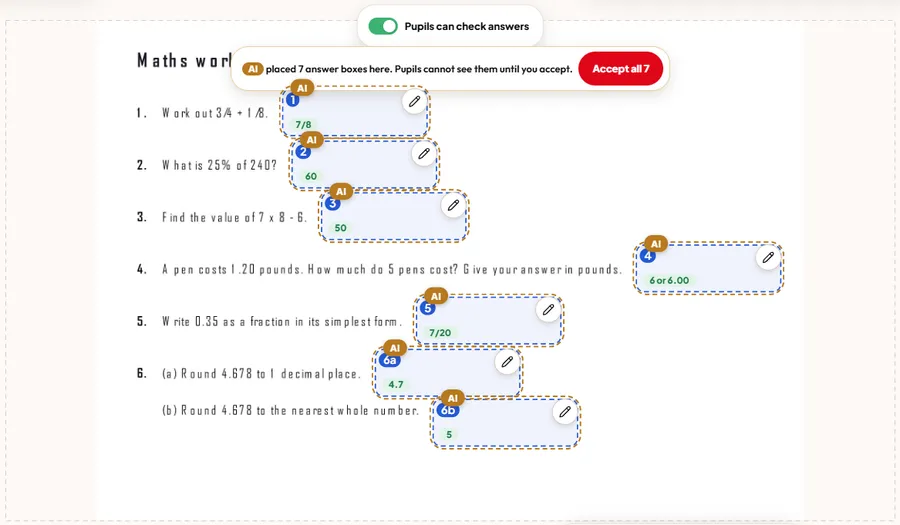 How to add answer boxes and mark a worksheetMarking & answer boxes
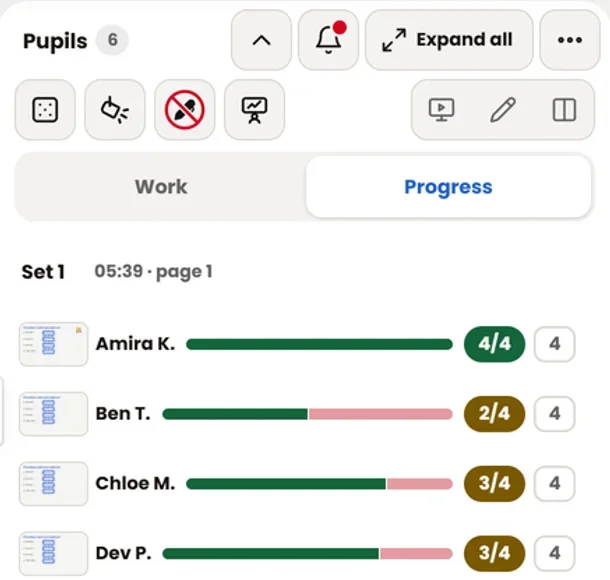 How to use the live question trackerMarking & answer boxes
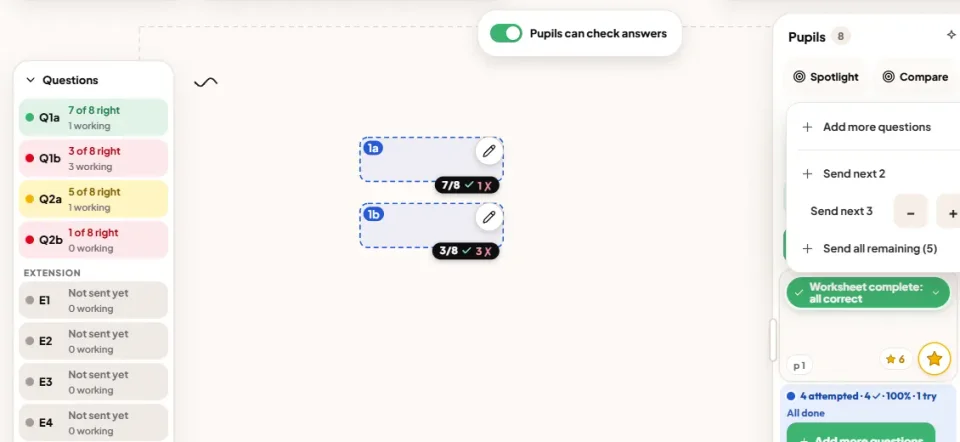 How to send extension questions to early finishersMarking & answer boxes
 How to get started with JotoroGetting started
Cannot find an answer?
Tell us what was missing and we will improve this guide.
Suggest an improvement