

Follow the steps
Open the lesson
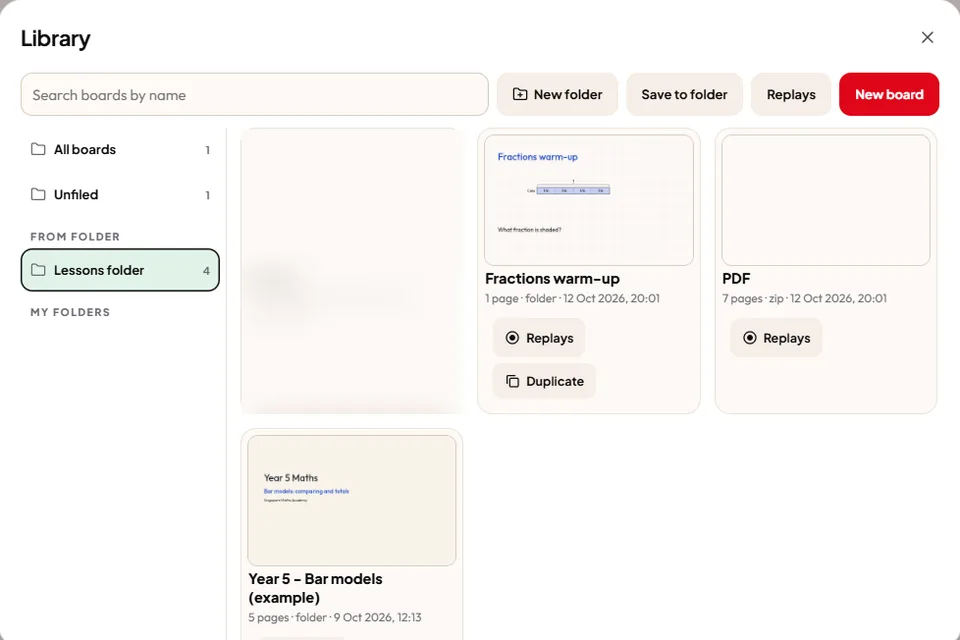
Open the lesson you want to save, from the Library or from your board.
Choose export PDF
Open the board menu and choose Export PDF…. Or open Quick find with the / key or Ctrl+K, type “export PDF” and press Enter.
Save the file
Your PDF is made from the lesson’s pages. Save it, then print it or share it.
Add your own name and coloursPro and above
On Pro and above, a thin bar with your name sits at the top of every page you export. Set it once in your branding settings.
Good to know
- Use a PDF for a printed worksheet or a copy to send home.
- A lesson an agency has locked as a template cannot be exported. You can still teach from it.
Common questions
Do I need Pro to export?
No. Pro and above only add your own name and colours at the top.
Why can I not export this lesson?
It may be a locked template from your agency. Locked templates can be used in a lesson but not exported.
Related guides
 How to import a PDFLibraryHow to import your Whiteboard.fi lessonsLibraryHow to organise your Library into foldersLibrary
 How to get started with JotoroGetting started
Cannot find an answer?
Tell us what was missing and we will improve this guide.
Suggest an improvement