

Follow the steps
Register interest
Go to Register interest and tell us you would like an account. We will email you when sign-up opens.
Sign in
Once you have your details, open app.jotoro.co.uk and sign in.
Look at your home screen
Along the top you will see Dashboard, Boards, Library, Assessments, Homework and Tuition hub. Boards are your lessons, and your Library keeps the ones you reuse. Assessments are timed pieces of work, and Homework has its own place. Your classes and one-to-one pupils live in the Tuition hub.

Make a board
Tap New board. Start with a blank board, or import a PDF worksheet you already use. Your boards stay in your Library, ready for next time.
Add an answer box to a question
Drop an answer box on a question and type the right answer. Jotoro will then mark pupils’ answers straight away. See how answer boxes and marking work.
Find your class link and QR code
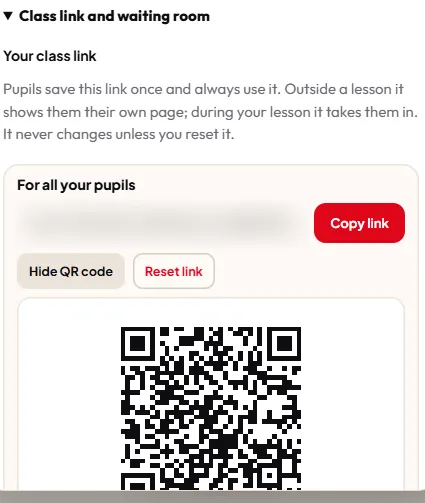
Your class link never changes, so pupils can save it once and always use it. Open a board, tap the three dots (More) at the top right and choose Class link and waiting room to copy the link or show the QR code. The arrow beside your PIN opens the same section.
Let your first pupil in
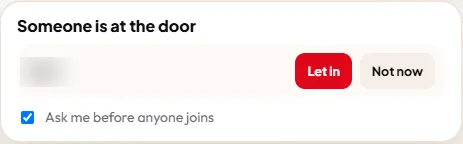
There is no Start button: the board you have open is the lesson. Share your link, and let each pupil in from the waiting room. Next: start a live lesson.
More short videos
Your first 5 minutes as an owner
Your first 5 minutes as a manager
Your first 5 minutes as a tutor
Good to know
- Try a first lesson with a colleague joining through your class link, so you see what pupils see. Owners and managers can also switch on a test pupil in Settings and join their own lesson.
- You do not need to set up classes first. Jotoro works from your very first lesson, and class lists are optional.
- Pupils can join from home, or anywhere else, with the same class link. They need only a browser.
Related guides
Boards, assessments, classes and homework: what is the difference?Getting startedHow to find any tool with Quick findGetting started How to choose your pen, ink style and page backgroundGetting startedHow to start a live lessonLive lessons
Cannot find an answer?
Tell us what was missing and we will improve this guide.
Suggest an improvement