

You will need a board.
Follow the steps
Add an activity card
Choose Maths, then Activities, then a card such as Sequence.
Make the answer key
Press Make answer key and set the answer once.
Try it
Press Try it to test the card as a pupil would.
Pupils check
A pupil presses Check and the card marks itself.
Good to know
- There are 18 card types, including sort, Venn, sequence, cloze and multiple choice.
- Set the answer once.
- Cards mark themselves.
Common questions
Do I have to mark activity cards?
No. Set the answer once and they mark themselves.
Related guides
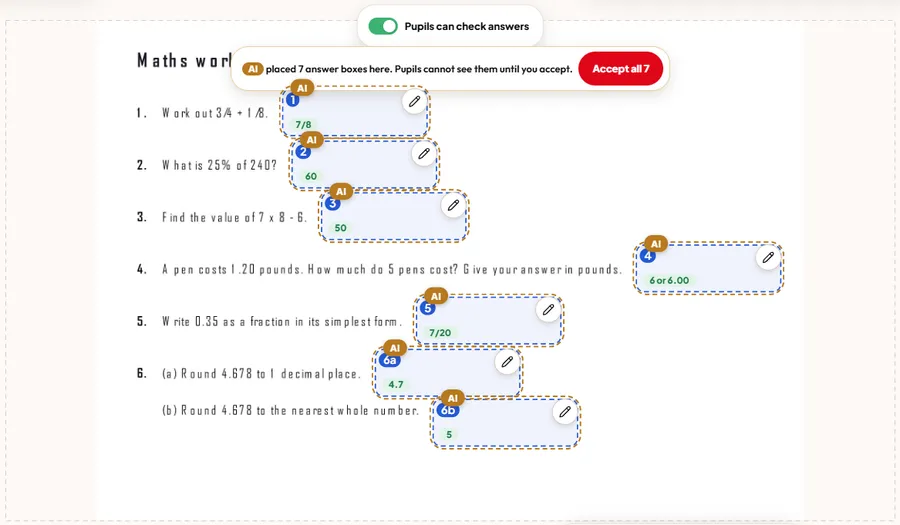 How to add answer boxes and mark a worksheetMarking & answer boxes
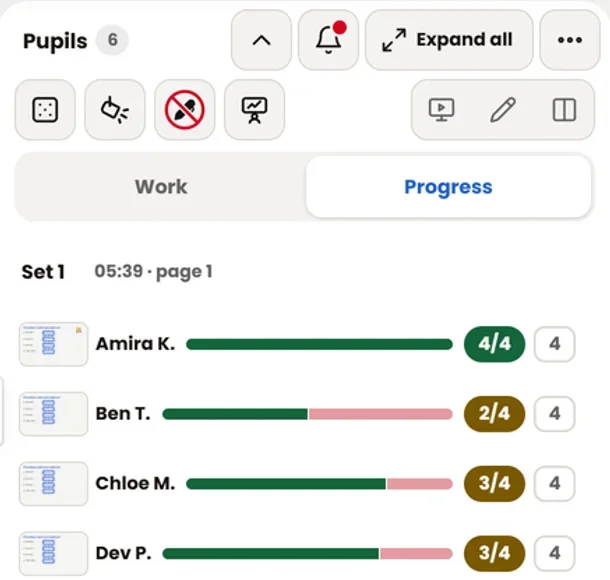 How to use the live question trackerMarking & answer boxes
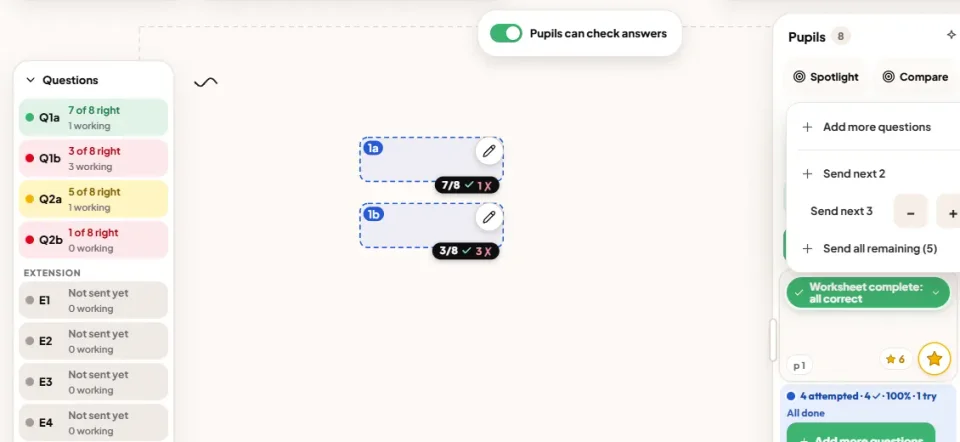 How to send extension questions to early finishersMarking & answer boxes
 How to get started with JotoroGetting started
Cannot find an answer?
Tell us what was missing and we will improve this guide.
Suggest an improvement