

Follow the steps
It can read
Your AI can read a worksheet you have put on the board and find the questions. It can see who has answered in a lesson, look at pupils’ boards after lessons and homework (you can switch this off), and read and fill in your mark book. That is the slow part of the job, and it is where an AI saves you an evening.
It can set things up for you
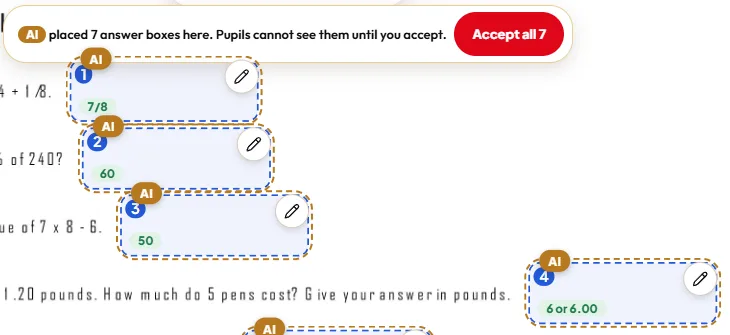
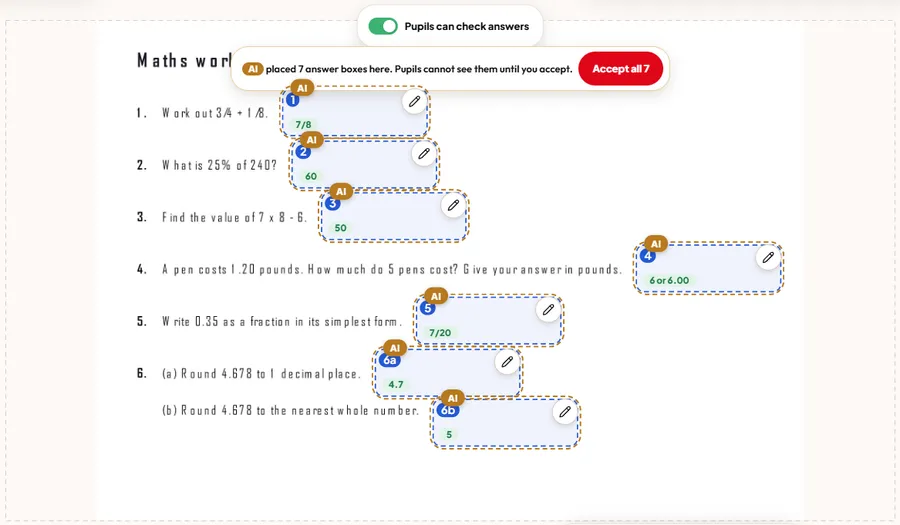
It can turn a worksheet into a board with questions, gap-fills and sorting tasks, and make boards and Library items with a title, group, tags and pages. It can import a PDF into your Library through a board you have open, and say which questions it could not read. It can write into a board you have open while you watch, place answer boxes with the answers it thinks are right, and add polls, Mark the word, punctuation, sentence blocks and writing boxes in the right spot. It can set homework, mark pages as extension work, and set up your classes from a photo of your timetable. When it removes pages, it shows you what would go first, asks you, and can put them back.
It can suggest and flag
During a live lesson it can suggest a tick, a cross or a comment, write a summary at the end, and say who might need you, such as “Ben got question 2 wrong and may need help with adding”. On homework it suggests marks for you to check. Every suggestion is labelled AI and stays hidden from pupils until you accept it. See how to accept or reject.
It cannot mark or show pupils anything
The AI never marks without you. Marking stays in Jotoro, and nothing the AI suggests reaches a pupil until you accept it.
It cannot go beyond what you allow
When you set it up, you choose what it may do: Read, Suggest and Edit. With Edit off, it cannot set homework or change boards. You can press Disconnect at any time, even in the middle of a lesson, and your AI is cut off. It works from anywhere you teach. To set it up, see how to connect your own AI.
Good to know
- The AI is the teaching assistant, not the teacher. Treat its suggestions the way you would a new colleague’s: useful, and worth a quick check.
- Using an AI is your choice. Jotoro works fully without one.
- On every paid plan (in lessons), with RobAIn Pro on the Pro plan and above, and on agency and school plans. See plans and prices.
Common questions
Is AI safe for teaching?
In Jotoro the AI is kept in a safe seat. It can read, set up and suggest, but it cannot mark, cannot show pupils anything, and cannot stay connected against your wish. You review everything first.
Does the AI mark my pupils’ work?
No. The AI never marks without you. Marking stays in Jotoro.
Can pupils see what the AI suggests?
Not until you accept it. Suggestions are labelled AI and hidden from pupils.
Can it change my boards?
Only if you switch Edit on when you set it up. Even then, what it adds waits for your OK, and you can Undo.
Can I switch it off in the middle of a lesson?
Yes. Press Disconnect and it is cut off at once.
Where does it run?
On the online version of Jotoro, so you can use it from anywhere you teach.
Related guides
 How to connect your own AIAI assistantHow to accept or reject what the AI suggestsAI assistantHow to let your AI place answer boxes on a worksheetAI assistant
 How to get started with JotoroGetting started
Cannot find an answer?
Tell us what was missing and we will improve this guide.
Suggest an improvement