

Follow the steps
Look for the AI label
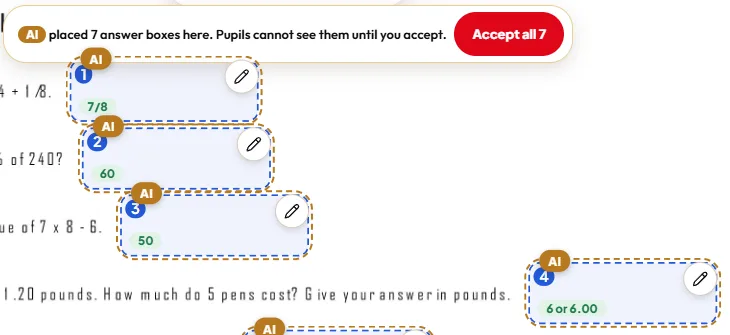
Everything your AI adds to a board carries a small AI label and a dashed outline. That is how you tell it from your own work at a glance. Pupils cannot see any of it yet.
Read the banner
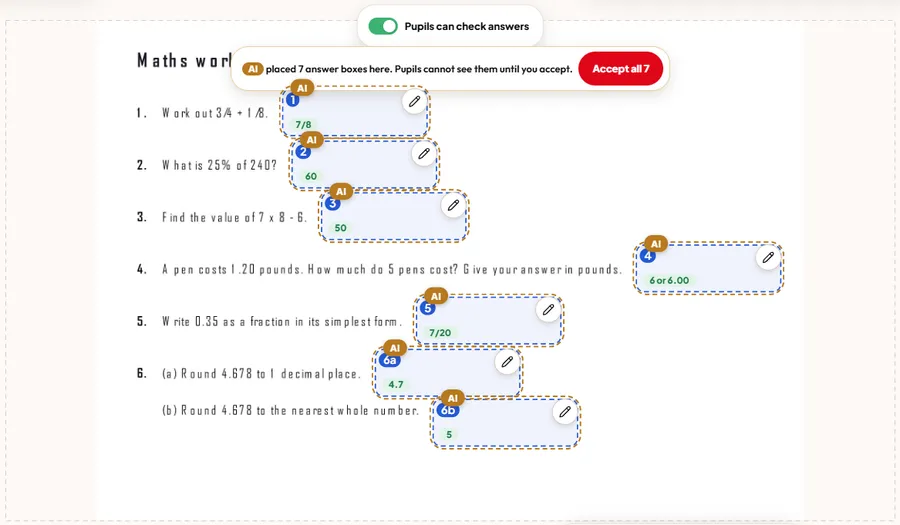
A banner at the top says how many answer boxes your AI placed and reminds you: Pupils cannot see them until you accept. Take your time. Nothing is waiting on you and no pupil is affected.
Check each one
Each box shows the answer your AI has chosen, in green underneath. Check it against the worksheet, the way you would check a colleague’s answer key. Wrong one? Select it and press Delete.
Accept or reject
To reject a box, select it and press Delete. When you are happy with the rest, press the one Accept all button. Anything you have not accepted is not used for marking.
Accepted ones reach pupils
Once accepted, the boxes reach pupils. A box is then an ordinary answer box: pupils can type into it, it marks their answer, and they see their ticks straight away. During a live lesson your AI may also suggest a tick, a cross or a comment. They wait in the Live lesson menu under Waiting for you, where you can Accept or Discard them for one pupil, or press Accept all or Discard all. On homework, RobAIn suggests a score for each pupil, such as 5/8, and you press Accept or Edit. The same rule applies everywhere: you decide.
Good to know
- Always read the AI’s answers on the first few questions. If those are right, you can trust your eyes to move faster on the rest.
- The AI never marks without you. Even after you accept, marking happens in Jotoro, not in your AI.
- To see how Ben or Chloe got on, use the live question tracker, which is your own view, not the AI’s.
- Need to connect or disconnect your AI? See how to connect your own AI.
Common questions
Can a pupil see a suggestion before I accept it?
No. Suggestions from your AI are labelled AI and stay hidden from pupils until you accept them.
Do I have to accept all of them?
You press one Accept all button, so delete any box you do not want first: select it and press Delete. Only what you accept is used for marking.
Can the AI mark a pupil’s answer?
No. It can suggest. Marking stays in Jotoro, and the AI never marks without you.
Where does this run?
On the online version of Jotoro, so you can use it from anywhere you teach.
Related guides
 How to connect your own AIAI assistantHow to let your AI place answer boxes on a worksheetAI assistantWhat the AI can and cannot do in JotoroAI assistant
 How to get started with JotoroGetting started
Cannot find an answer?
Tell us what was missing and we will improve this guide.
Suggest an improvement