

Follow the steps
Copy the link
Go to the page you want to show and copy its web address. It can be a maths activity, a science simulation, a video or an interactive lesson. Use a public link that opens without signing in.
Open the embed tool
Tap Maths, then Web, then Web page to put a website or video on your page. You can also look for it in Quick find.
Paste the link
Paste the web address and tap Add. A note under the box tells you whether it will show live on the board. The website or video appears on your page, and you can drag it to the size and place you want.
Use it with the class
Switch on Use the website to move the graph, run the simulation or press play on the video, and talk through what everyone is seeing. Switch to Write on top to draw over it with your pen. A site that cannot be shown inside the board becomes a card that opens in a new tab.
Check what pupils see
Pupils see it on their own boards, on the pages you have shown them. Try the lesson in Student view first, so you know exactly what they will see.
Good to know
- Open the link at home first and check it plays, and that there is nothing on the page you would not want the class to see.
- Use a public link, and not a personal playlist or a page that asks you to sign in.
- No live map embeds yet. Live maps are not built, so a map link will not show as a live map on the board. Use a picture of the map for now.
- For a graph, the built-in graph tool may be all you need. Embed an online graph tool when you want more than that.
Common questions
Which plans include it?
Groups and above. Free and Solo cannot add a web page to a board. Boards keep showing what they already hold on any plan, and pupils never need a plan.
Which websites can I show?
Maths activities, science simulations, videos and interactive lessons are all supported. Paste a public link to any of them.
Can I put a live map on the board?
Not yet. There are no live map embeds at the moment. You can add a picture of a map to a page instead.
Can pupils use the embedded page themselves?
Pupils see it on their own boards. Try it in Student view before the lesson, so you know exactly what they can do with it.
Do I need an account on the other website?
Not for a public link. Use a link that opens without signing in.
My link will not show. What now?
Check it is a public link that opens in a new tab without signing in, then paste it again. If it still will not show, try a different public link.
Related guides
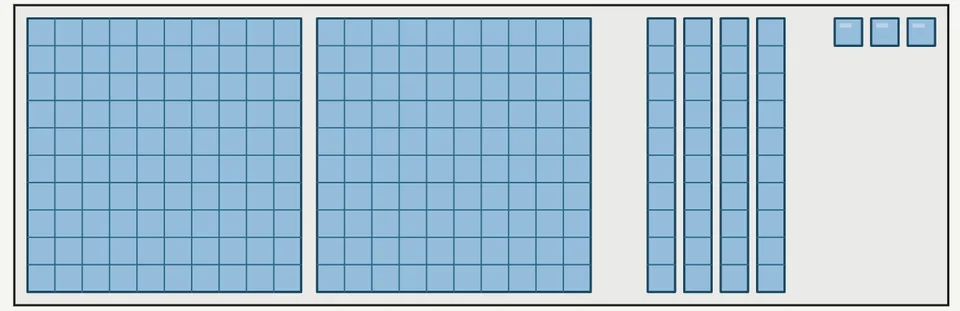 How to use maths manipulativesTeaching tools: Maths
 How to draw a bar modelTeaching tools: Maths
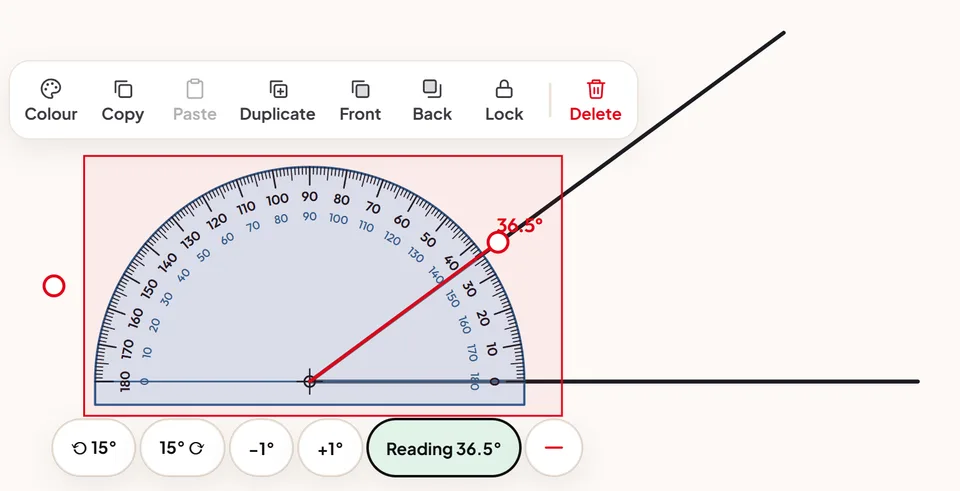 How to use the ruler, protractor, compass and set squaresTeaching tools: Maths
 How to get started with JotoroGetting started
Cannot find an answer?
Tell us what was missing and we will improve this guide.
Suggest an improvement