

Follow the steps
Open the quiz maker
Press New quiz on your home screen or in your Library. The Make a quiz window opens with three tabs: With your AI, Build it by hand and Question bank.

Give it a name
On Build it by hand, fill in the Title, and the Year and Subject if you like. Set a Pass mark (%) if you want one, and open More settings for the rest.
Add questions
Press + Add question. Choose the type: Multiple choice, Answer box, Number, True or false, Put in order, Match pairs, Fill the gap, Sort into groups, Label a picture, Multi-part (a), (b), (c) or Generated questions. Write the question and its answer, and set the marks.
Save each question
Press Save question, or Save and add another to carry straight on. Drag questions in the list to reorder them.
Or let your own AI draft it
On With your AI, press Copy prompt, paste it into the AI you already use, then paste its reply back (or Upload a .json file). Press Edit in the builder to change any question.
Reuse questions
Tap the star beside a question (Save to question bank) to keep it in your Question bank. Later, tick questions there and press Add the ticked questions to build a new quiz from them.
Check it as a pupil, then create it
Open Preview as pupils see it to try it. If something needs fixing, a Fix these first list tells you what. Then press Create quiz. The quiz opens as a board straight away, and a message tells you where it is saved.
Good to know
- In the settings you can choose how many tries pupils get, whether they see the quiz one question at a time or all on one page, and when they see the answers.
- Generated questions make new numbers each time, so pupils can get different versions.
- Use Export file to save a quiz as a file you can keep or share.
Related guides
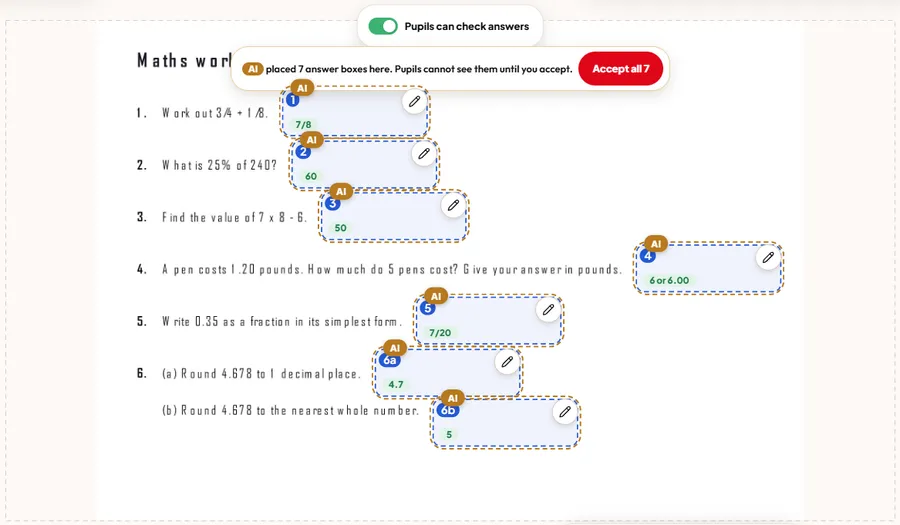 How to add answer boxes and mark a worksheetMarking & answer boxes
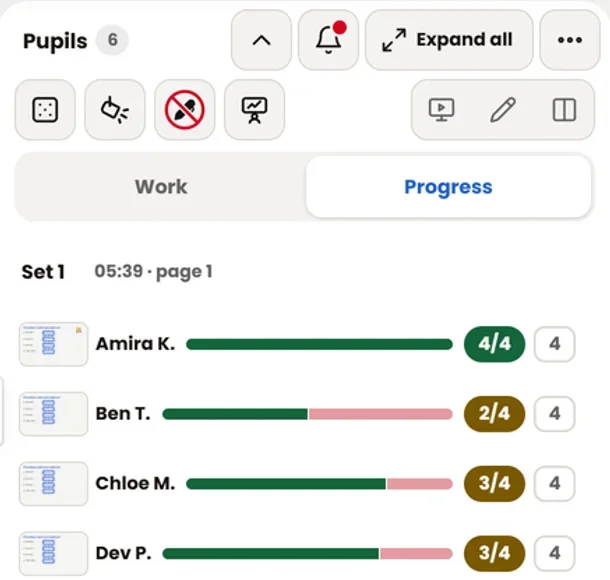 How to use the live question trackerMarking & answer boxes
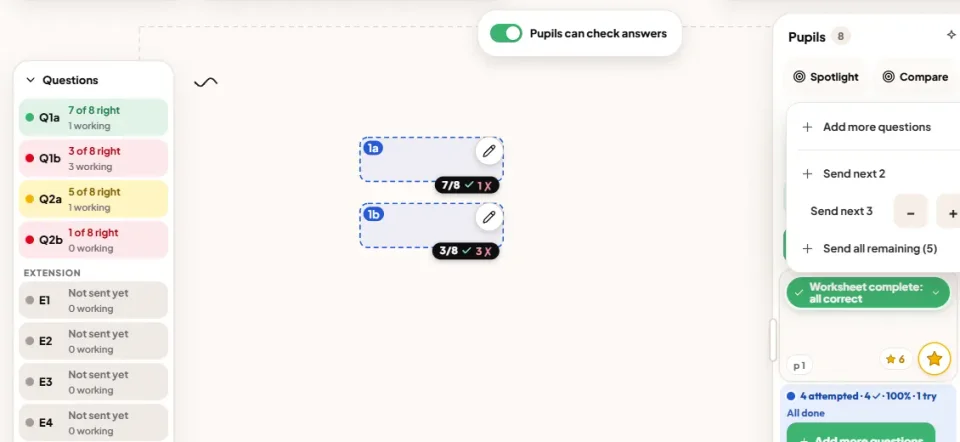 How to send extension questions to early finishersMarking & answer boxesHow to get started with JotoroGetting started
Cannot find an answer?
Tell us what was missing and we will improve this guide.
Suggest an improvement