

Follow the steps
Step onto a pupil’s board
Open the pupil’s tile in the Pupils panel. The bar at the top says You are marking in red, so anything you write is clearly yours.
Add a quick note
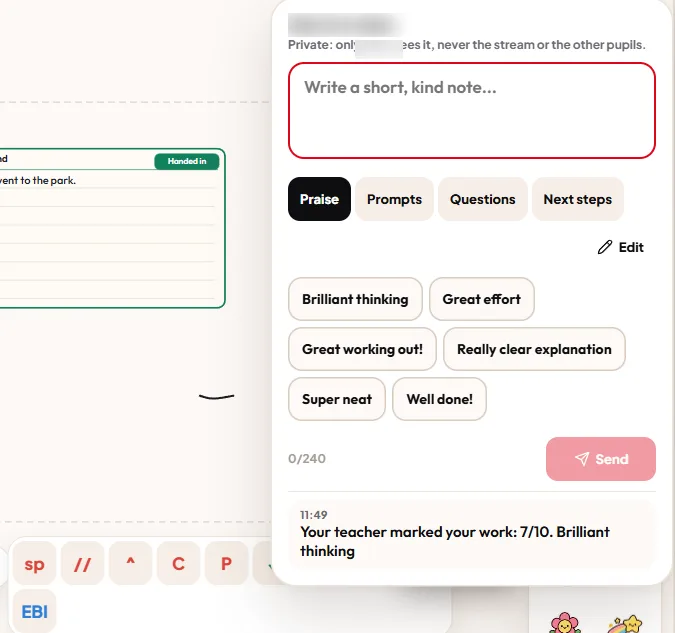
Press the speech bubble in the bar. A panel opens called Note for and the pupil’s name. It says “Private: only this pupil sees it, never the stream or the other pupils.” Write a short, kind note, or tap a ready-made phrase and press Send.
Use the phrase bank
The phrases are grouped under Praise, Prompts, Questions and Next steps. Press Edit to make them your own, so the comments you give most are always one tap away.
Use a marking stamp
Beside your tools there is a row of short stamps, such as sp, //, ^, C, P and EBI. They save you writing the same comment again and again, and every pupil gets the same signal for the same slip.
Turn on Send to teacher, then pupils send you work
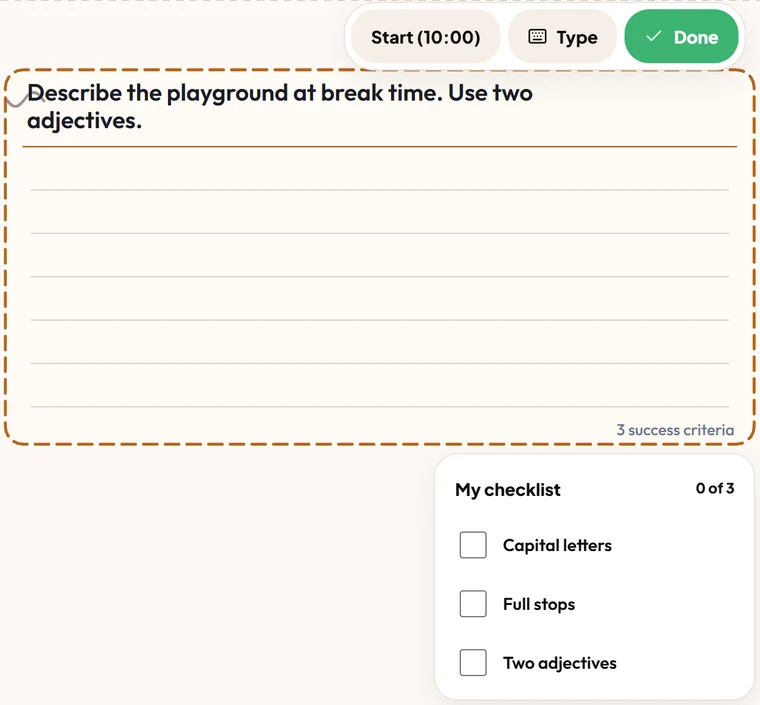
Send to teacher is off by default on each board. To turn it on, open the Pupils ⋯ menu and switch on Pupils can Send to teacher (this board). Then a pupil does not have to wait to be asked. They press Send to teacher, drag a box round what they want to send, add a note if they like, and press Send. Writing boxes work the same way: pupils write, tick their checklist and send.
Open Submitted work
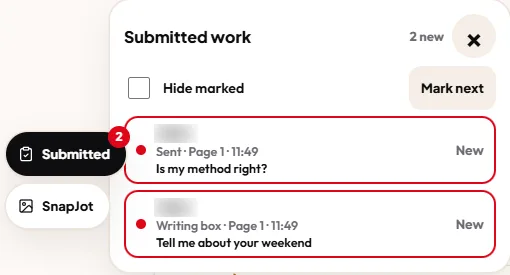
Look for the Submitted button in your top bar. A red badge shows how many new pieces have arrived. Press it to open Submitted work. Each piece shows who sent it, which page, the time and a few words, such as “Is my method right?”.
Give feedback
Open a piece, then answer it with a quick note, a stamp or your pen. Press Mark next to move to the next piece. Tick Hide marked to keep only the ones still waiting for you.
More short videos
Send your work to your teacher (pupil)
Good to know
- A quick note is private. Pupils see it on their own board, and it never appears on a stream or on another pupil’s screen.
- Spend a minute editing the phrase bank at the start of term. After that, feedback takes seconds.
- Once Send to teacher is on, ask pupils to send you one page when they finish. That is much quieter than a hand in the air.
- Marking homework? The same notes and stamps work there. See how to set and mark homework.
Common questions
Can other pupils see my quick note?
No. Only the pupil you wrote it for sees it.
Do pupils need to be asked before they send work?
No. Once you have turned on Send to teacher for the board, they can press it at any time, and the work arrives in your Submitted work. It is off by default on each board, so switch it on from the Pupils ⋯ menu first (Pupils can Send to teacher).
How do I know something new has arrived?
The Submitted button in your top bar shows a badge with the number of new pieces.
Can I change the ready-made phrases?
Yes. Press Edit in the note panel to change them.
Related guides
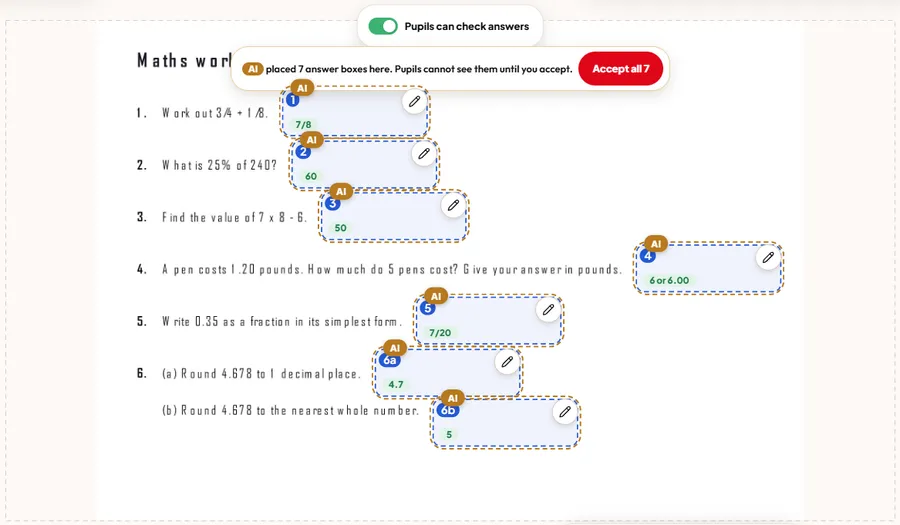 How to add answer boxes and mark a worksheetMarking & answer boxes
 How to use the live question trackerMarking & answer boxes
 How to send extension questions to early finishersMarking & answer boxes
 How to get started with JotoroGetting started
Cannot find an answer?
Tell us what was missing and we will improve this guide.
Suggest an improvement