

Follow the steps
Make a word list
Tap Maths, open Words, then tap Word lists. Name your list and paste in the words you want this week, such as necessary, because and Wednesday. Then tap Save to Library. Quick find finds these tools too. Type spelling.
Choose the spelling test
From your word list, tap Spelling test, then send the page to the class. The same list can also become look-cover-write-check, missing letters or unscramble, which is handy for the children who need another go.
Pick the voice and the speed
Choose how the words are spoken. A computer voice says each word, and you pick a UK English voice and set the speed. Or use your own voice instead, so the class hears you.
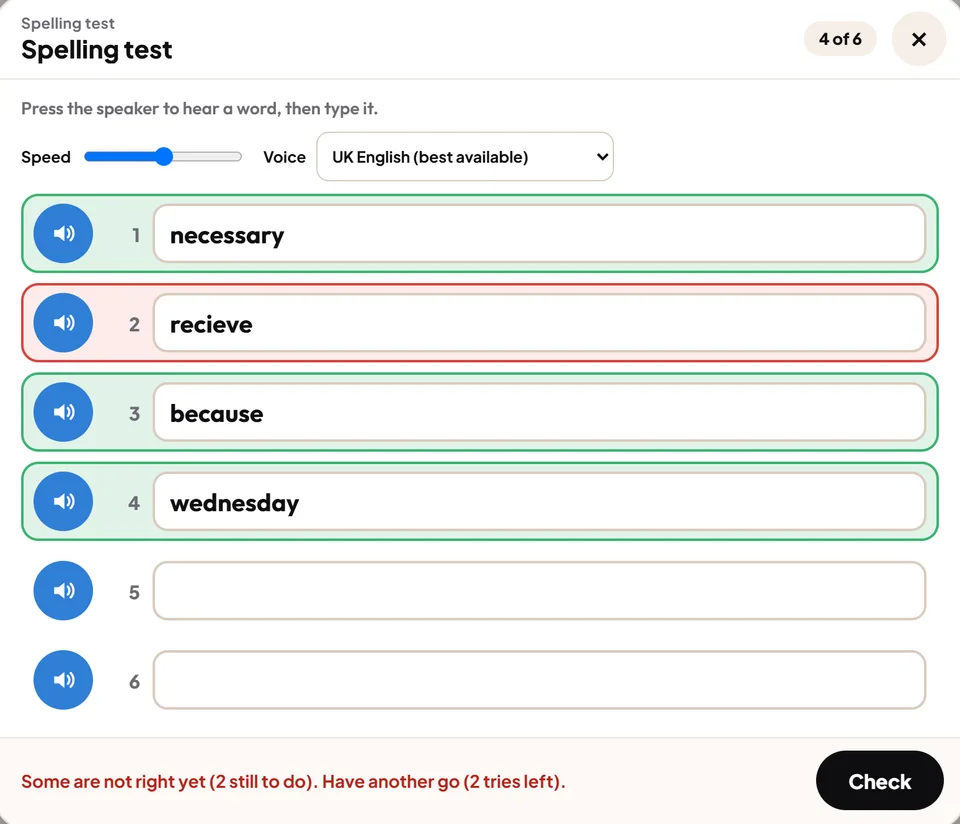
Press Next and Repeat
Tap Read aloud, then Start. By default the words are read out from your own device. Press Next for the next word and Repeat to say it again. The class hears it through your speakers or over your video call. Pupils are only told the number of the word, so the list never reaches their screens.
Let it be marked for you
Pupils type each word and press Check. The test is marked for you, so there is no pile of books to take home. A pupil who types recieve is shown that it needs another look.
Look at the class list
Afterwards tap Results to see a class most-misspelt list, so you know which word to teach again on Monday. Each pupil’s tricky words are also kept in their own record, ready for next week’s list.
Good to know
- Read the words from your own device when you can. It keeps the test fair and quiet, and Ben cannot peek at the list on his screen.
- There is a choice to read the words on each pupil’s device instead. It comes with a warning that a pupil could find the words using the browser’s own tools, so keep it for practice and not for a real test.
- Take the tricky words from the last test and put them in the next list. Chloe’s record already shows which ones keep coming back.
- Want a game instead of a test? Make a word search, crossword or cloze from the same list.
- Looking at the whole set of tools? See teaching tools on the board.
Common questions
Can I use my own voice?
Yes. You can use your own voice instead of the computer voice, so the words sound the way your class hears them every day.
Do pupils see the word list?
Not by default. The words are read out from your device, and pupils are only told the word number.
Who marks the test?
It is marked for you. You see a most-misspelt list for the class, and each pupil’s tricky words go into their record.
Can I change the speed?
Yes. There is a speed control and a choice of voice on the test sheet. A UK English voice is one of the choices.
Related guides
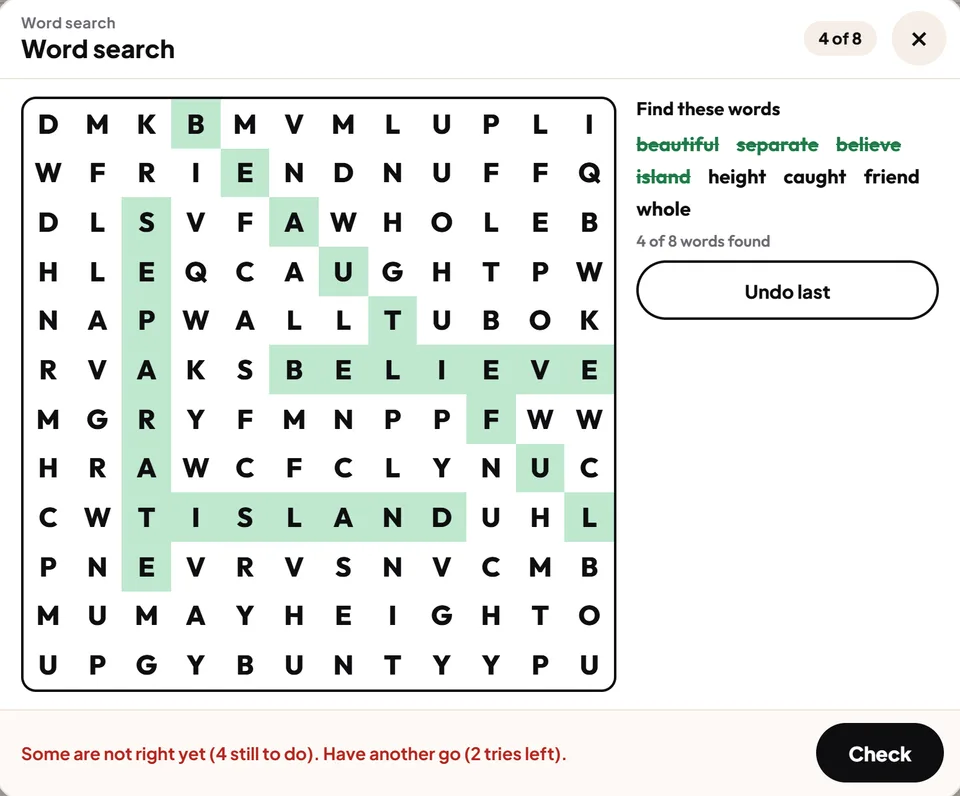 How to make a word search, crossword or clozeTeaching tools: English
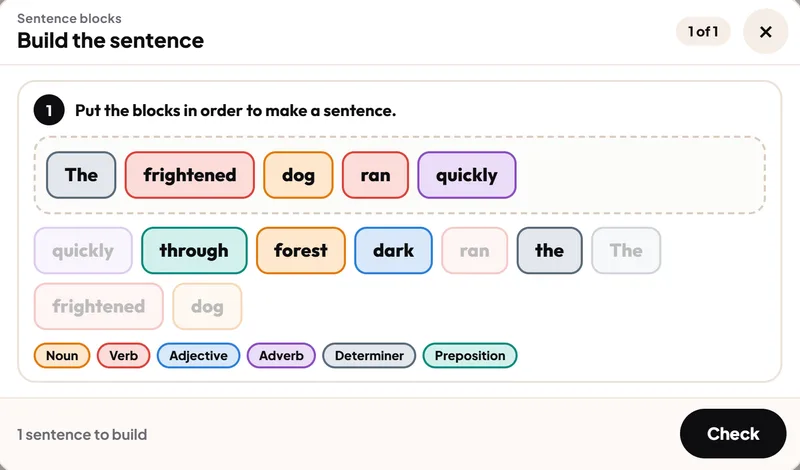 How to use sentence blocks and punctuation repairTeaching tools: English
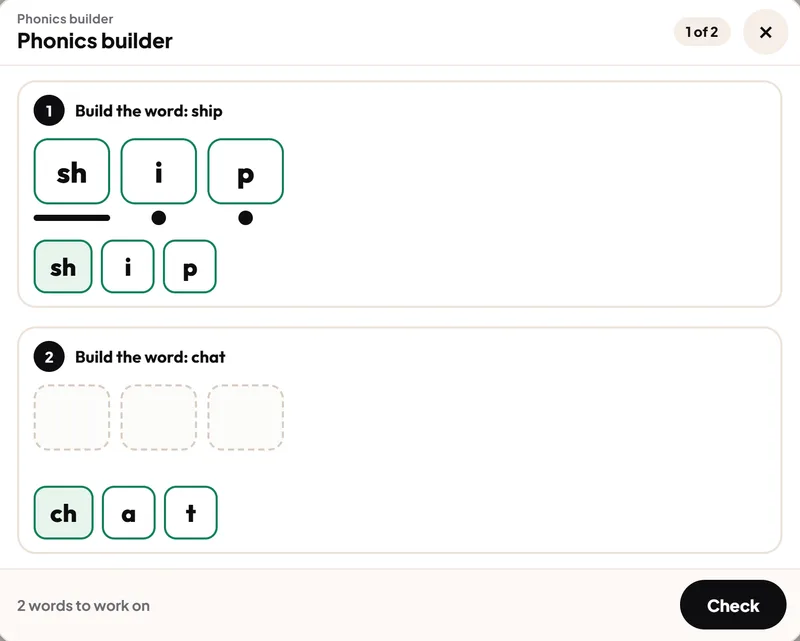 How to use the phonics builderTeaching tools: English
 How to get started with JotoroGetting started
Cannot find an answer?
Tell us what was missing and we will improve this guide.
Suggest an improvement