

Follow the steps
Open your assessment
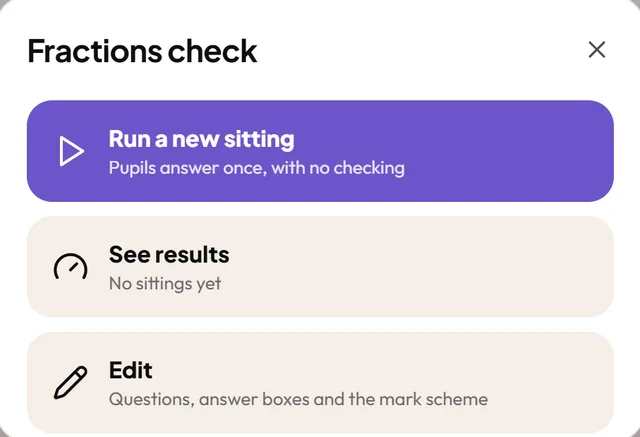
On the home screen, find your assessment in the Assessments section. Tap its card and a small menu opens with three choices: Run a new sitting, See results and Edit.
Check the mark scheme
Choose Edit. It says “Questions, answer boxes and the mark scheme”. Each question has its own marks. A question can also carry method marks, for the working as well as the answer. Say Q1b is worth 1 mark plus 2 method marks: pupils can earn credit for showing how they got there.
Start the sitting
Choose Run a new sitting. The menu reminds you what it means: “Pupils answer once, with no checking.” You can set a timer if you like. If you use one, pens go down by themselves when it ends. Press Start sitting when the class is ready.
Let pupils work
Pupils answer on their own boards. During a sitting, answers and help are hidden, so nobody can check as they go and each pupil gets one go. You can still watch the class, and you do not need to say a word.
Finish the sitting
When the time is up, or you are ready, a card tells you Sitting finished. It also says “Pupils see nothing until you release the results.” You have two buttons: See results and Release results.
Read the results first
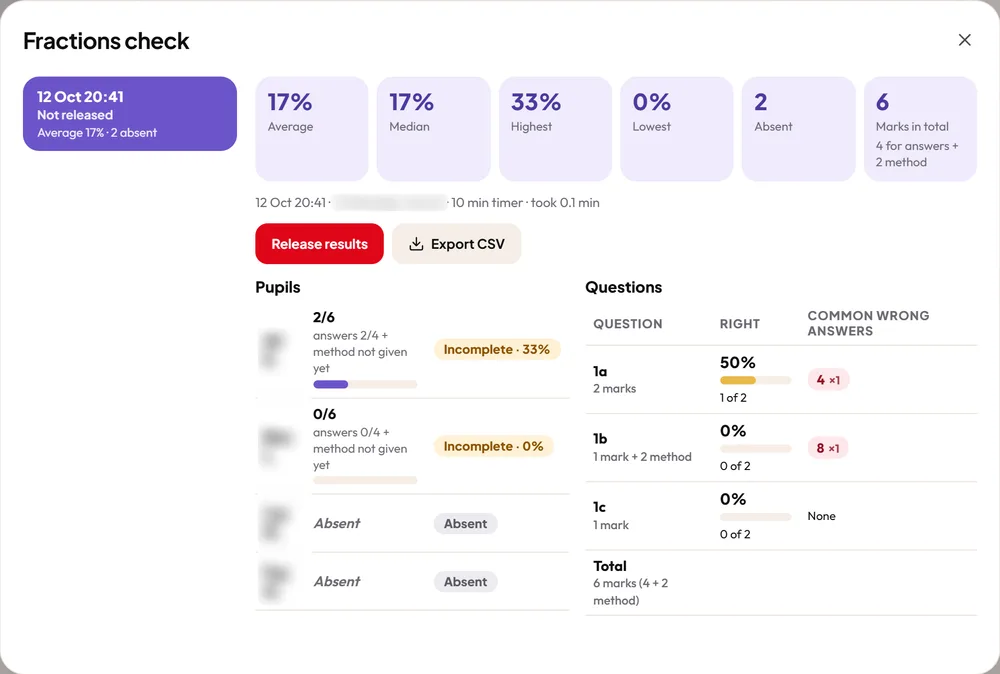
Press See results. At the top you see the Average, Median, Highest, Lowest, how many were Absent and the Marks in total. Every pupil gets a row, including anyone who was away.
See which questions to reteach
The Questions table shows how many got each question right, and the common wrong answers. If the same wrong answer appears again and again, that is the idea to reteach on Monday. Method marks show as “not given yet” until you give them.
Release results when you are happy
Press Release results. Only now do pupils see their own score. Export CSV saves the results as a spreadsheet, if you keep your own mark book.
Good to know
- Take your time before you release. Nothing reaches pupils until you press the button, so there is no rush after the sitting.
- Run the same assessment again later with Run a new sitting. Each sitting keeps its own results, so you can compare how the class improved.
- Build the questions with answer boxes, or use a multiple-choice PDF. Both work with marks per question.
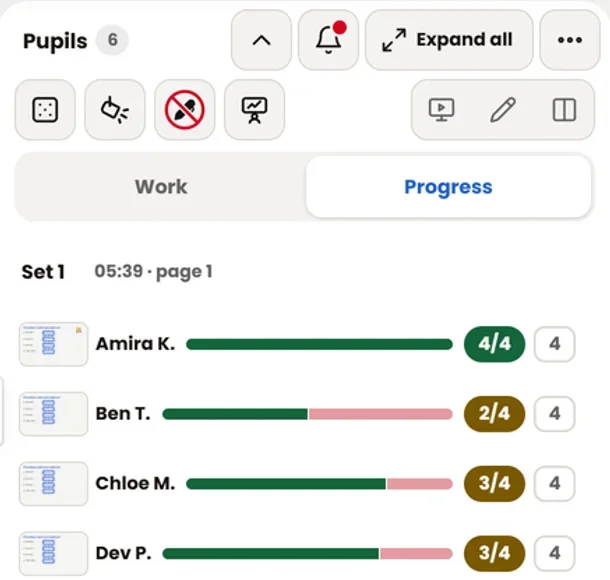
- The live question tracker is for ordinary lessons. In a sitting, answers stay hidden from pupils so it stays fair.
- Extension questions are never sent during a sitting.
Common questions
What is the difference between a lesson and an assessment?
A lesson is for teaching, with help close by. An assessment has its own mark scheme, runs as a sitting with one go for each pupil, and hides answers and help until you release the results.
Do pupils see their score straight away?
No. Pupils see their score only when you press Release results.
What happens to pupils who were absent?
They still get a row in the results, marked Absent, so your list is complete.
Can I run the same assessment again?
Yes. Choose Run a new sitting. Each sitting is kept separately, so you can look at them side by side.
Can I use my own AI to help set the answers?
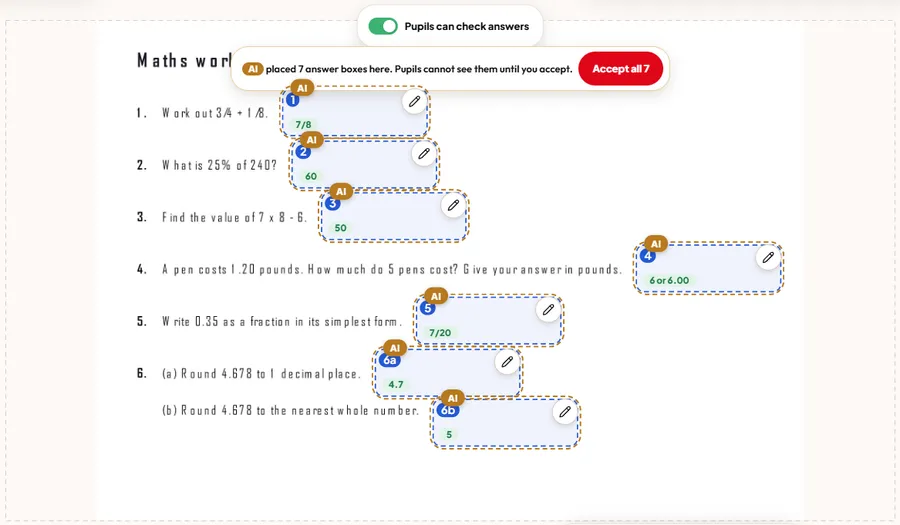
Yes, when you build the questions. It works with the AI you already use, and it only suggests. Nothing is used for marking until you accept it.
Related guides
 How to add answer boxes and mark a worksheetMarking & answer boxes
 How to use the live question trackerMarking & answer boxes
 How to send extension questions to early finishersMarking & answer boxes
 How to get started with JotoroGetting started
Cannot find an answer?
Tell us what was missing and we will improve this guide.
Suggest an improvement