

Follow the steps
Open Smart table
Open the tools tray with the Maths tools button in the Dock. On the Activities tab, under Tables, tap Smart table. Under it are quick starts for Trace table, Truth table, Results table, Punnett square and Two-way table.

Choose a starter
In the Smart table window the same starters sit along the top, with Blank table as well. A truth table has a Gate choice (AND, OR and the rest) and a switch between two and three inputs. A trace table asks for Variables, then press Make columns. A Punnett square asks for the Parents, such as Bb x bb, then press Fill the square.
Shape the table
Use the plus and minus buttons beside Rows and Columns. Tick or untick Header row and Header column. Formula text turns H2O into H₂O, and Capitals matter makes marking strict about capital letters.
Say what pupils fill in
Three buttons say what a tap does: Type text for headings, Choose answer cells to tap the cells pupils will fill in, and Answers to type the right answer in each of those cells. Put a | between answers that are all right, like 0.5|1/2. Leave an answer empty and it becomes an open answer you read yourself.
Name it and put it on the board
Give it a name in Name, which also shows in the tracker. Press Put the table on the board. To change it later, select the table and press Edit.
Pupils fill it in
Every answer cell is a box on the pupil’s own copy. They press Check my table, and the cells with answers are marked. You see every pupil in the question tracker.
Good to know
- Keep a table you use every year with Save as my preset in the Smart table window. It follows your account.
- A results table with repeat readings and a mean suits a practical. A two-way table with totals suits a probability lesson.
- Smart table also shows on the Science tab, and on Maths for teachers of maths.
- Put the readings into a graph next with graphs and measuring.
Common questions
Which tables can I make?
Trace tables, truth tables, results tables, Punnett squares, two-way tables or a blank table of your own.
Are the answers marked?
Cells where you typed an answer are marked, like answer boxes. Cells you left open are for you to read.
Do pupils share a table?
No. Every pupil fills in their own copy, and you see them all together.
Related guides
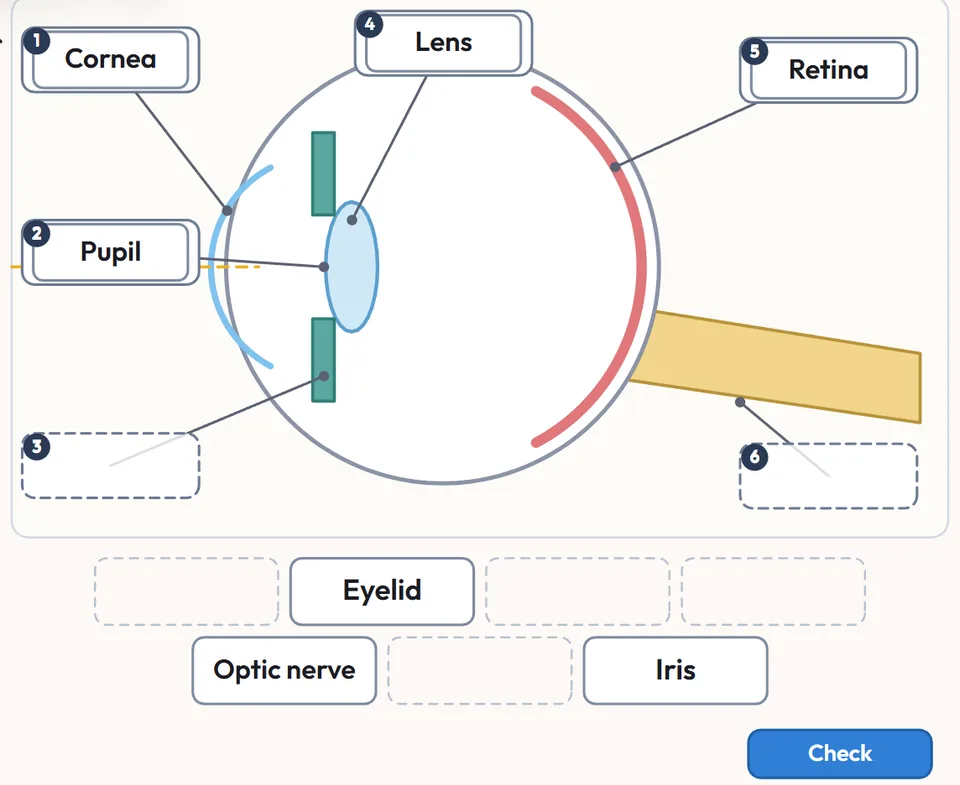 How to label a diagram, sort cards and join with arrowsTeaching tools: Science
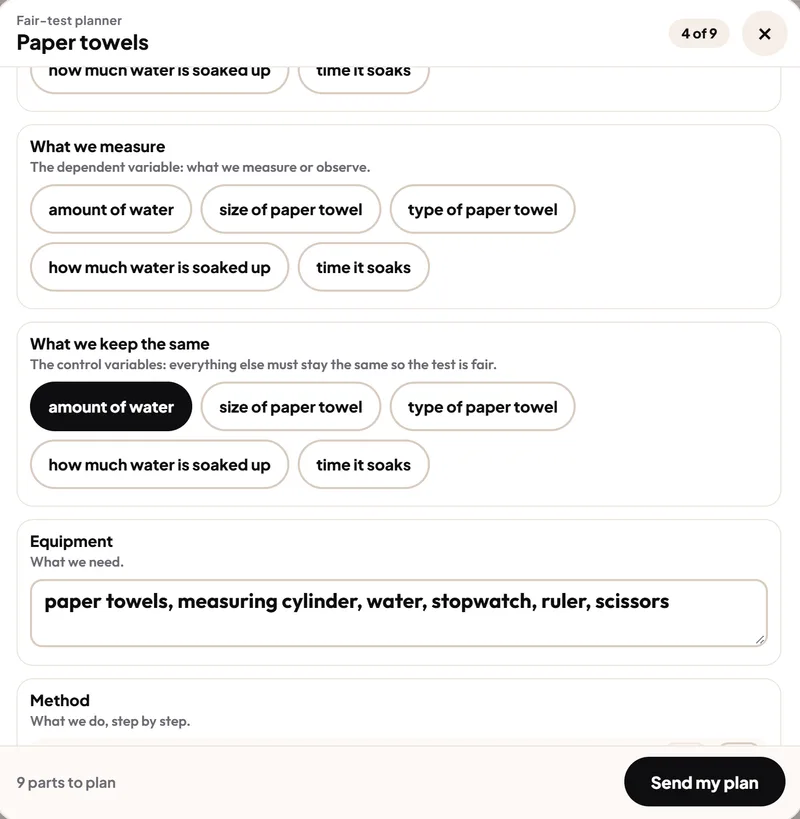 How to use the fair-test plannerTeaching tools: Science
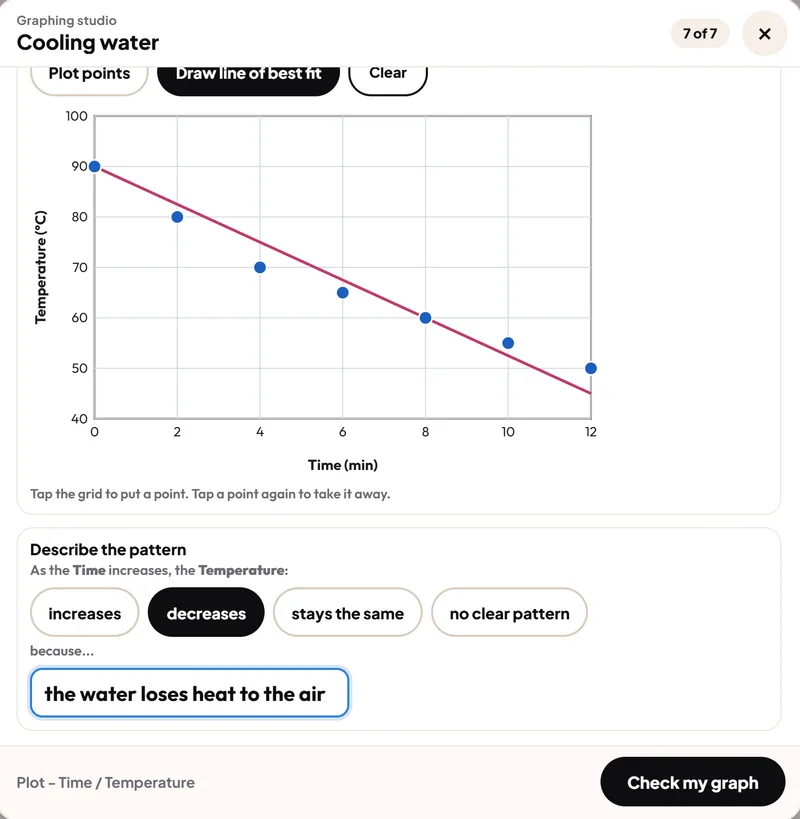 How to use graphs and measuring instrumentsTeaching tools: Science
 How to get started with JotoroGetting started
Cannot find an answer?
Tell us what was missing and we will improve this guide.
Suggest an improvement