

Follow the steps
Open Page design
Open the ⋯ menu and press Page design….

Choose how to make it
There are three tabs: Simple, Image or PDF and From a page. Give it a Design name.
Pick the paper colour
On Simple, choose a Paper colour: Cream, White, Pale blue, Pale yellow or Pale green. You can also choose a colour for the colour bar and header text, and a logo corner.
Use a picture or a PDF page as the background
On Image or PDF, add a picture or the first page of a PDF. That background is locked: nobody can erase or move it, so pupils write on top of it.
Choose where new pages use it
Under New pages start with this design, pick Not by default, For this board or For all boards. A picture stays with its board, so use Simple for every board.
Good to know
- The preview updates as you type and shows exactly what pupils and exports will show.
- To change the colour behind the whole board instead, see change the board colour.
Related guides
How to start a live lessonLive lessonsHow to reveal pages, set a timer and use Eyes on me and Pens downLive lessons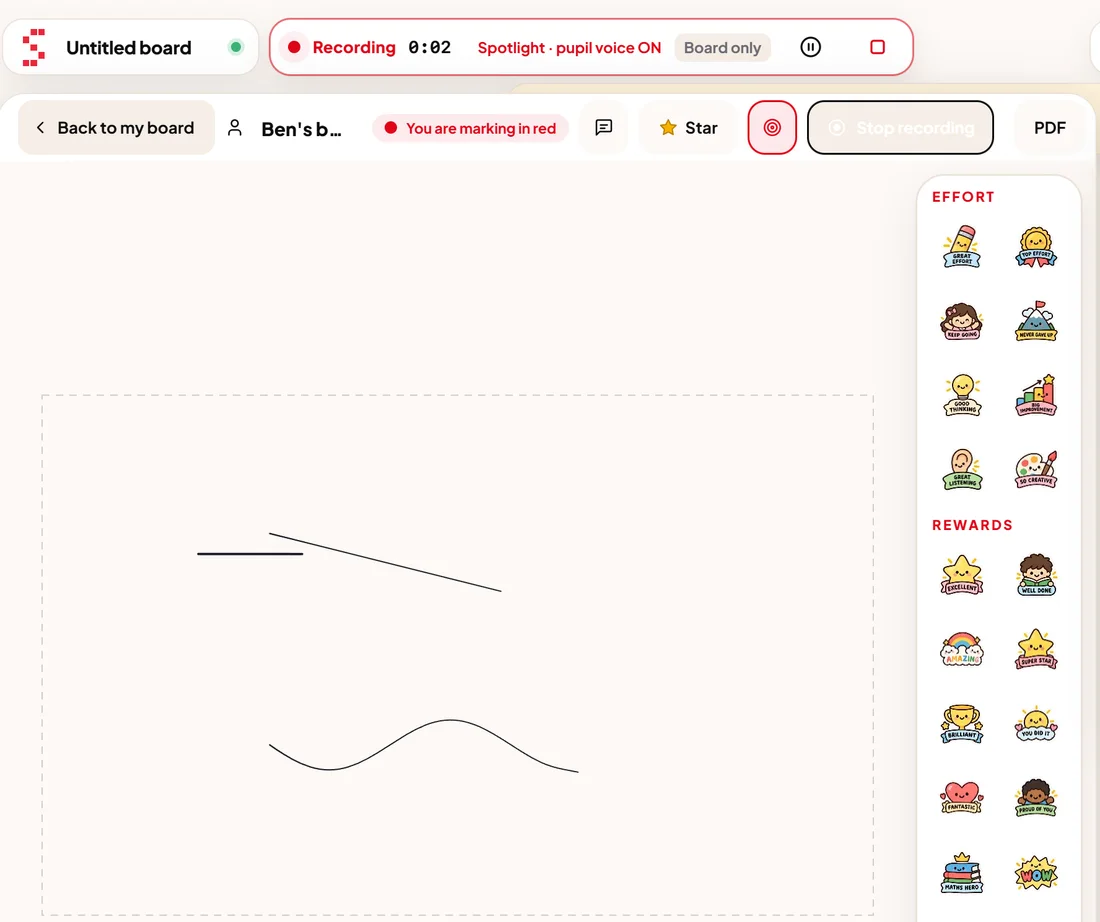 How to spotlight a pupil’s boardLive lessons
 How to get started with JotoroGetting started
Cannot find an answer?
Tell us what was missing and we will improve this guide.
Suggest an improvement