See where a child went wrong.
What it does
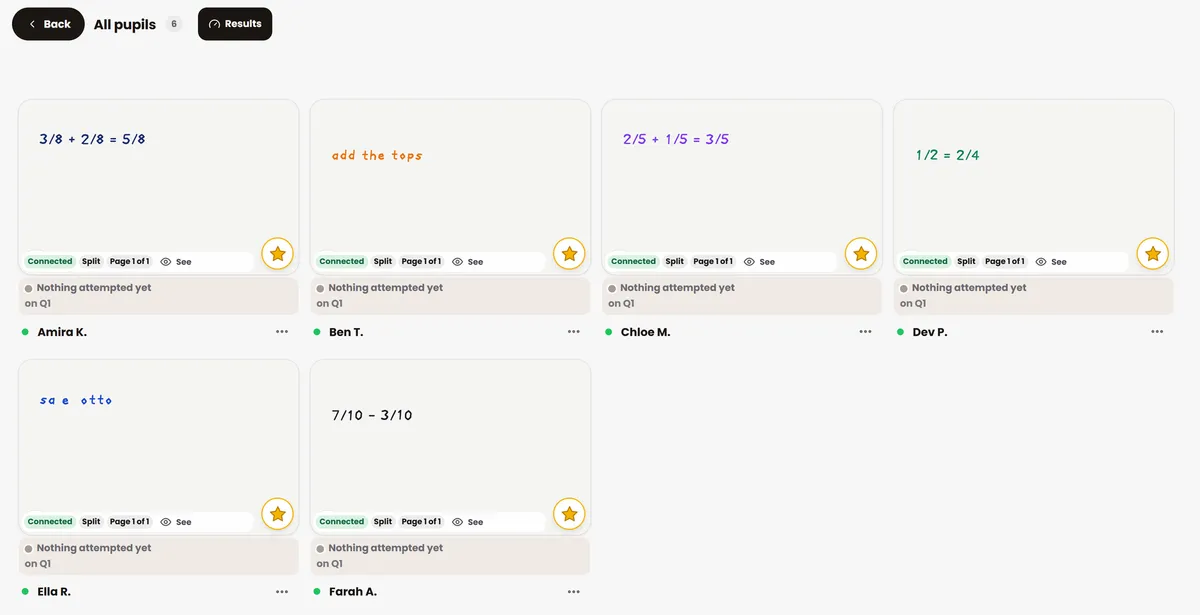
Every pupil writes on their own board, and all of them are on your screen as they work.
In a lesson
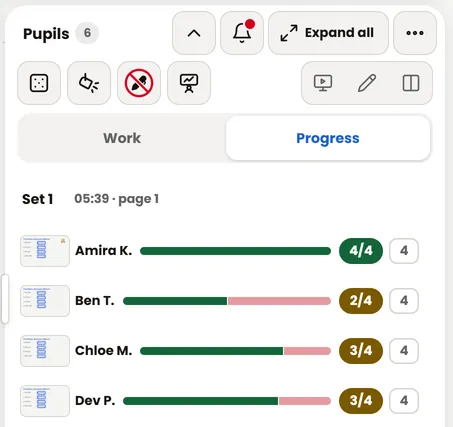
Dev’s hand goes up and you are already looking at his board.

A next-gen whiteboard, and so much more. Every pupil has their own board. Plan it, teach it, see everyone, support them, remember it and reuse it, all in one place.

Jotoro is a live teaching whiteboard for tutors, centres and schools. Each pupil writes on their own board, you see them all, answers mark themselves and each lesson is kept. New here? Start at the Jotoro homepage.
Three ways Jotoro saves you time.
See where a child went wrong.
Every pupil writes on their own board, and all of them are on your screen as they work.
Dev’s hand goes up and you are already looking at his board.
Marking without the pile.
Instant marking: answers mark themselves, and pupils can check before they hand in.
You walk in on Monday with nothing to mark.
Explain a method once.
Record the method once. Pupils tap “Watch how” to see it again.
The second explanation is already waiting for Ella.
Go straight to the part of the lesson you need.
Turn a worksheet, a web page or a blank board into your lesson, and keep it where you will find it.
Turn a PDF, a web page or a blank board into your lesson.
See which topics each class has covered and how each pupil did.
Works with the AI you already use. RobAIn is your sidekick in the lesson. RobAIn Pro sets things up around it. Nothing reaches a pupil until you say yes.
Everything sits on one board, and every pupil’s board is in view, so you can see who is stuck while they are still working.
Ink, tools and every kind of content on one board.
Every pupil on their own board, with raised hands as they happen.
Rulers, protractors, manipulatives, a timer and a laser pointer.
Marks, results and the register are kept as you teach, and the lesson waits in your Library for next term.
Follow your curriculum in Jotoro and see what each class has covered, even when a new tutor picks the class up.
Follow your curriculum and see where each class has got to.
Marks are kept for each pupil on each topic, so progress is a look, not a search.
In a centre, your curriculum sits in the tuition hub beside your classes and tutors. RobAIn Pro can read your mark book and set marks when you ask, and you stay in charge.
Curriculum is part of Pro and above, and every school teacher account gets the Pro features. See plans and prices.
A shared library with locked originals keeps everyone on the lessons you agreed.
A new tutor tidies up the fractions lesson on Tuesday. By Thursday, nobody has the version you agreed.
Put the lesson in your shared library and lock it. Tutors teach it and write on it in the lesson, but cannot edit it. A manager approves what is shared, and a tutor who needs their own version is sent a copy, so the original stays as you made it.
Four tutors, Monday night, fractions. One plays a game, one hands out a worksheet, one skips to the hard bit. On Saturday a parent asks why Year 5 did something different.
Every tutor opens the same lesson from the shared library. The start, the examples and the check at the end match in every room, and each tutor still teaches it in their own voice.
Sunday night: a pile of marking, and a register to type up before Monday’s report.
Answers mark themselves while the lesson runs, the register is kept as you teach, and results can be exported. Your tutors plan and teach instead of tidying up.
Anything marked Coming soon is still being built.
Every child’s work, live, side by side.
Live lessonSnap any board, yours or a pupil’s, as a sharp image.
RecordingShow one child’s thinking to the whole class.
Live lessonA raised hand appears on your screen at once.
Live lessonAnswers mark themselves, and pupils can check before they hand in.
MarkingShort video clips of a moment, ready to keep.
RecordingEach pupil writes on their own private board.
Pupil boardsDrop them on any worksheet. A child-friendly keypad makes typing easy.
MarkingPlace value, fractions, number lines, bar models, algebra tiles and more.
MathsEvery snap and clip, kept together and easy to find.
LibraryStep onto a pupil’s board and tick, circle and comment while they watch.
Live lessonOne Record button captures your board and voice, replayed sharp.
RecordingEyes on me, pens down, timer, pick a pupil, laser pointer and reveal.
Live lessonWorks with the AI you already use. You stay in charge.
RobAInPhotograph your timetable and your classes, slots and pupils wait for your OK.
RobAIn ProYour own interactive lessons (Pro and above), plus websites and videos (Groups and above).
LibraryWho joined, who left, and for how many minutes.
RecordsSee “6 of 8 right” for each question as it happens.
MarkingiPad, laptop, Chromebook or phone. Nothing to install.
Pupil boardsInk appears instantly, with Pencil, finger or mouse.
Pupil boardsLabel diagrams, link food chains, sort, plan fair tests and graph results.
SciencePupils tap “Watch how” to see the method again.
RecordingEarly finishers? Jotoro asks if you want to send their next challenge.
MarkingYour lessons in folders, ready to pick up where you stopped.
LibraryStars for right answers and 120 friendly stickers.
Pupil boardsPhonics, spelling, sentence blocks, punctuation, story order and annotation.
EnglishRuler, protractor and compass that draw true, and shapes that tidy themselves.
MathsResults, stars and notes, logged for you. Download it all as PDFs.
RecordsOne class link, then each child’s own name and PIN.
Pupil boardsAnyone unexpected waits calmly until you say yes.
SafetyMark schemes, rubrics, timed sittings, results released when ready.
MarkingIt reads a worksheet and sets the answers up, ready for you to check.
RobAInImport a 60-page PDF in seconds.
LibraryTicks and crosses for you to accept or discard. You stay in charge.
RobAInIf the Wi-Fi blips, pupils keep writing and it catches up by itself.
Pupil boardsQuick questions to see who has understood.
Live lessonBoards, assessments, classes and one-to-one in one place.
PlanningExport or delete any child’s data in one step.
SafetySeats, class links and your own branding for every teacher.
SchoolsSet homework with the lesson’s replay attached.
PlanningPress Ctrl+Space and type “pens down” or “next page”.
Live lessonSay what you want and it happens, with Undo. Needs Chrome or Edge.
Live lessonSuggests a poll or next step in a live lesson. Voice is never stored.
Live lessonMove the lesson to the board you are on. Pupils keep their work.
Live lessonSeven switches, for the whole centre or for one child.
RecordsTarget schools and the score needed, or a GCSE target grade.
Records13 steps with short videos, and it ticks itself.
PlanningClear a pupil’s page and keep your red marks, or clear both. One Undo brings either back.
MarkingAfter reading a paper, Jotoro says how many questions it found, such as 38 of 40, and which it could not read.
MarkingAsk your AI to put a PDF in your Library. It tells you which questions it could not read.
RobAInA badge shows how many pupils are on homework, even with the Pupils panel closed. Guests count too.
Live lessonA short first sign-in: your name, your business, what you teach, your first class and your team. Skip any step.
PlanningYour name, website, logo and colours in one place. Logo and colours are Pro and above.
SchoolsYour boards appear as soon as you sign in. Boards you have opened stay on that computer and work without internet.
LibraryYour lessons sit in folders, ready to carry on from where you stopped. Bring in a PDF or start with a blank board.
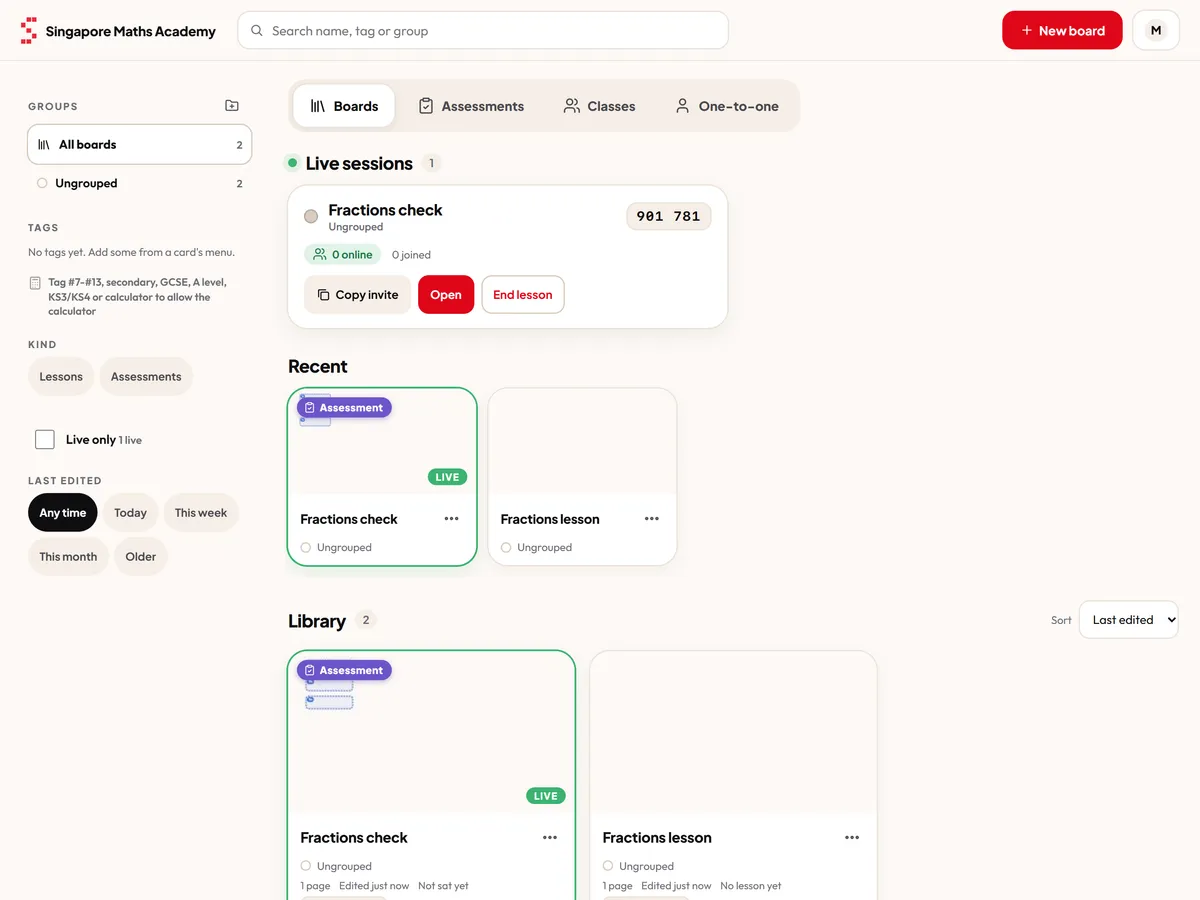
Pupils open one class link, scan a QR code or type a short code. Anyone you do not expect waits calmly until you say yes.
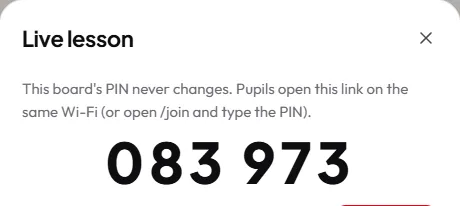
Every pupil writes on their own board while you watch them all. Step onto a board and tick, circle and comment while they watch.
The question tracker shows how many got each question right as it happens, so you know when to stop and explain Q3.
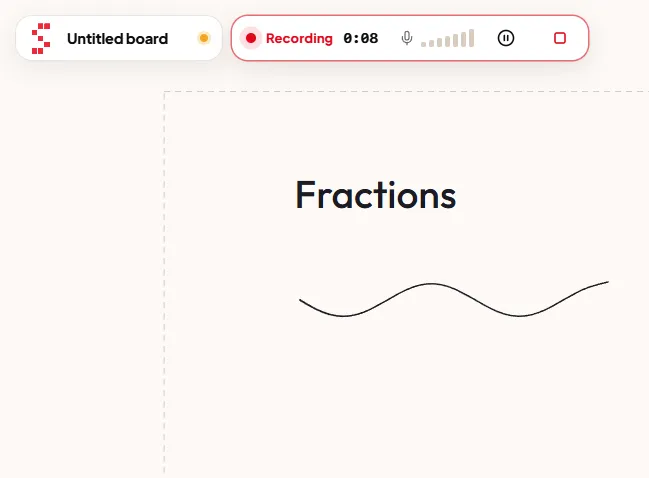
One Record button captures your board and your voice, ready to replay. Pupils can tap "Watch how" to see the method again.
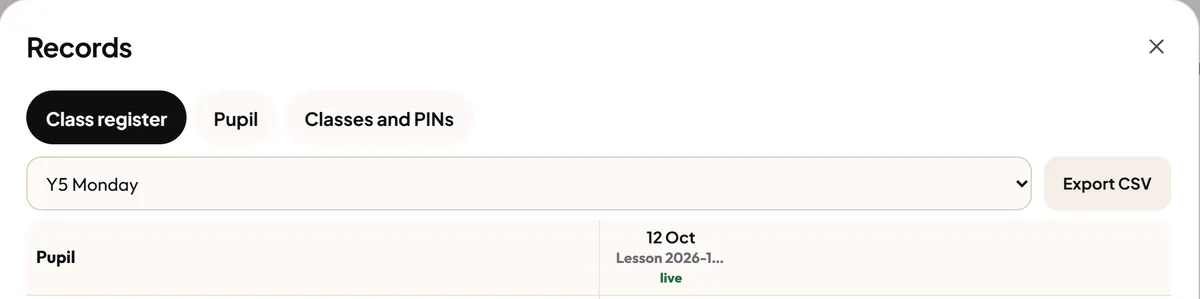
Who joined, who left and how they did is logged for you, and you can download it all.
Maths, English, science and humanities each get tools that fit the way they are taught. See every subject.
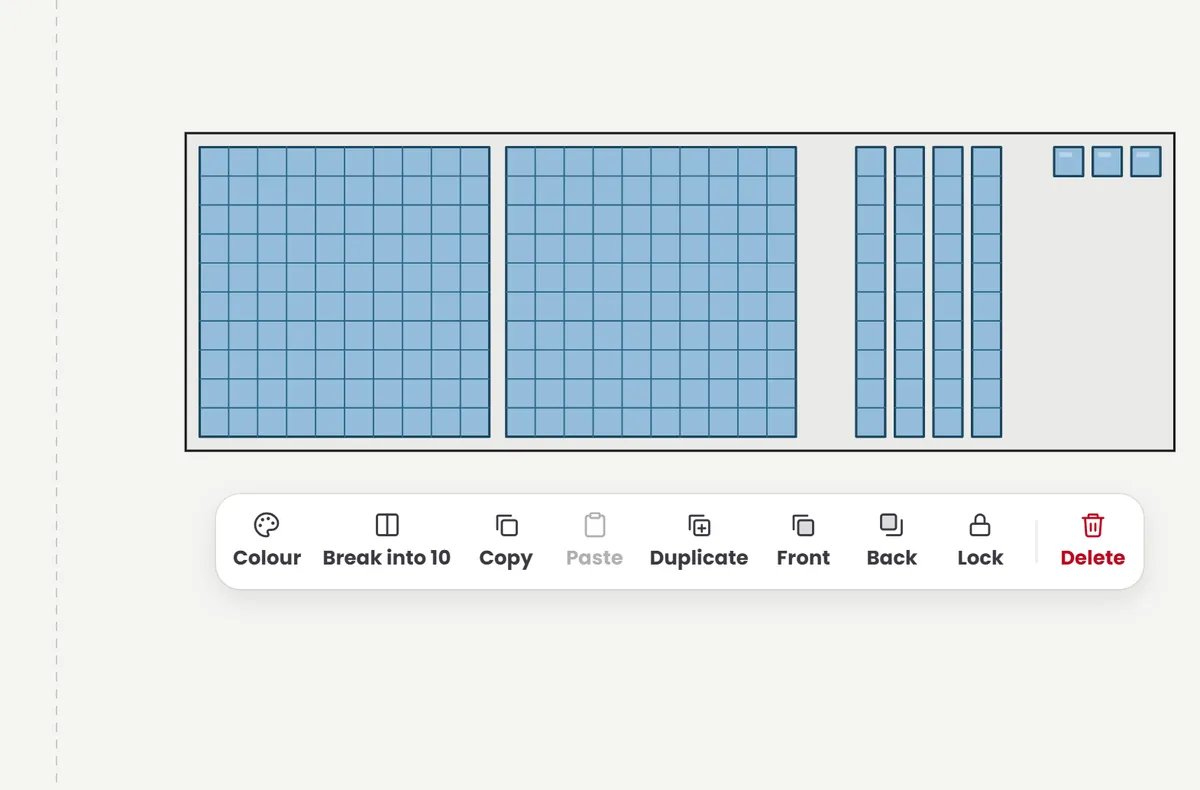
Break a hundred into ten tens with one tap, using Dienes blocks, fraction walls and bar models.
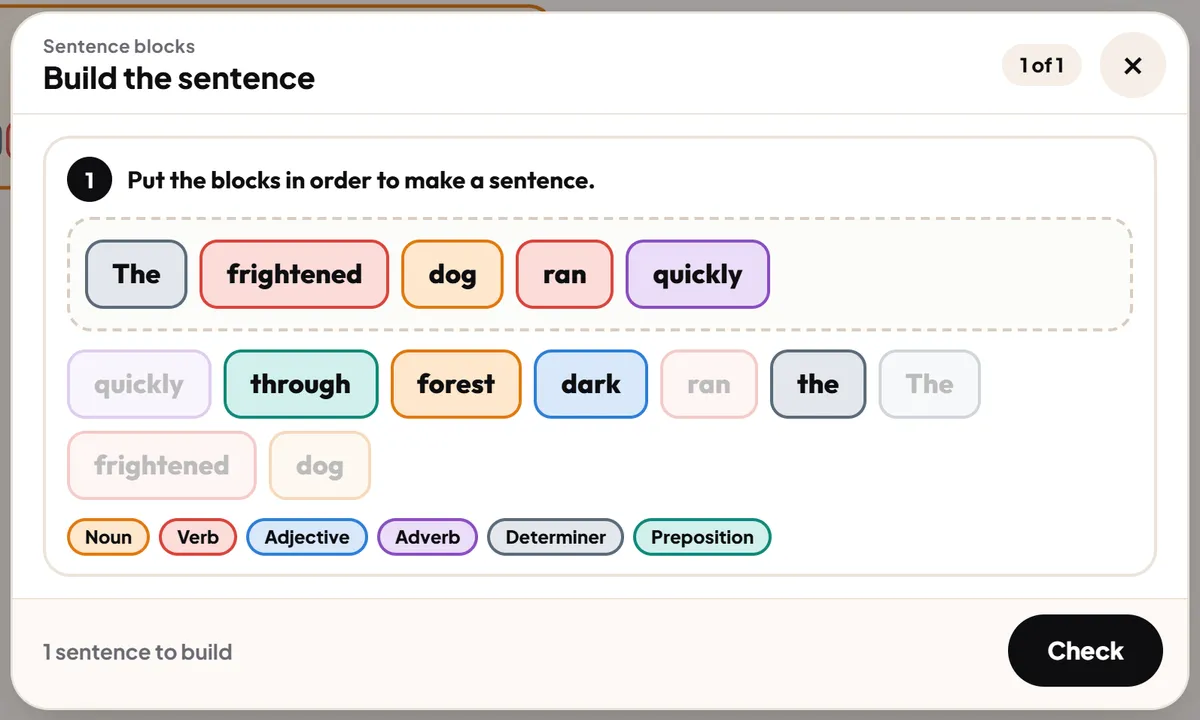
Pupils put coloured word blocks in order, with phonics, spelling and punctuation tools beside them.
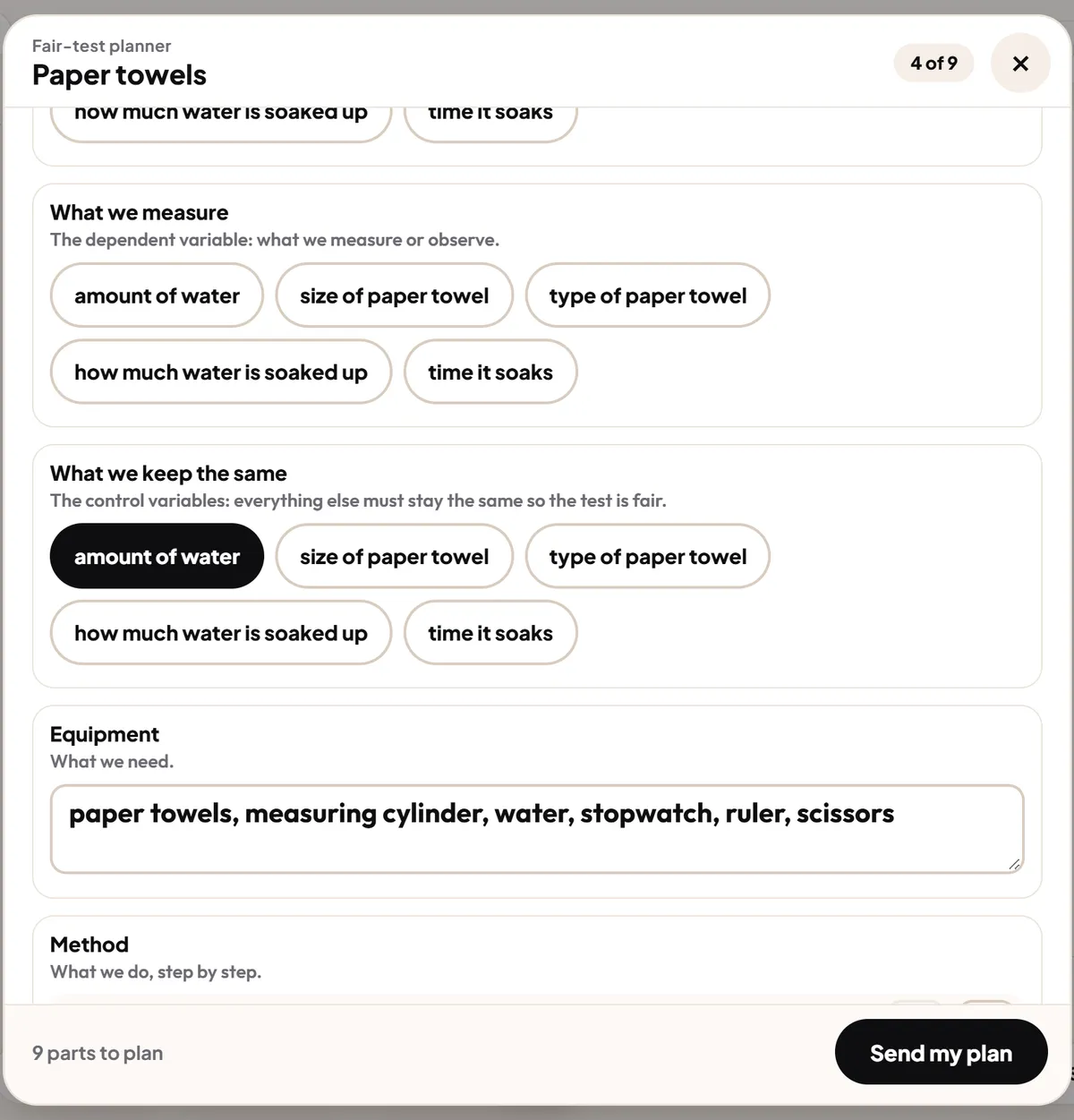
Pupils plan what they measure and what they keep the same, then send their plan to you.
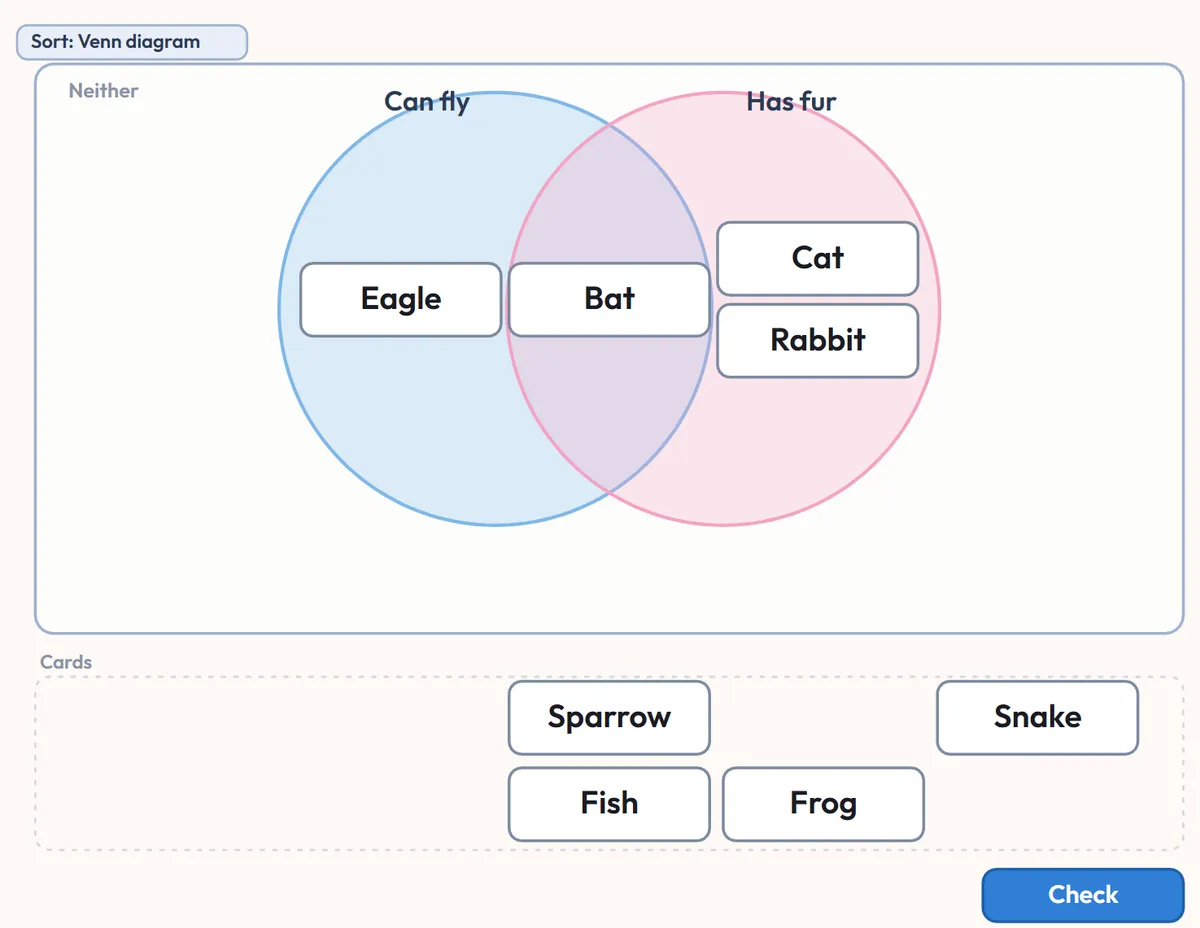
Sort cards into groups and write straight onto maps and sources.
Before the lesson, your AI can set up a worksheet’s answer boxes. In the lesson, RobAIn suggests ticks and crosses. RobAIn Pro does more of the setting up. You look, change what you like, and accept.
Nothing reaches a pupil until you accept it.
Meet RobAIn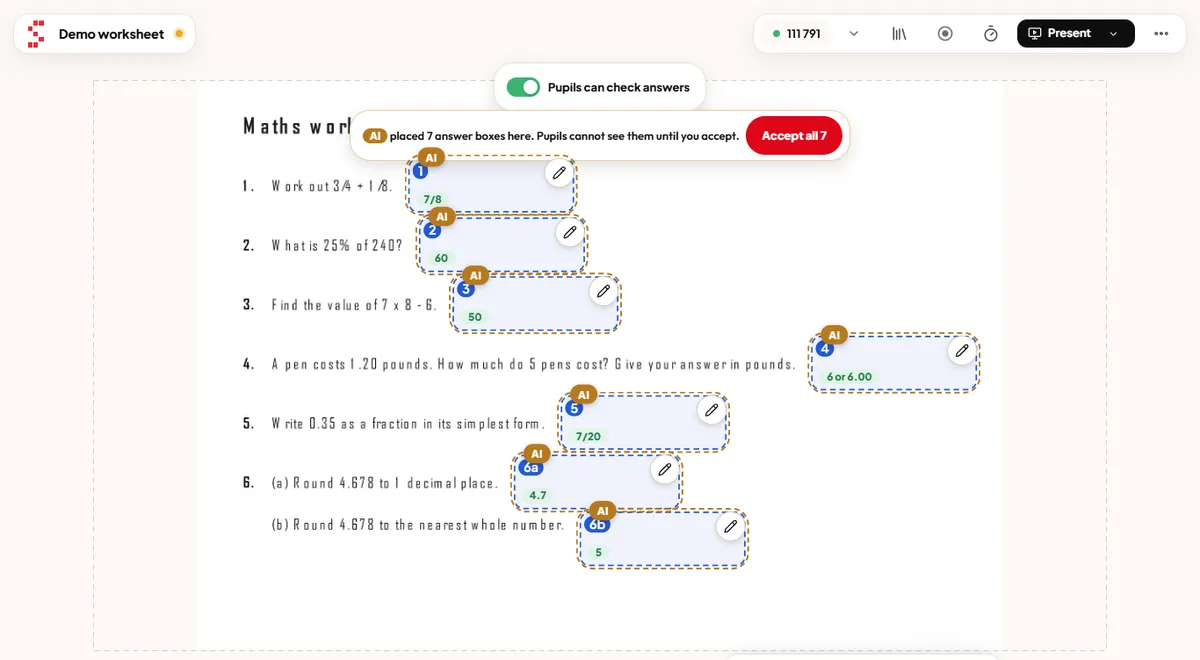
Rebuilding the same lesson every term? Plan once, teach one pupil or a small group, and keep a record of each child.
Four tutors, four ways to teach fractions? Give every teacher the same lessons and assessments, with results you can share.
Tutors scattered across homes and time zones? A login for each tutor, class links and your own branding put them all in one place.
A register to chase after every lesson? A live whiteboard for every teacher, with the class register kept as you teach.
More to ask? Try the live classroom or assessment and marking pages, or register interest to be first to see it for yourself.
No. Jotoro is for any subject. Maths, English, science and humanities each have their own tools and their own page, from place-value blocks to sentence builders and fair-test planners.
Yes. A shared library with locks means tutors teach the lessons you agreed and write on them, but cannot edit the original. Agency plans start at 3 seats. See what teams get.
No app to install. Pupils open your class link and sign in with their own name and PIN, on an iPad, laptop, Chromebook or phone.
Jotoro has no video call of its own. Pupils can join from home, so you run Jotoro beside the video call you already use.
Yes. Pupils join from anywhere with the class link, in a browser, so they can be at home, in another room or in another country. They do not need to be on the same Wi-Fi or school network as you. Each pupil still signs in with their own name and PIN.
No. Marking is done by Jotoro, and pupils can check their answers before they hand in. If you use RobAIn to prepare answer boxes or suggest marks, those suggestions wait for you. Nothing reaches a pupil until you accept it.
Free for one-to-one lessons with one pupil, then paid plans from £6.99 a month, billed once for 12 months. Pupils are always free, and every paid plan has a 14-day money-back guarantee. Register interest to be first in line, or see plans and prices.
Made by teachersCreated with the Singapore Maths Academy team: decades of teaching experience and more than ten years of teaching and training online, so each feature is here to save you time without cutting corners on your teaching. Why we built it
Register interest and we will tell you the day payments open. Pupils are always free, and there is a 14-day money-back guarantee on every paid plan. Running a school, tuition centre or tutoring company? Book a demo and we will build it around how your teachers teach.
Book a demo is for schools, tuition centres and tutoring companies. Pupils join by link: no app to install, no sign-up for them.