

Follow the steps
Finish the sitting
When the time is up, a card tells you Sitting finished. Pupils see nothing yet.
Open the results
Press See results. For an earlier sitting, find the assessment in the Assessments section of your home screen and choose See results.
Read the headline numbers
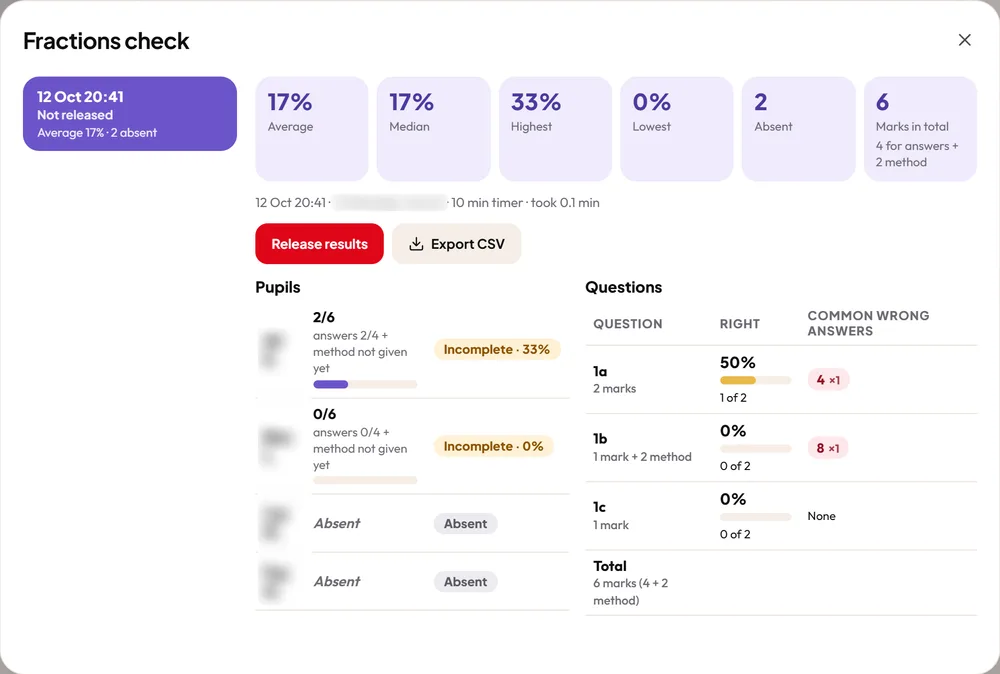
Along the top you see the Average, Median, Highest, Lowest, how many were Absent and the Marks in total.
Look at each question
The Questions table shows the percentage who got each one right, and the common wrong answers. That tells you what to reteach.
Look at each pupil
The Pupils list shows every pupil’s marks. A pupil who was away shows as Absent, so everyone has a result.
Watch the trend and compare sittings
Run the same assessment again later. Jotoro compares the sittings and shows each pupil’s trend, so you can tell whether the reteaching worked.
Release the results
When you are happy, press Release results. Only then can pupils see their score. Press Export CSV to take the numbers away.
Good to know
- Start with the question that has the lowest percentage right. That is your next starter.
- If many pupils give the same wrong answer, it is often a shared mix-up, not carelessness.
- Comparing sittings is not the same as comparing two pupils, which puts two boards side by side in a live lesson.
- To set up and run the sitting first, see how to run an assessment.
Common questions
When do pupils see their scores?
Only after you press Release results. Until then they see nothing.
What about pupils who were absent?
They get a result marked Absent, so the picture stays complete.
Can I compare two sittings?
Yes. Jotoro compares sittings and shows each pupil’s trend over time.
Can I export the results?
Yes. Press Export CSV.
Related guides
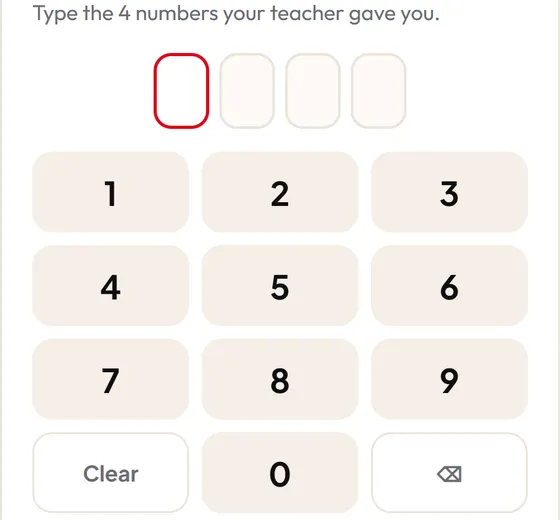 How to add a class and give pupils PINsRecords & register
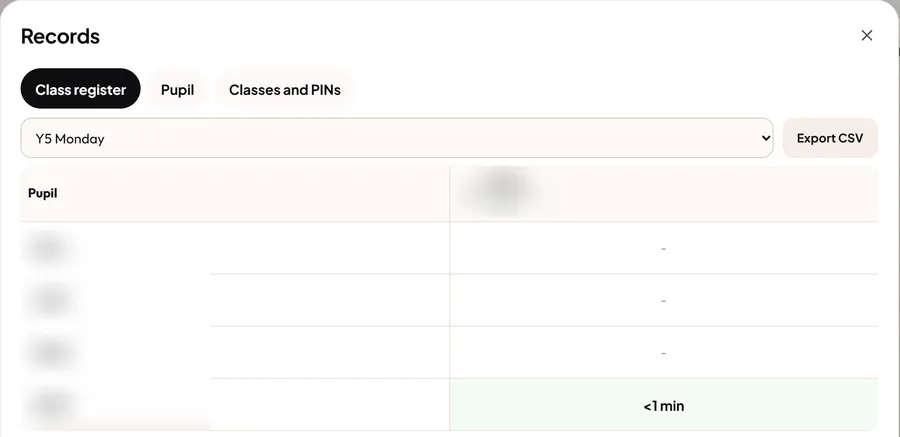 How to use the class registerRecords & register
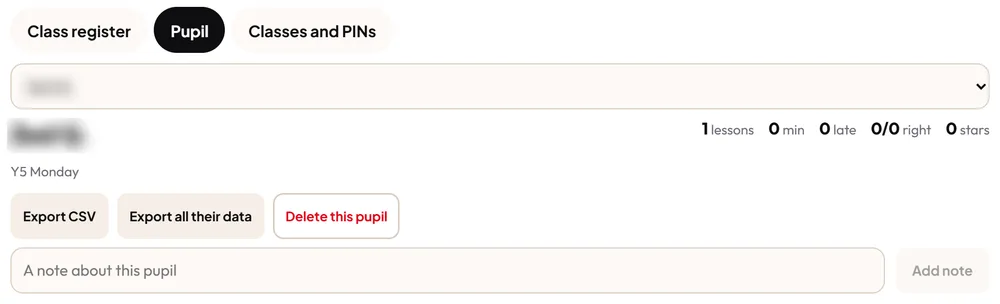 How to see a pupil’s timelineRecords & register
 How to get started with JotoroGetting started
Cannot find an answer?
Tell us what was missing and we will improve this guide.
Suggest an improvement