

Follow the steps
Open the Pupils panel menu
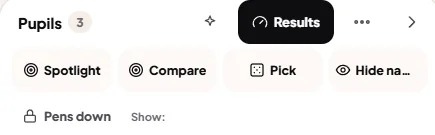
Make sure the lesson is live and at least two pupils are in. Compare is in the menu at the top of the Pupils panel, the three dots.
Choose Compare boards
Choose Compare boards. It puts two pupils’ pages side by side for the class to see.
Choose Pupil A and Pupil B
Choose which pupil is Pupil A and which is Pupil B. Pick two answers that differ in a useful way: one method against another, or a right answer next to a common mistake.
Pupil APupil BTalk through the difference
Ask the class, “What is the same? What is different? Which would you trust?” Use your pen to mark what you point at.
Good to know
- Choose Hide names in the same menu first and the comparison is about the work, not the child.
- Compare needs at least two pupils in the lesson.
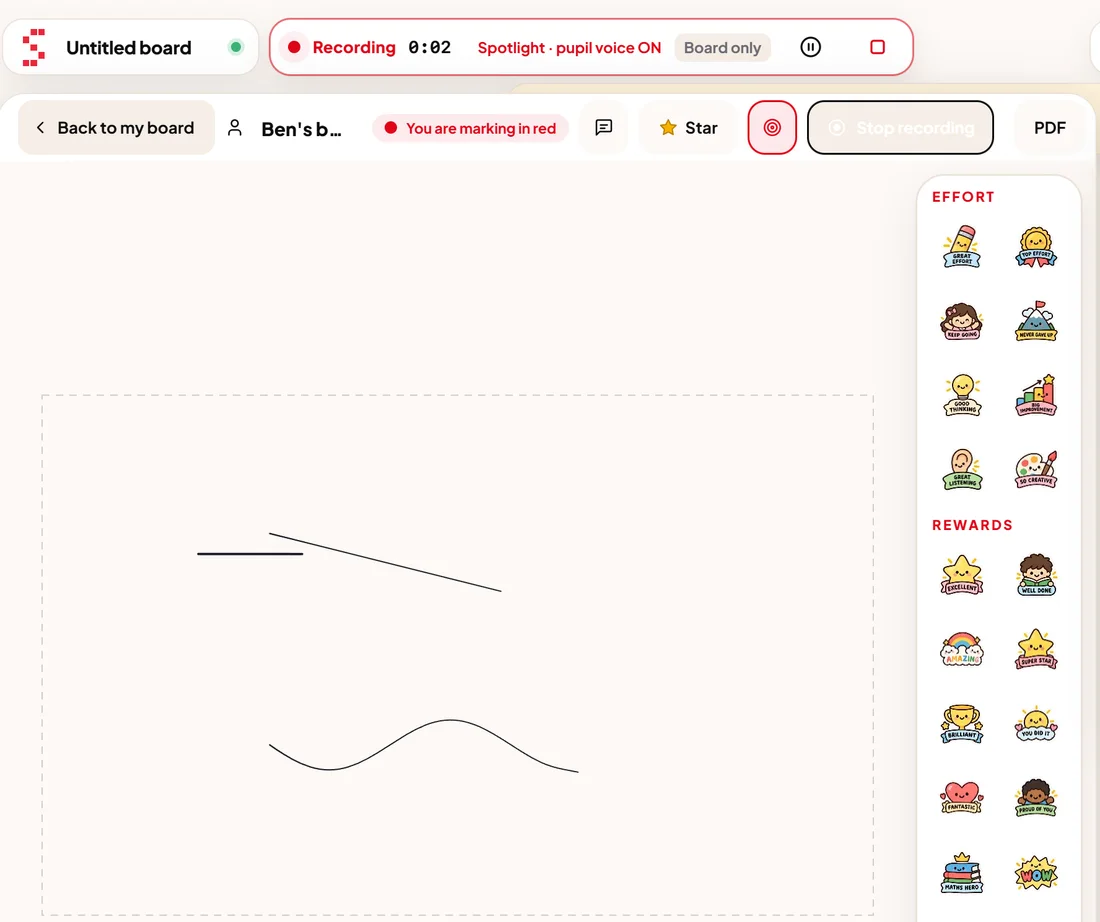
- To show one pupil to the whole class instead, use Spotlight.
Related guides
 How to start a live lessonLive lessonsHow to reveal pages, set a timer and use Eyes on me and Pens downLive lessons
 How to spotlight a pupil’s boardLive lessons
 How to get started with JotoroGetting started
Cannot find an answer?
Tell us what was missing and we will improve this guide.
Suggest an improvement