

Follow the steps
Find Present
It is the Present button at the top right of your board, beside the timer. The small arrow beside it has more options.

Turn Present on for the room
Use Present when the board is on a projector or a shared screen. The room sees a clean, full-screen page. A slim bar gives you the pen, eraser, select, text, pointer, tape, page arrows and Reveal next, so you can keep teaching. Press F or Esc, or the cross on the bar, to leave.
Your screenWhat the room seesUse it to record or stream
Present is also the mode to use when you record or stream a lesson, for example with OBS, a program that records or streams what is on your screen. What you capture is the lesson and not your tools. Use the small arrow beside Present for Show tools, which adds a slim tool rail down the left, or Student view, which shows what pupils see.
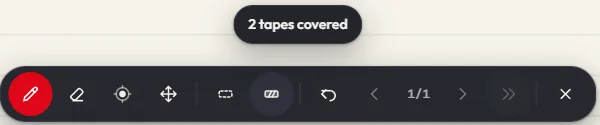
Check before you share
Look at the screen the room will see before pupils or viewers arrive. If you can see your tools there, switch it on again.
Good to know
- The Present bar has a Move bar button, so you can put it along the bottom or down either side.
- Reveal next works from the Present bar, so you can show pages without leaving Present.
- Present is about the screen the room sees. Your own board still works as usual.
- Want pupils to see only the pages you choose? See how to reveal pages.
Related guides
 How to start a live lessonLive lessonsHow to reveal pages, set a timer and use Eyes on me and Pens downLive lessons
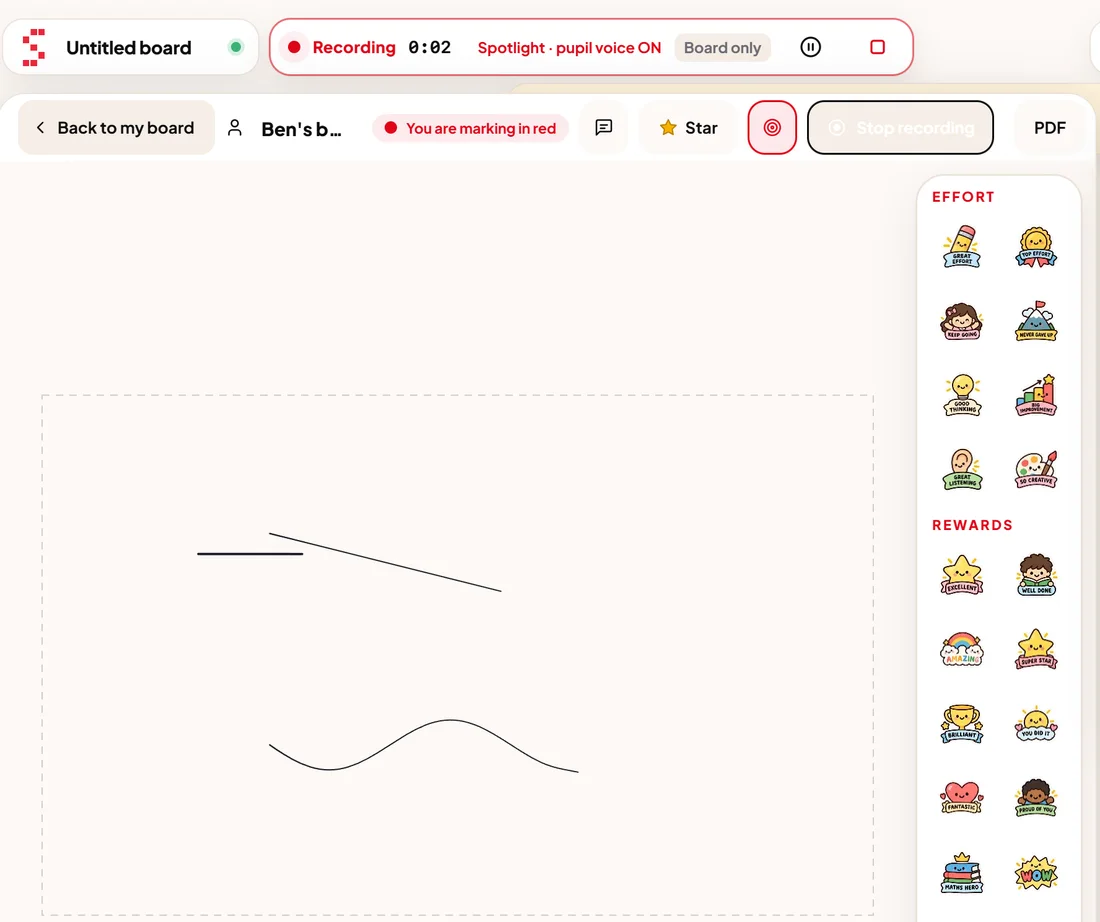 How to spotlight a pupil’s boardLive lessons
 How to get started with JotoroGetting started
Cannot find an answer?
Tell us what was missing and we will improve this guide.
Suggest an improvement