Set up your account from a photo
Classes, weekly slots, pupils, PINs and tutors, from a photo of your timetable.

Take a photo of your timetable. RobAIn Pro sets up your classes, slots and pupils, then sets and marks the homework, and shows you every change before it happens.
Works in and out of lessons. You see every change before it happens.
1You ask your sidekick
Set the Cells worksheet as homework for Year 8, with answer boxes.
Right away. I’ll show you every change first.
2It works in Jotoro
Previewed first. Nothing is final until you say OK.
3Ready for your OK

RobAIn Pro is the step beyond RobAIn in the lesson. It does what a teacher does, in and out of lessons: it sets up your account from a photo of your timetable, sets and marks homework, places answer boxes, looks after your Library, boards and lesson topics, reads your mark book and sets marks when you ask, and helps in live lessons. Every change is shown to you first, waits for your OK and can be undone. See every feature.
RobAIn Pro
Your sidekick sets things up and marks, with your OK.
You are reading about this oneEither way, you stay in charge. Everything the AI adds is labelled AI and hidden from pupils until you accept it.
A new term means classes, weekly slots, and a name and PIN for every pupil. Without RobAIn Pro you type them all in by hand.
With RobAIn Pro, you take a photo of the timetable and say what you need. RobAIn works out the classes, the slots, the pupils and the tutors, and lays the plan out for you to read. You say OK, or change a line first.
Snap the paper timetable on your phone and say what you want: “Set up my classes for this term.”
Classes, weekly slots, pupils, PINs and tutors appear as a list of changes to read. Nothing is saved yet.
Accept the lot, change a line or leave one out. Low-risk changes can be set to go through on their own. Every change can be undone.
Classes, weekly slots, pupils, PINs and tutors, from a photo of your timetable.
Pick the pages and the due date, then see who has handed in and what still needs your eye.
It reads a worksheet and puts a box beside each question with the right answer in, labelled AI.
Import PDFs, name and file them, add answer keys and set up assessments.
Boards and lesson topics kept tidy, and marks set in your mark book when you ask, for you to check.
RobAIn helps in live lessons too.
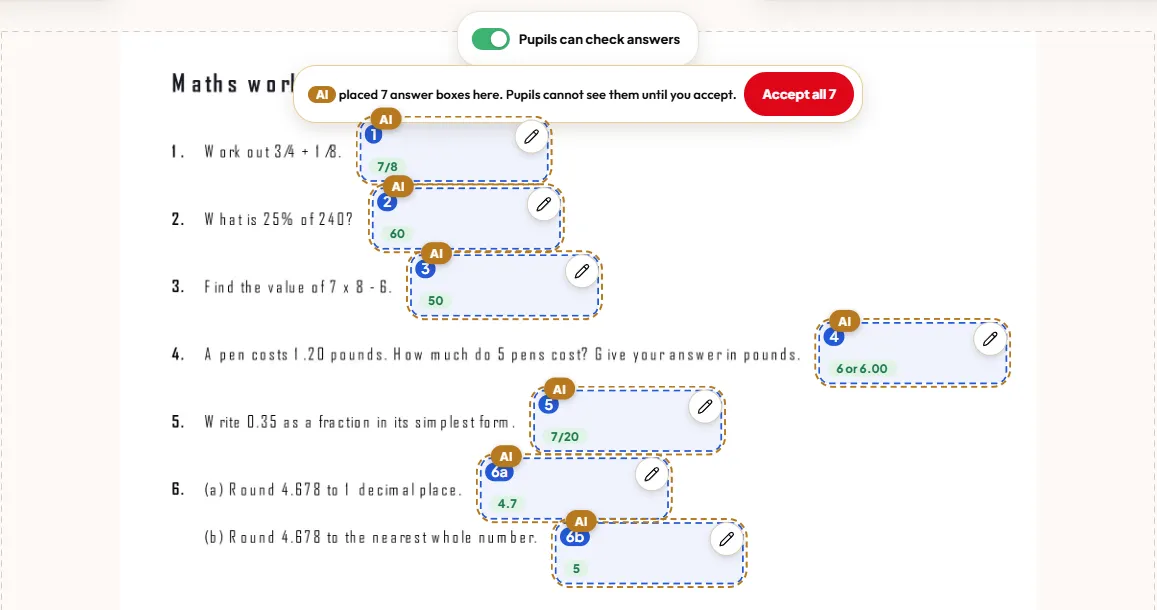
It tells you who might need help and proposes marks for you to accept. Pupils see nothing until you say yes.
Bring a PDF worksheet into your Library and place answer boxes with the right answers in, ready for you to check.
Account set-up from a photo, homework, the Library, boards and your mark book.
You see every change, labelled AI, before it happens. Nothing is saved until you say so.
Low-risk changes can be set to go through on their own, if you choose. The rest always wait for you.
If it is not what you meant, undo it. Every change is logged, so you can see what was done.
Press Disconnect whenever you like. Anything you have not accepted stays hidden from pupils.
Jotoro does not lock you to one AI.
Built on open standards (MCP) so more AI tools can work with Jotoro.
What each plan includes is on the pricing page. We keep it in one place, so it is always up to date.
Pupils are always free. Tuition centres and tutoring companies start at three teachers.
See plans and pricesBack to all Jotoro features, or see plans and prices.
Your sidekick in live lessons, available now: who might need help, how the class is doing, and ticks for you to accept.
Turn a worksheet into a lesson the class can answer.
How Jotoro looks after your lessons and your pupils’ work.
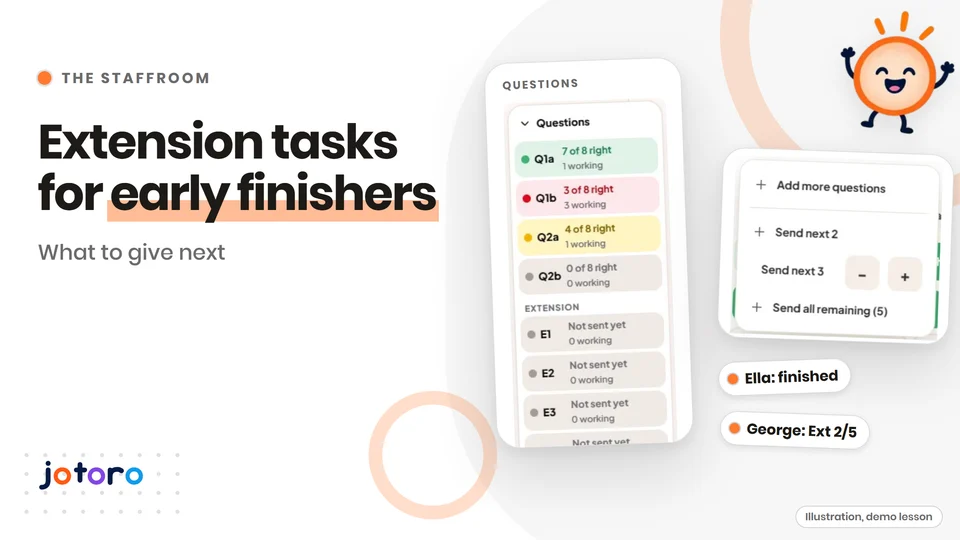 From the StaffroomExtension tasks for early finishersFive kinds of extension task that deepen the thinking instead of adding more of the same, and how to hand them out without a queue.Read the post
Yes. It works today, in and out of lessons. Everything it does is shown to you first and waits for your OK. RobAIn Pro is part of the Pro plan and above, including agency and school plans. See plans and prices.
What a teacher does, in and out of lessons. It sets up your account from a photo of your timetable (classes, weekly slots, pupils, PINs and tutors), sets and marks homework, places answer boxes, looks after your Library (PDF import, answer keys, assessments), manages boards and lesson topics, reads your mark book and sets marks when you ask, and helps in live lessons.
No. Every change is previewed and waits for your OK. If you choose, low-risk changes can go through on their own. Every change can be undone.
You send a photo of your timetable. RobAIn proposes a list of changes: the classes, the weekly slots, the pupils with their PINs, and the tutors. You read it in Jotoro, then approve it, change it or leave parts out.
Connect once. Paste the setup once into your own AI app, then just say “I’m starting my Year 9 lesson” and RobAIn finds it and joins. You renew the connection now and then.
The one you already use, connected through open standards. We do not name any AI until we have tested it with Jotoro, so we will not promise one that is not ready.
Only what you allow. When you set it up you choose what it may do: Read, Suggest and Edit. It can look at pupils’ boards after lessons and homework, and you can switch that off. Press Disconnect to cut it off.
Yes. Press Disconnect to switch it off. Anything it placed that you have not accepted stays hidden from pupils, and every change it makes can be undone.
RobAIn is your sidekick while you teach. It tells you who might need help and suggests ticks, crosses and comments for you to accept. Meet RobAIn.
Register interest and we will tell you the day payments open. Pupils are always free, and there is a 14-day money-back guarantee on every paid plan.
Pupils join by link: no app to install, no sign-up for them. See plans and prices.