

You will need a class set up in Jotoro.
Follow the steps
Turn on picture sign-in
Tap ⋯, then Settings, then Pupil sign-in, and choose Sign in with a picture (good for younger pupils).
Print the picture cards
Press Print picture cards and give each pupil their card.
Pupils tap their picture
On their own screen, each pupil sees Tap your picture and taps theirs.
Good to know
- No reading is needed.
- Print the cards once.
- Pupils get the same board every time.
- Older pupils can keep using a name and PIN.
Common questions
Do I need to print new cards every lesson?
No. Print the cards once.
Will a pupil get the same board each time?
Yes. It is the same board every time.
Related guides
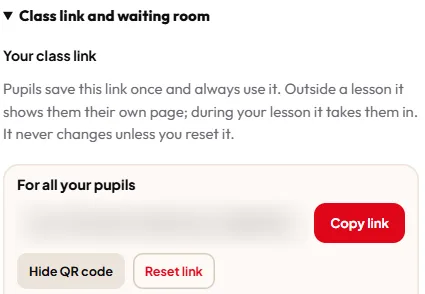 How pupils join with the class linkPupil boardsWhat can pupils see on their board?Pupil boardsHow does the class link work?Pupil boards
 How to get started with JotoroGetting started
Cannot find an answer?
Tell us what was missing and we will improve this guide.
Suggest an improvement