

Follow the steps
Turn on Add marks
On your own page, press and hold (or right-click) the page in the page strip, open More options and choose Add marks. A bar appears with Add marks turned on, and later it says Done. On a pupil’s page in the marking view, the same Add marks button sits in the bar.
Place a pill on each question
Tap an empty spot beside a question to place a pill that says “1 mark”. Tap the same pill again for one more mark, up to 20. The bar shows the total, for example “Out of 6”.
Let Jotoro offer the marks
If the page says “(2 marks)”, “[3]” or “2 marks” beside a question, Jotoro offers a pill there as a dashed outline. Tap one to place it, or press Use N pills to place them all.
Tidy up
Drag a pill to move it. Press and hold a pill, or right-click it, to take a mark off or Remove it. Every change is one step you can undo.
Press Done
Press Done when the pills are in place. The pills belong to the page, so they show on every pupil’s copy of it.
Mark a pupil’s page
Open the pupil’s work to mark it. Each answer box has a pill. Tap the pill to give 1 mark, tap again for 2, again for 3, and once more to go back to 0. Mark each box the same way and the total adds up. Pills you placed with Add marks work the same way: tap one to give marks. A pill worth four or more marks opens a row of numbers to choose from. Grey means not marked yet, green is full marks, amber is part marks and red is none, and each pill always shows its number.
Read the totals
The page total appears as, for example, “4 / 6”, and the pupil’s tile in the Pupils panel shows their running total. Pupils see their own pills and marks, but cannot change them.
Good to know
- Answer boxes already have a pill, worth the marks set on that box. Here is how to set them.
- Pills work the same way in homework. Open a handed-in piece of work to mark it and the mark combines answer boxes and pills, for example “Total 12/15 (80%)”.
- Answer boxes mark themselves. Use pills for the questions where pupils write or draw and you decide the marks.
Related guides
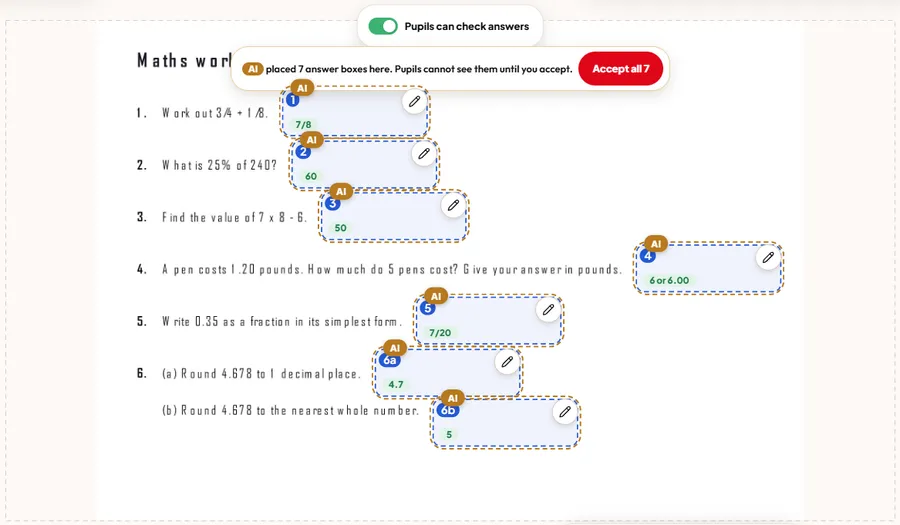 How to add answer boxes and mark a worksheetMarking & answer boxes
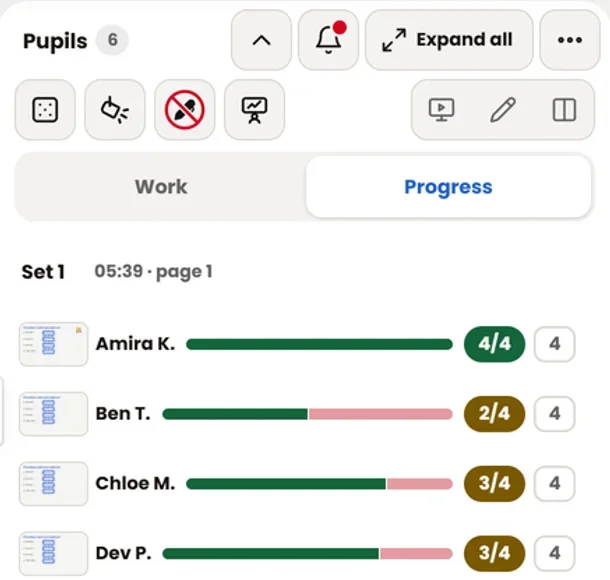 How to use the live question trackerMarking & answer boxes
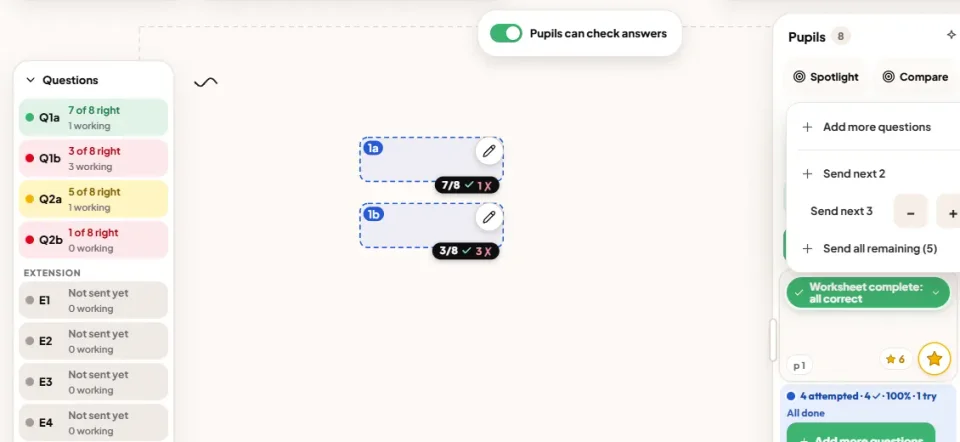 How to send extension questions to early finishersMarking & answer boxes
 How to get started with JotoroGetting started
Cannot find an answer?
Tell us what was missing and we will improve this guide.
Suggest an improvement