

You will need a board with the orb showing.
Follow the steps
Find the orb
The orb sits at the bottom right of your board. Click it and say what to do.
Turn it off
Right-click the orb and choose Turn orb off.
Bring it back
Tap ⋯ More and choose Orb on.
Know what it looks like
The orb is the Jotoro face for everyone. The older looks, such as Marble, have gone, and the face colour you chose is kept.
Good to know
- Click the orb and say what you want done.
- Right-click it to turn it off.
- Pupils never see it.
- While you speak, the newest words always stay in view.
- Learn what the AI can and cannot do in this guide.
Common questions
Can pupils see the orb?
No. Pupils never see it.
Can I get it back after turning it off?
Yes. Tap More and choose Orb on.
Related guides
 How to connect your own AIAI assistant
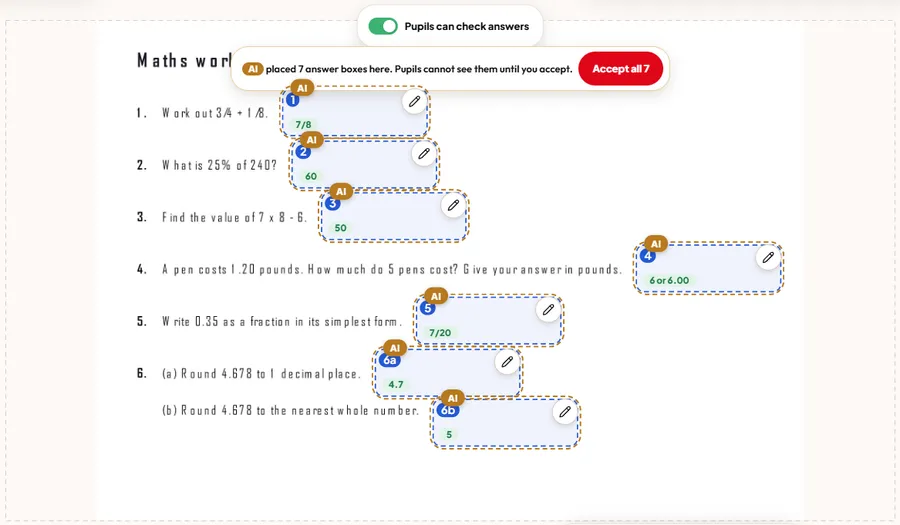
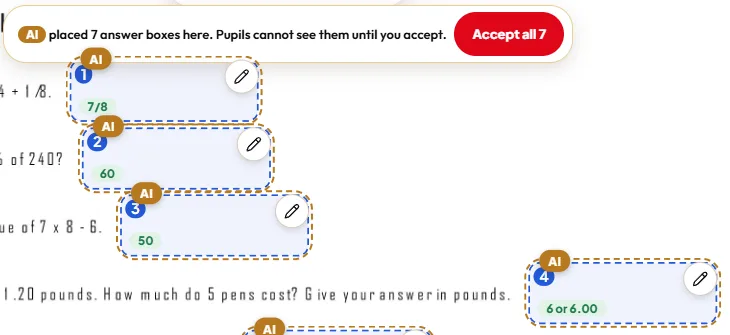 How to accept or reject what the AI suggestsAI assistantHow to let your AI place answer boxes on a worksheetAI assistant
 How to get started with JotoroGetting started
Cannot find an answer?
Tell us what was missing and we will improve this guide.
Suggest an improvement