Will AI take over my lesson?
Picture a group of six on a Tuesday evening. Five are writing. One has stopped, pen still, and has said nothing. Now someone tells you an AI will “help with the lesson”. Most teachers hear that and wince, and fairly. You do not want a machine running your lesson, marking your pupils or talking over the part of the job you are good at.
That worry is fair. Everything about how Jotoro works with an AI is built around one idea: the teacher stays in charge.
Who leads the lesson?
You do. Your AI can suggest, but it cannot decide.
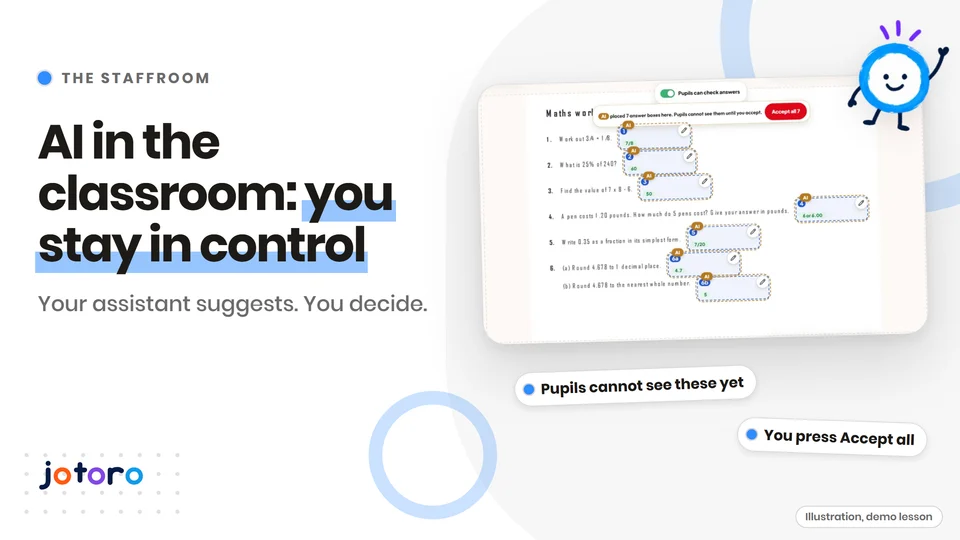
- Everything your AI adds is labelled AI and stays hidden from pupils.
- Nothing reaches a pupil until you accept it.
- Marking stays in Jotoro. The AI never marks a child on its own.
- You can switch it off whenever you like, even in the middle of a lesson.
Think of the AI as a quick, keen new colleague. Its suggestions are useful, but check them before you rely on them. If you would rather not use AI at all, Jotoro works fully without it.
What does the AI assistant do in Jotoro?
It does a few small jobs that take up your time. It does none of the teaching itself.
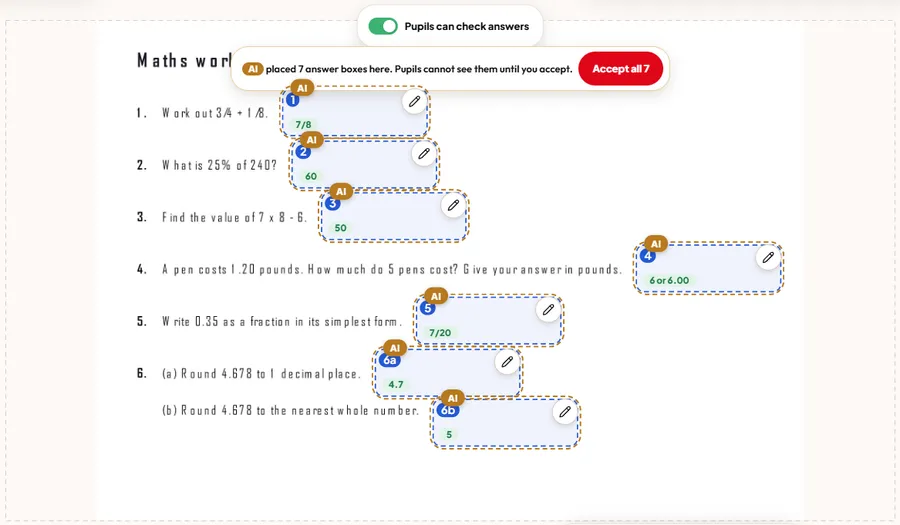
Before the lesson, it reads a worksheet. This is the setting-up side of Jotoro, which RobAIn Pro takes further: your own AI works in your account. It finds the questions and places answer boxes with the answers it thinks are right. That is the slow part of setting up self-marking, and it is where an AI can save you an evening. Each box is labelled AI, and pupils cannot see any of them yet. You check them. If one is wrong, select it and delete it. If you are happy with the rest, press Accept all. Only then do the boxes reach pupils, and only accepted boxes mark pupils’ answers.
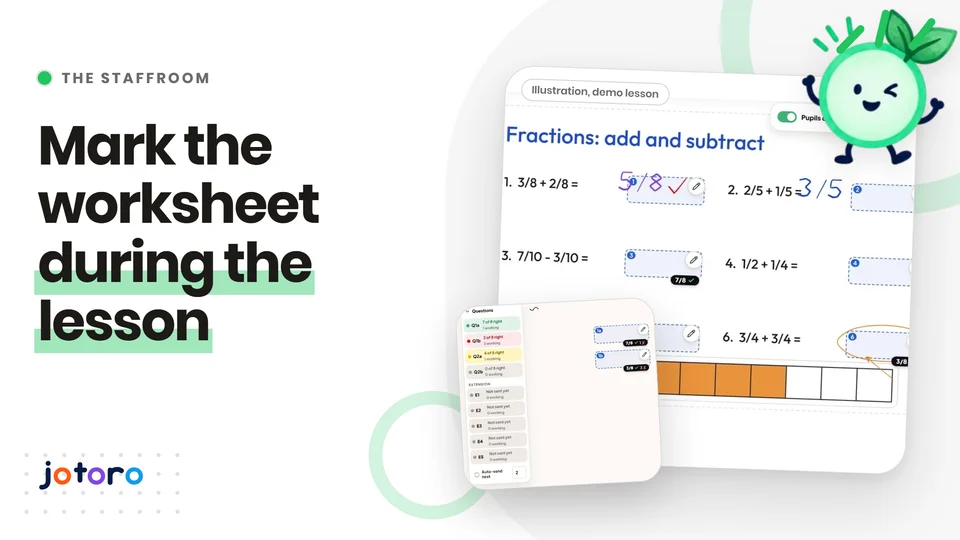
During the lesson, it suggests and flags. This is RobAIn, your assistant while you teach. It can suggest a tick, a cross or a comment, and it can say who might need you, for example “Ben got question 2 wrong and may need help with adding.” You still decide who to go to and what to say.
What it does not do. It does not teach, it does not mark a child unsupervised and it does not show a pupil anything you have not accepted.
How does it help every pupil feel heard?
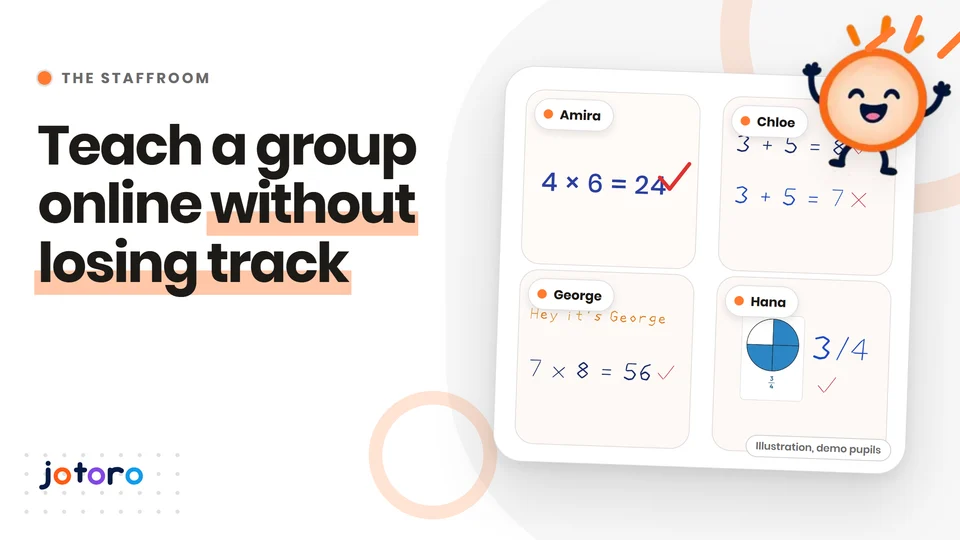
The hard part of teaching a group is attention. You have six boards and two eyes. The pupil who asks loudly gets answered. The quiet one who went wrong on question two and carried on for four more questions does not, and not because you do not care. You cannot be everywhere at once.
This is where an assistant earns its place. Back on that Tuesday evening: you are explaining a method to one pupil, and you quietly ask your AI who might need you. It tells you one pupil got question 2 wrong and has stayed on the same idea since. You finish your sentence, turn to that pupil and say, “Show me how you got that.” They were stuck, and now someone has noticed.
The AI never spoke to the child and did not tell them they were wrong. It told you where to look. A child in a group wants to feel seen by their teacher, and the AI frees you to do that. Because you check everything it suggests, the feedback pupils get has always passed through you.
It also gives you back the time before the lesson. Less of your evening goes on typing answer boxes, so more of it goes on thinking about the six children who are coming. For more on seeing a whole group, see how to teach a group of children online.
Can I use an AI I already have, even a free one?
Yes, with some honest limits. Jotoro does not choose an AI for you and we add no AI charge. You use the one you already have. Setting it up takes a minute:
- Open the Live lesson menu and find RobAIn, your AI assistant.
- Tap Set up RobAIn, choose what it may do (Suggest, and Edit if you want it to place answer boxes), then Copy setup.
- Paste it once into your AI app, following that app’s own steps for adding a connection.
- To switch it off, press Disconnect twice.
Some free AI accounts allow one custom connection, which is the kind of connection Jotoro uses. Check your own AI’s steps, because not every AI app lets you add a connection. Here is what to expect, plainly:
- It answers when you ask. A free chat app does not watch your lesson by itself. At a natural pause you ask it, “How is the class doing?” and it answers from what it can see.
- Free accounts have limits. On a long teaching day a free account can run out of messages. A paid account usually gives you more room.
- The connection is part of every paid plan. We charge nothing for the AI itself, but connecting your own AI is part of every paid plan. See plans and prices.
- It works with Jotoro from anywhere. Connecting your AI works with the online version, so you can use it at home, at school or at a tuition centre.
If you would rather not connect anything, there is a simpler way in. Make a quiz gives you a ready prompt with a copy button. You paste it into the AI app you already use, paste its answer back, and Jotoro checks it, shows a preview and builds the quiz. Nothing is ever sent to an AI from Jotoro.
How do I keep pupil data careful?
Treat your AI the way you treat any other tool that sees your class.
- Keep pupil names to first names or initials whenever your AI can see them.
- Check your AI’s training and data setting. Most AI apps have a setting for whether your chats can be used to improve the AI. Look at it and choose what suits you.
- Follow your school’s data rules. If your school or centre has a rule about AI, it applies here too.
- Keep the setup to yourself. Do not paste it into a message or onto a board a pupil can see.
Inside Jotoro, pupils never see the AI assistant card, its setup or its suggestions. They see only what you have accepted.
How do I try it in one lesson?
Do not change your whole routine. Pick one lesson with a worksheet you already use, and try the assistant on the two jobs that save the most time.
Afterwards, ask yourself where your attention went. If more went to the children and less to admin, the assistant did its job. If not, switch it off and carry on as before.
The Jotoro Academy guides cover it in more detail: what your AI can and cannot do, how to accept or reject its suggestions and how it places answer boxes. For the group-lesson side, see small group tuition. You can register interest to try Jotoro if you are a tutor, and plans and prices are there when you want them. There is a 14-day money-back guarantee.