What makes an interactive whiteboard lesson work?
It is easy to buy a board and use it as a very expensive projector. The screen is interactive only when the children are. That means two things: there is something on the screen that is worth thinking about, and every child does something with it before you move on.
Picture the difference. In one lesson you show a fraction wall and ask who knows which is bigger, and the same three hands go up. In another you show the same wall and say, “Write down which is bigger and why, then hold it up on three.” Now thirty children have committed to an idea and you can see all of them. The board is the same. The lesson is completely different.
What are the best interactive whiteboard ideas for primary?
None of these needs anything but a screen and a few minutes of preparation.
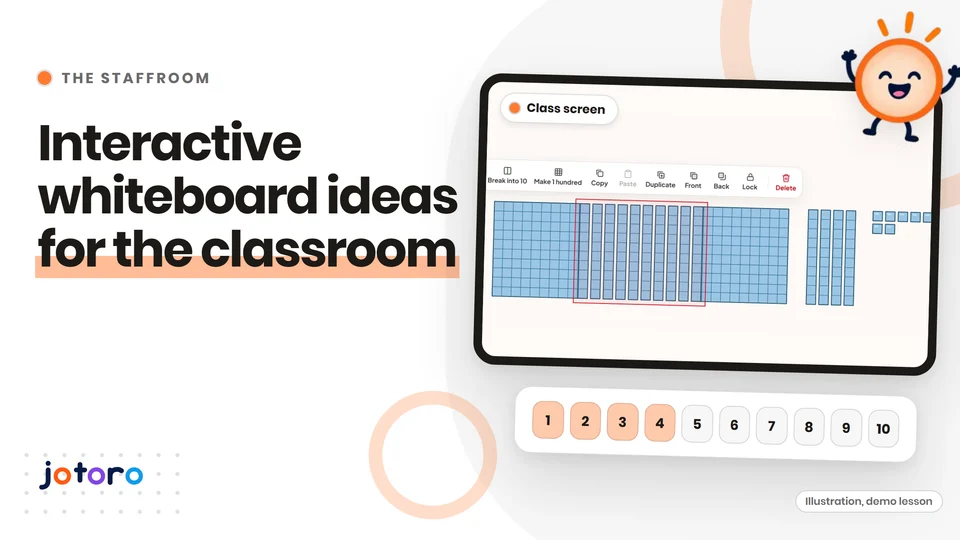
- Something to move. Maths is much easier to see when you can touch it. Blocks that break into tens and ones, a fraction wall, a clock with moving hands, coins and notes, a number line with jumps. A child comes to the front, moves it and says what they did. The class says whether they agree. For two worked sequences, see Dienes blocks and fraction walls online.
- Label it. Put a diagram on the screen, a plant, a map, a food chain, and ask the children to place the labels. It works for science, geography and history, and it exposes a misconception in seconds.
- Sort it. Put cards on the screen and sort them into groups: living and non-living, odd and even, nouns and verbs. A Venn diagram is a fine way to get children arguing about where something goes.
- Mark it up. Put a short passage on the screen, and ask the class to underline what they notice: adjectives, a clue, a word they do not know. English lessons become much more active when children mark the text and not just read it.
How do you put a set of questions on the board quickly?
Typing ten questions into slides takes ten minutes, and that is ten minutes that you would rather spend on the children. There are three quicker routes, and the right one depends on where the questions come from.
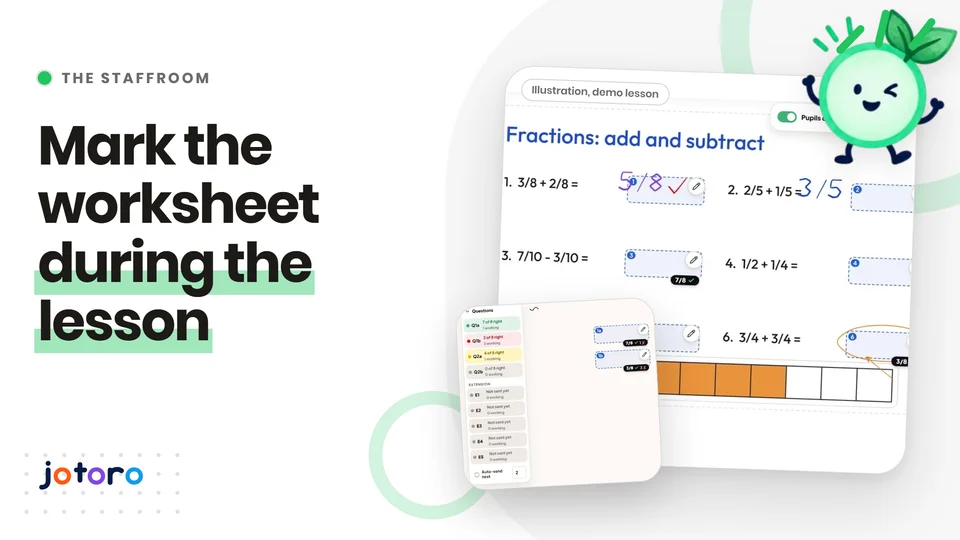
If you already have a worksheet, use it. Scan or export it as a PDF and put it up as it is. Ten questions on one page, all visible, is often exactly what you want for a quick starter or a plenary. If you want the children to answer, attach an answer box to each question, so you can see how many got it right as they go.
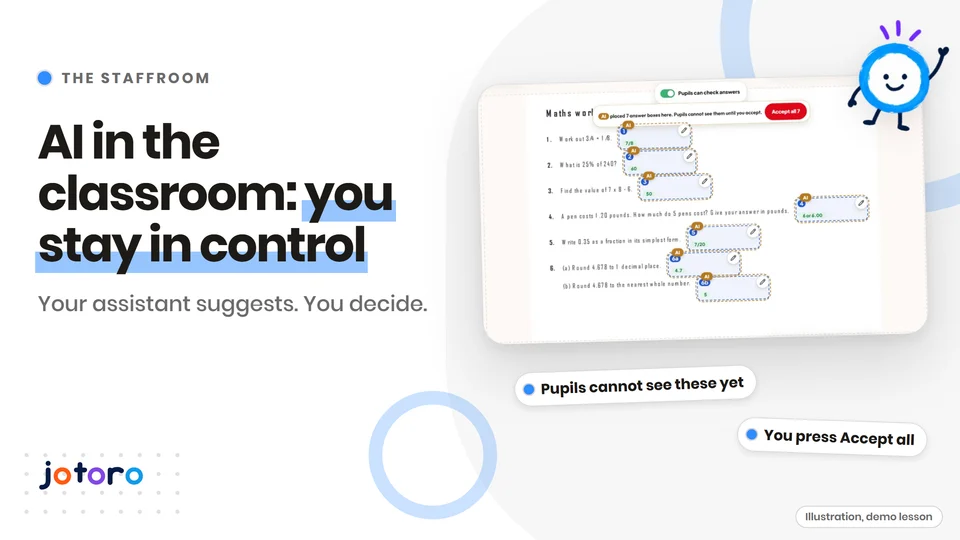
If you do not have one, ask the AI you already use to write a quiz for you. Tell it the age group, the topic and how many questions, and what kinds you want: a number answer, multiple choice, true or false, put in order, match the pairs. Read it through before you use it, the way you would check any worksheet you did not write. Questions you are not happy with are quicker to change than to write.
The question makers. The third route is generated practice: rapid, automatically marked questions made in seconds at the level you choose, for example when the class has done every two-digit by two-digit question and not quite got it. Pick a question maker in the quiz maker, set the level and how many you want, and each pupil can get their own set.
How do you check what every child understands?
This is the heart of a good lesson, and the most useful thing a screen can do. The classic tool is the mini whiteboard: every child writes an answer and holds it up on your signal. Used well, it gives you a view of the whole room in two seconds. It also means no child can hide behind the quickest answer.
A mini-whiteboard check in five steps
- Ask one question on the screen. Keep it short.
- Give thinking time, then say “write”. Nobody speaks.
- Everyone shows their answer on “three, two, one”.
- Scan for the common wrong answer, then ask why somebody might choose it.
- Decide: teach it again, send on, or give a small group a few minutes of your time.
The same routine works with devices. If each child has a tablet or a laptop, they can write on their own board and you can see them all, which is a lot like walking round the room, only quicker. For a more detailed look at checking understanding, see formative assessment in live lessons.
How does Jotoro help in the classroom?
In a physical lesson, the class screen is your board and the children’s devices, if they have them, are their mini whiteboards.
On the class screen you have the tools you would otherwise carry in boxes: blocks, fractions, clocks, coins, number lines, a geoboard, algebra tiles and more for maths, and label, sort and connect activities for science and other subjects, plus reading tools for English. A tool can be sent to pupils as a ready-made starting point. You can also draw, write and mark up in the pen style that feels like a real pen on paper, and reveal pages one at a time.
To get questions up fast, import the worksheet you already have as a PDF, including multiple-choice papers, and add answer boxes. Or make a quiz with the AI you already use, paste it in and run it. The quiz maker has ten question types, and it marks typed, keypad and selected answers for you. It does not mark essays or long written answers: those stay with you.
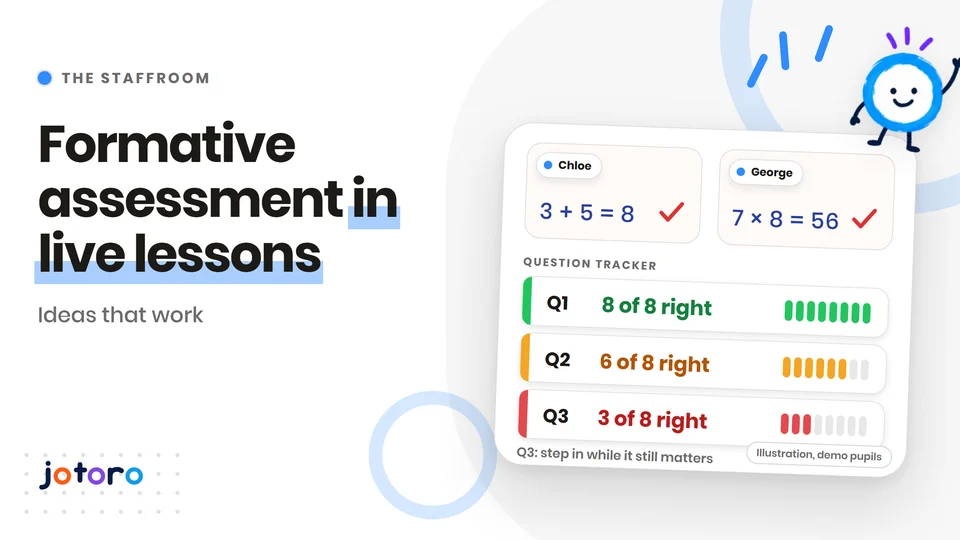
If pupils have devices, they join with your class link, each on their own board, in the room or at home. You see every board live, a question tracker shows how many got each question right, and you can spotlight one child’s work on the class screen. Run an online assessment when you want results by question, with a mark scheme, a timer, and scores released only when you are ready. When you explain something well, record that moment with your voice and keep the replay, which stays sharp on any screen, for when the idea comes round again.
What about secondary classrooms?
Most of this is primary-first, because that is where the hands-on ideas matter most. Secondary teachers can use Jotoro too, and some of the ideas carry over well: a worksheet or past paper put up with answer boxes, a quick poll before you reveal an idea, a live check of what every pupil wrote, and a replay of the method you explained.
There are a few extras. The scientific calculator shows only on boards tagged for secondary, so younger classes are not distracted by it, and there are graphing and measuring tools for maths and science. We think that primary classrooms will get the most from Jotoro, and secondary teachers will probably use it less often, for particular lessons rather than every one. We would rather say so than oversell it.
If you are choosing for a whole school, see Jotoro for schools. If your focus is quick checks, online mini whiteboards is a good place to start, and how to mark a worksheet during the lesson shows how to use answer boxes in a live lesson. For subject ideas, see science teaching ideas and history and geography teaching ideas, and to keep your best explanation, read how to record a lesson once and reuse it as a support video. A teacher can register interest to try Jotoro on your own worksheet, a school can ask for a demo, and plans and prices are there when you want them. There is a 14-day money-back guarantee.